Eneris AI
Eneris AI is an assistant that writes your observations into the Inspection Form while you inspect. Type or dictate a note, or send a photo, and Eneris AI drafts the change for you: the right component, the right fields, and the wording in your style.
It can also proofread your comments, check them for consistency, and answer questions about what the form already records.
You stay in control. Eneris AI never edits your form directly. Everything it drafts arrives as a suggestion, and nothing changes on the form until you accept it.
Eneris AI is in Beta. It is available to every team, but it stays off on each device until you turn it on.
Turning on Eneris AI
Eneris AI is a Device preference, so you turn it on separately on each phone, tablet, and computer you use. Each web browser counts as its own device.
- Select Preferences in the sidebar.
- Under Device preferences, set Eneris AI to
Enabled.
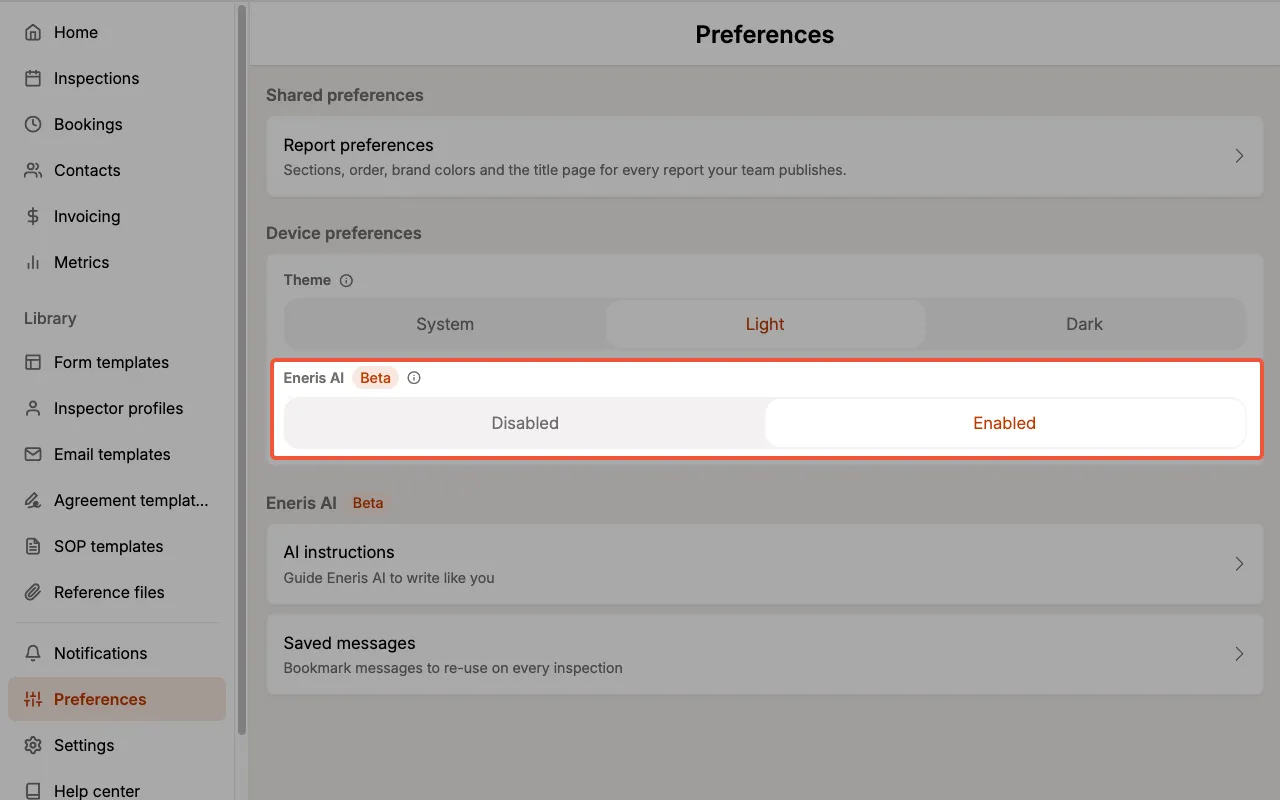
Once it is enabled, an Eneris AI section appears on the Preferences page with your AI instructions and Saved messages.
Set it back to Disabled at any time to hide Eneris AI on that device. Your chats and suggestions are kept, and they are waiting for you when you turn it on again.
Where to find Eneris AI
Eneris AI works inside Inspection Forms only. It does not appear while you edit a Form Template.
Open any Inspection Form and you'll find Eneris AI in four places:
- Form Tab Bar: Eneris AI is the first item in the Form Tab Bar. Select it to open or close the Eneris AI panel.
- Component cards: the AI button at the left of every component opens the notes for that component.
- Categories: the button labelled with the category name, at the top of a category's components, does the same for the whole category.
- Form sections: an AI button sits beside the General limitations, General remarks, Property details, and Internal memo headings, and beside each category's Limitations.
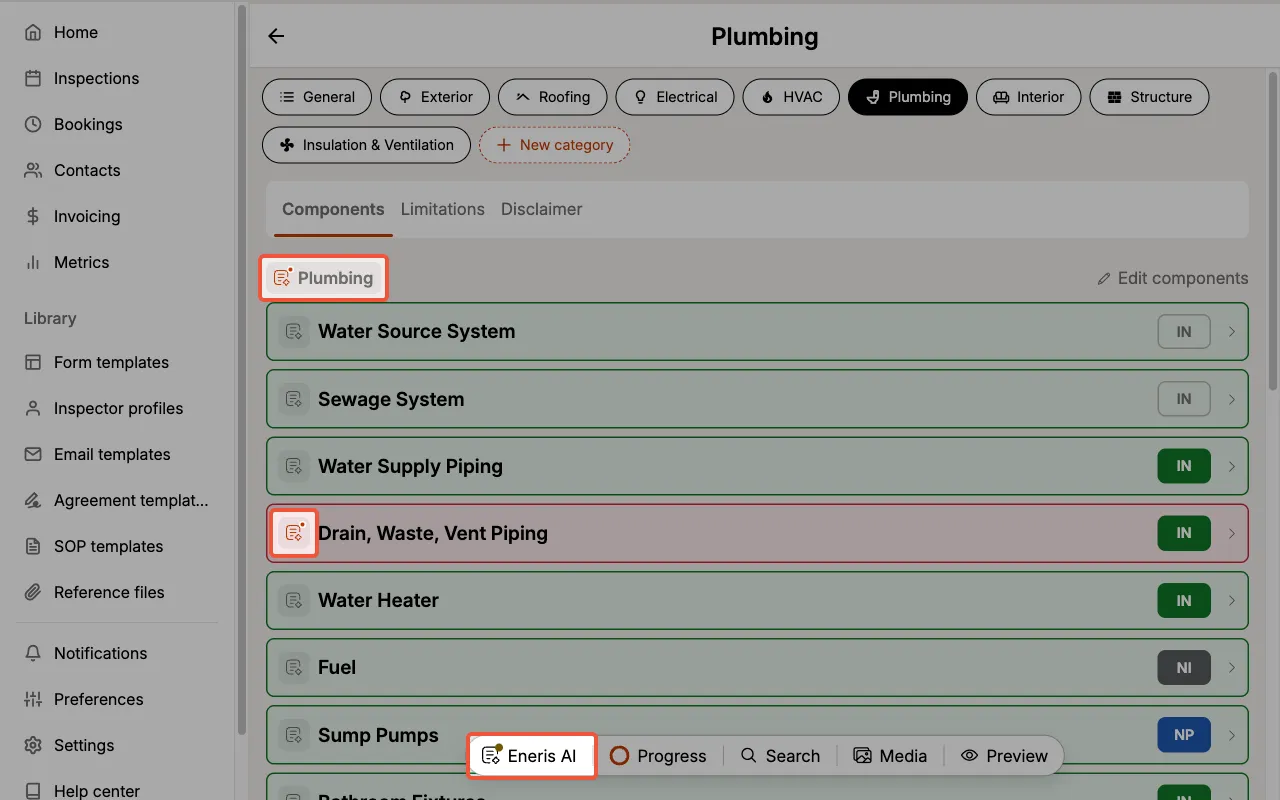
A dot on an AI button tells you what is going on:
- A pulsing dot on Eneris AI in the tab bar means Eneris AI is working.
- An orange dot means Eneris AI has a question for you.
- A steady dot means suggestions are waiting for your review. On a component or category, it means that part of the form has suggestions waiting.
The Eneris AI panel
The panel is where you talk to Eneris AI and review what it suggests.
On a desktop computer, the panel docks to the right of the form so you can work on both at once. Drag its edge to make it wider or narrower; Eneris remembers the width on that device. The Media folder panel can stay open beside it when the window is wide enough.
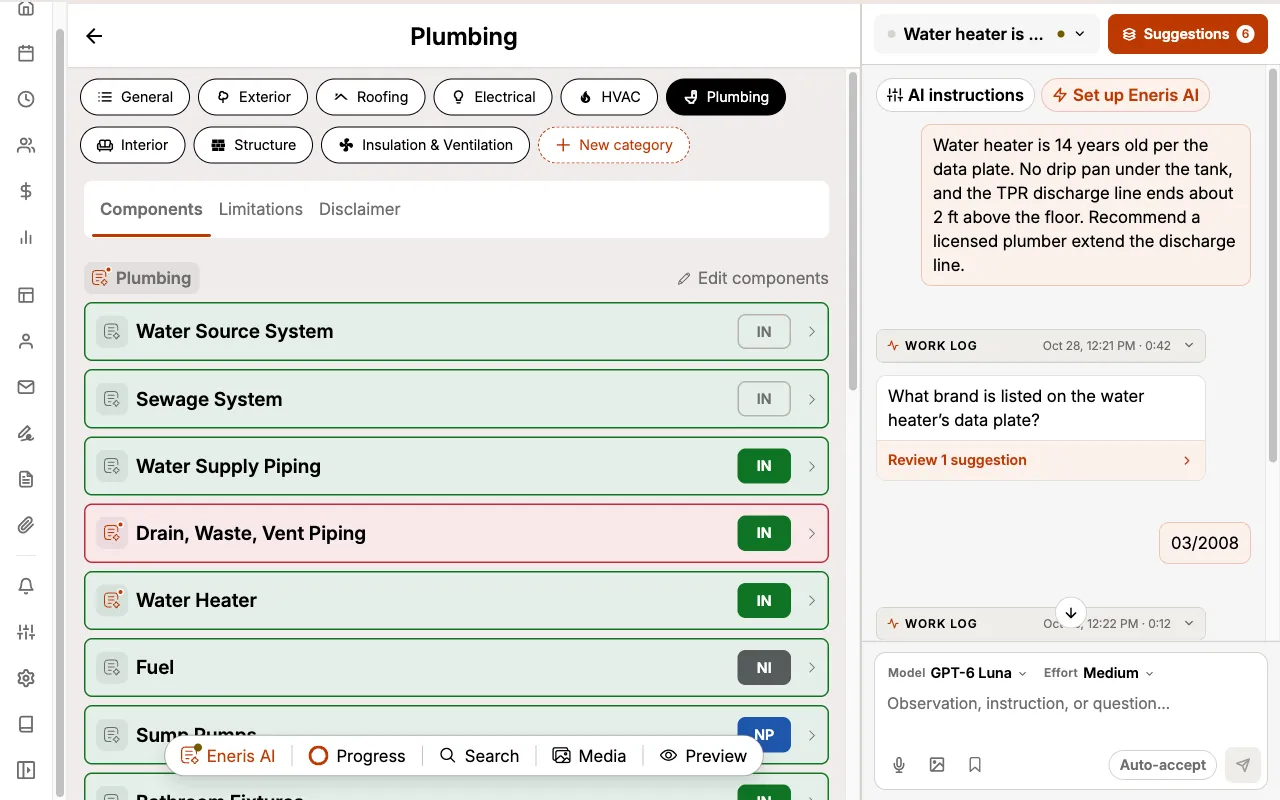
On phones and tablets, the panel opens over the form instead. Select Eneris AI in the tab bar again to close it and return to the form.
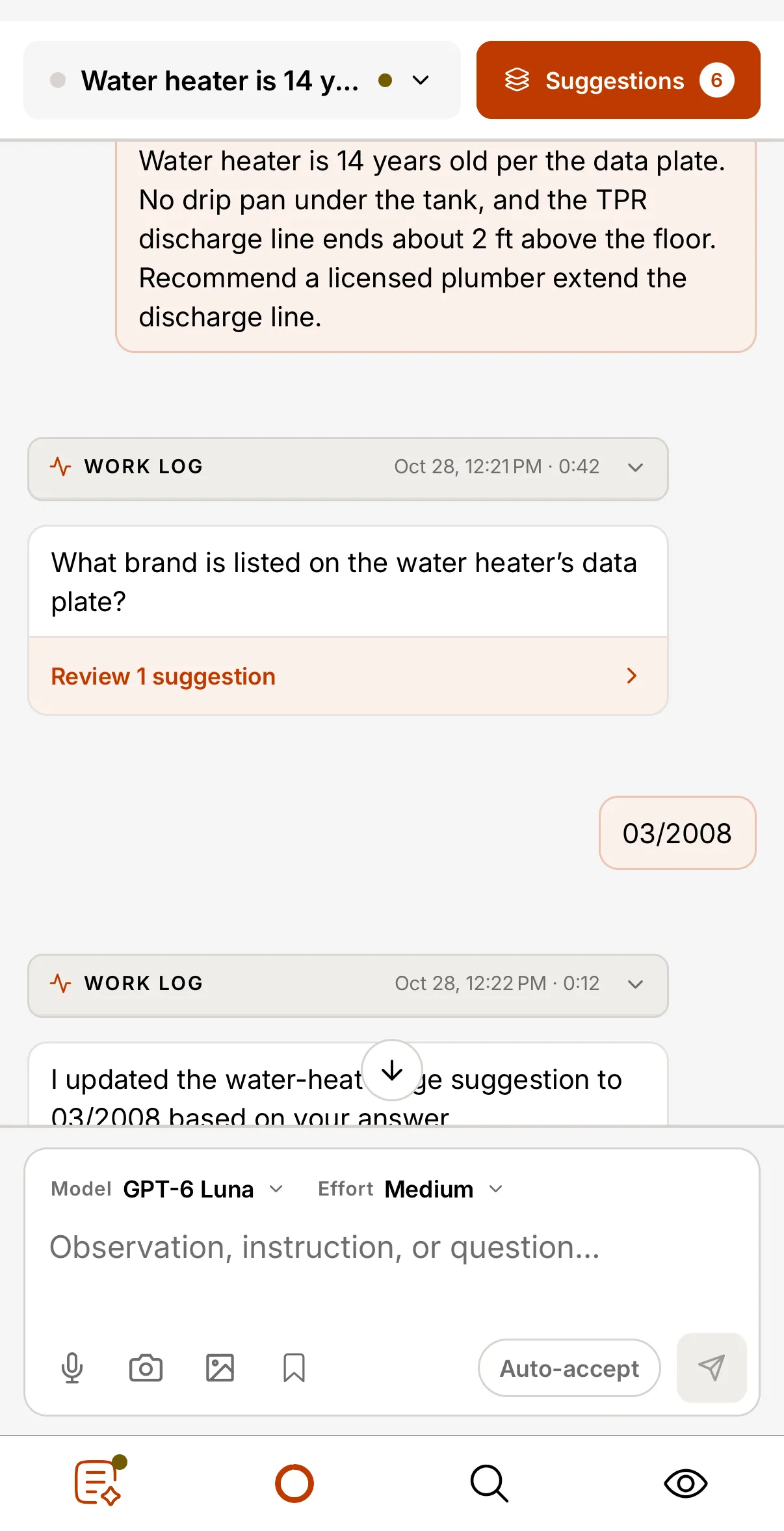
The panel has two views. Switch between them with the button at the top right:
- Chat: your conversation with Eneris AI.
- Suggestions: every suggestion Eneris AI has drafted on this form, ready for you to review.
Chats
You can keep several chats on a form. Using a separate chat for each part of the job, such as the roof or the crawlspace, keeps each conversation focused, and more than one chat can be working at the same time.
Select the chat name at the top of the panel to switch chats, start a New chat, or delete one. A new chat takes its name from your first message.
Your chats are private to you, and each one belongs to a single Inspection Form. Whichever chat a suggestion came from, it shows up in the one Suggestions view.
Writing a message
Type in the message box at the bottom of the panel. A message can be an observation, an instruction, or a question:
- Observation: "Water heater has no drip pan and the TPR discharge line ends 2 ft above the floor."
- Instruction: "Add critical findings to the general remarks."
- Question: "List all the electrical issues."
A new chat offers a few starter messages to get you going. Select one to send it.
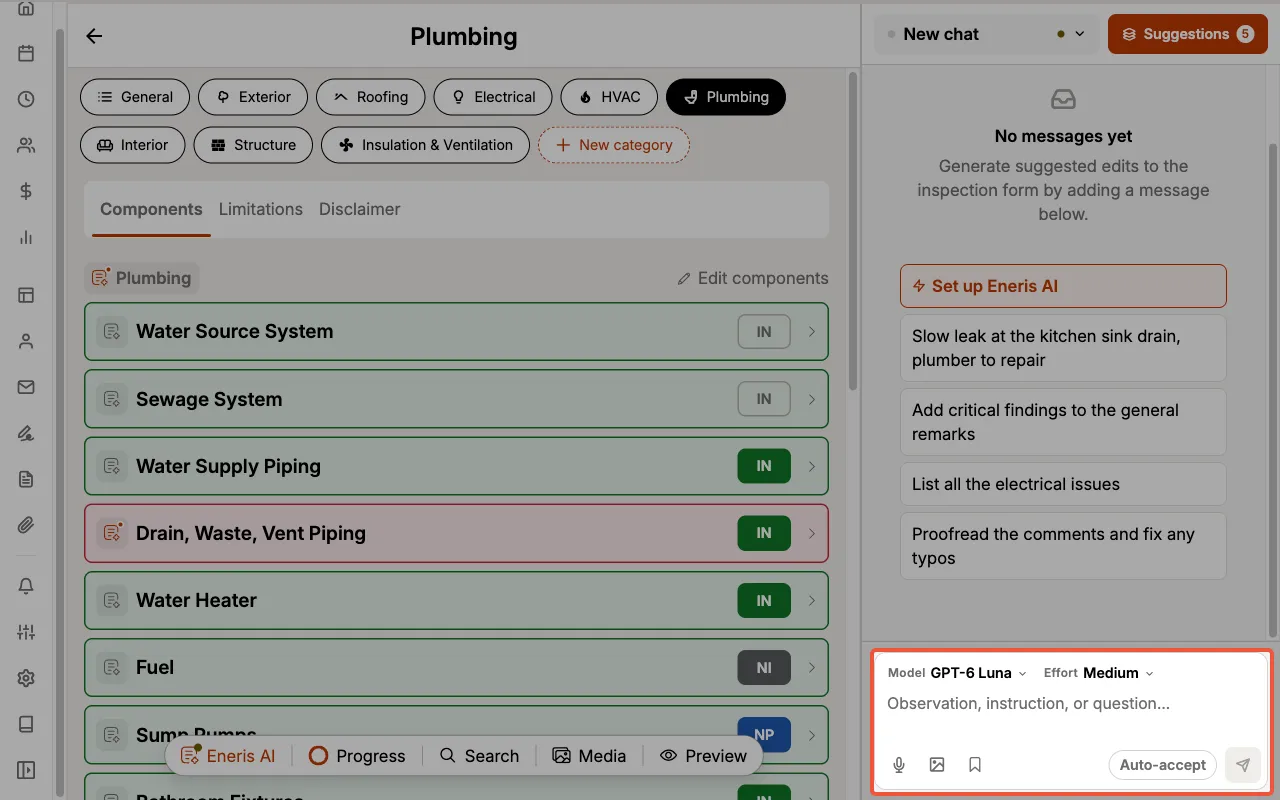
The buttons under the message box add more than text:
- Microphone: record a voice note of up to 2 minutes. Eneris AI turns it into text and places it in the message box so you can check it before you send. Nothing is sent by itself, and the audio is never stored.
- Camera (mobile app only): take a photo or video and attach it to the message.
- Photo album: attach photos or videos from your device.
- Bookmark: insert one of your saved messages.
On a desktop computer, you can also drag photos and videos onto the message box from your computer, or from the Media folder panel.
Eneris AI can read a lot from a photo. Send a picture of an appliance's data plate and it can work out the age of the unit from its serial number.
Model and effort
Model chooses which AI model drafts your suggestions. The recommended model suits most inspections. Others can be more capable on harder requests, but they use more AI credits. Each model in the list shows how it compares.
Effort sets how much Eneris AI thinks before it answers. Medium is recommended. High gives more careful work, but takes longer and uses more credits. Low is quicker and uses fewer.
The model and effort you choose become your defaults for new chats on that device.
Runs and the work log
Sending a message starts a run: Eneris AI reads your message, looks at the form, and drafts suggestions. While it works, a Work log card in the chat shows each step as it happens. Select a finished work log to see what Eneris AI did and why.
When the run finishes, Eneris AI replies with a short summary. If it drafted suggestions, select the Review link under the reply, such as Review 2 suggestions, to go straight to them.
- Send another message while it works: your new message joins the run in progress, so you don't need to wait.
- Stop a run: while a run is working and the message box is empty, the send button becomes Stop. Suggestions already drafted are kept.
Eneris AI reads the form from the device that started the run. Keep Eneris open until the run finishes. If you close the app, the run ends early with Device went away.
Answering questions
When Eneris AI needs something only you know, it asks. The question is pinned above the message box.
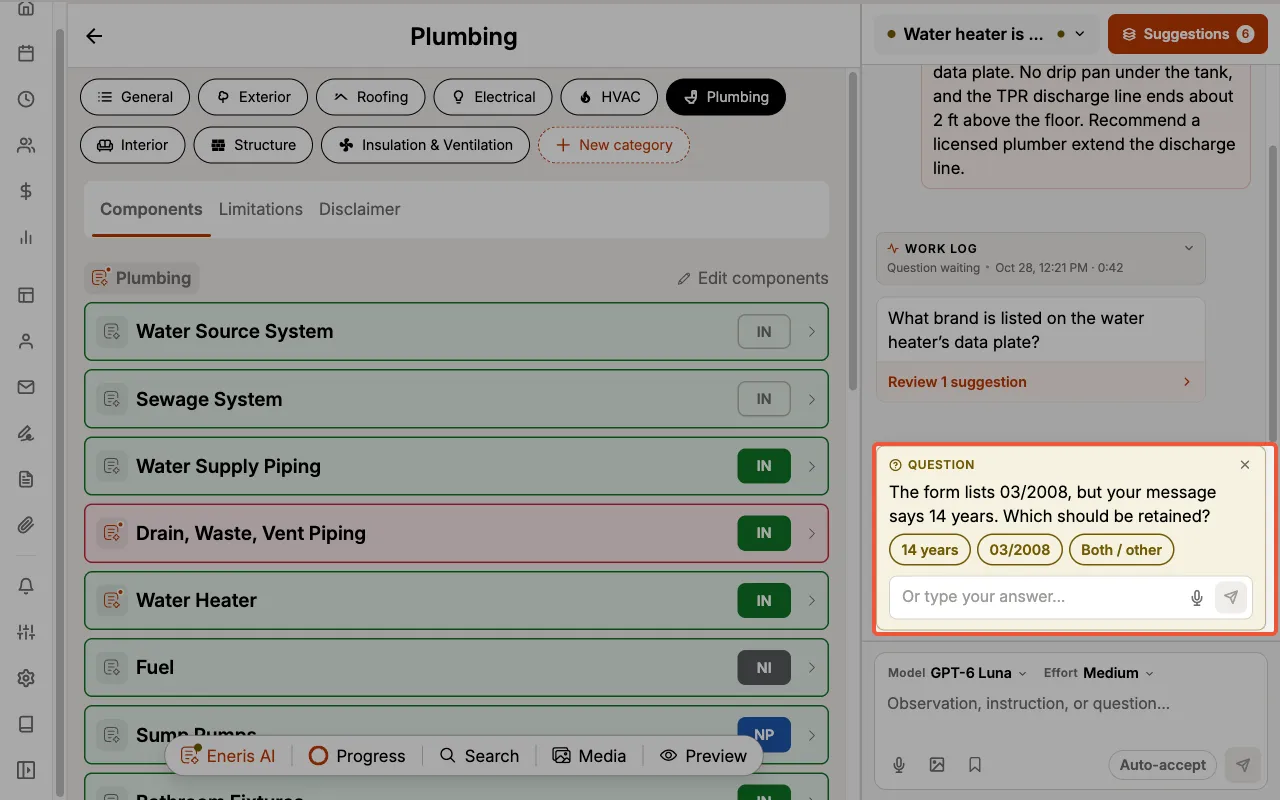
Select one of the quick replies, or type or dictate your own answer. If you'd rather not answer, select the X and Eneris AI goes ahead with its best guess.
Reviewing suggestions
Select Suggestions at the top of the panel to see every suggestion on the form. Pending suggestions are shown first; select the filter button to show accepted or rejected suggestions too, or to narrow the list to one category.
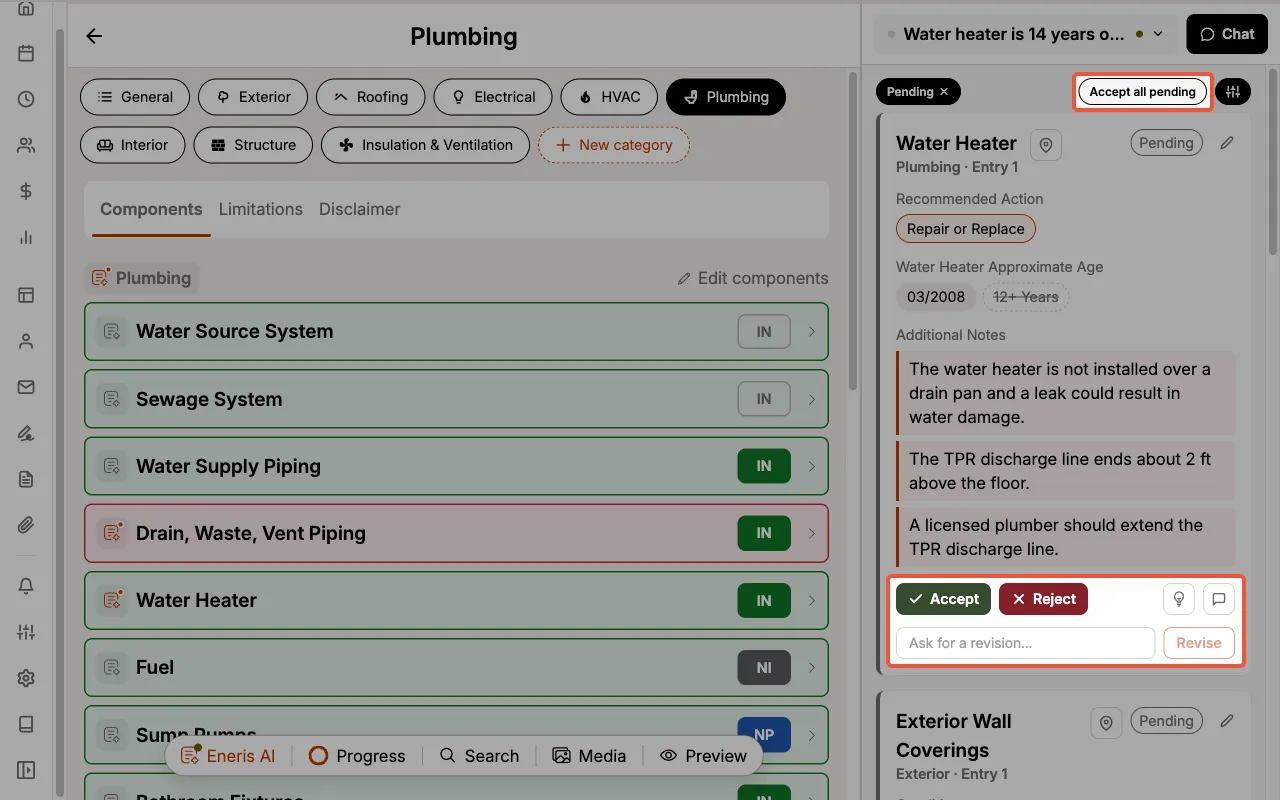
Each suggestion card names the component it changes and shows exactly what will change. New text is tinted, and anything that will be removed is struck through.
On each card you can:
- Accept the suggestion to write it into the form.
- Reject it to leave the form as it is.
- Revise it: type what you'd like changed in the revision box, such as "mention the corrosion too", and select
Revise. Eneris AI redrafts the suggestion for you. - Select the map pin to open the component on the form.
- Select the light bulb to see why Eneris AI suggested it.
- Select the speech bubble to see where the suggestion came from, such as your message or a photo, and
Show in chatto jump to it.
Select Accept all pending to accept every pending suggestion at once.
When you accept, the changed fields briefly highlight on the form. If you later edit one of those fields yourself, it is marked Edited by hand.
If someone edits the component after Eneris AI drafted its suggestion, Eneris shows you how the entry reads now before you accept, so you don't overwrite their change by accident.
Editing a suggestion before you accept
Select the pencil on a suggestion card to open Edit suggestion. It shows the whole entry the way it will read once you accept, with the suggested changes marked, and you can adjust any field before saving.
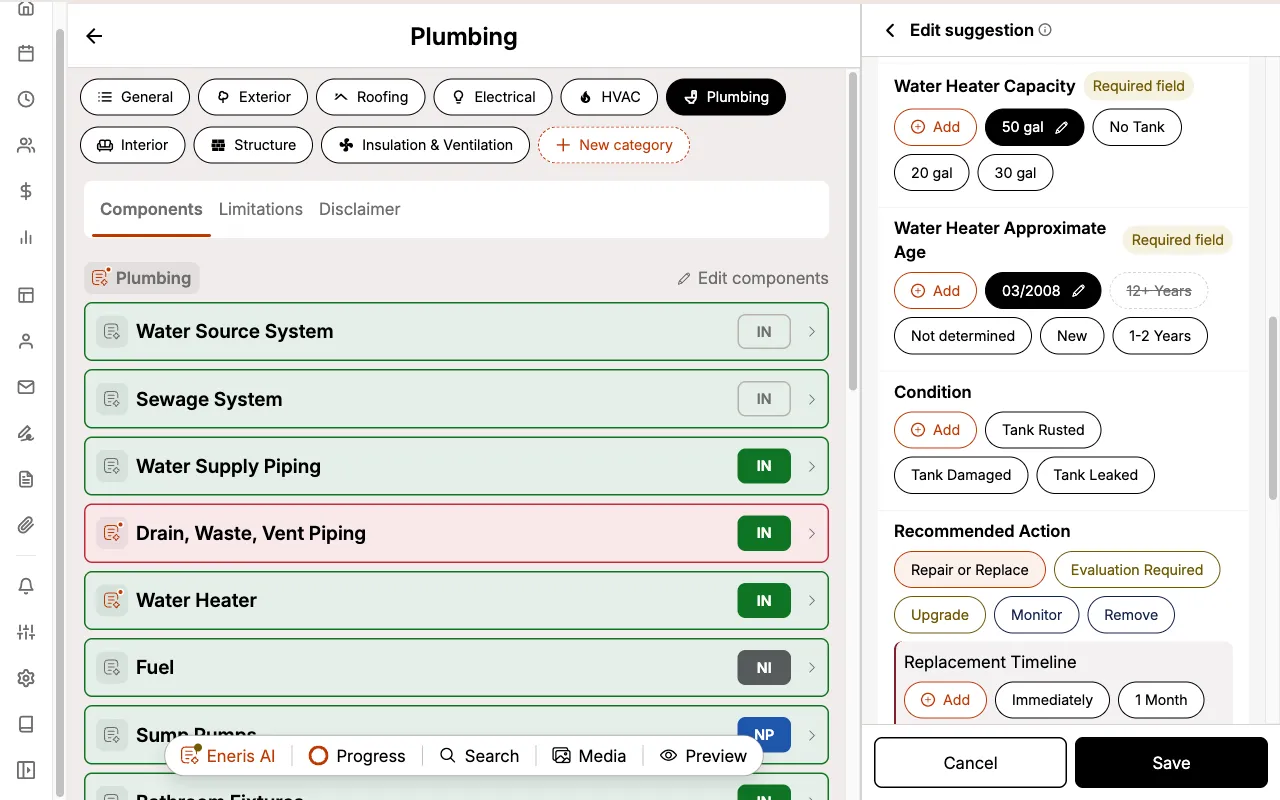
From Edit suggestion you can also:
- Select
Save as new entryto add the suggestion as a separate entry instead of changing the existing one. - Select the pencil beside the component name to move the suggestion to a different category or component.
Select Save to keep your changes. The suggestion stays pending until you accept it.
Undoing an accepted suggestion
Changed your mind? Select Undo on an accepted suggestion. Eneris puts back what was there before and returns the suggestion to Pending. Any edits you made by hand after accepting are kept, and a component or category the suggestion created is removed.
Auto-accept
Turn on Auto-accept under the message box when you trust Eneris AI with a chat. Suggestions drafted while it is on go straight into the form, and you can still review them under Suggestions and Undo any you don't want.
Auto-accept applies to one chat at a time, and changes to AI instructions always wait for you to accept them.
With Auto-accept on, Eneris AI changes your form without asking. Review the changes before you publish the report.
What Eneris AI can change
Eneris AI can suggest changes to:
- Component fields, including adding a new entry to a component
- New components and new categories
- A category's Limitations, and the General limitations
- General remarks, such as weather conditions, attendees, and overall observations
- Property details, such as year built, building size, and property features
- The Internal memo
- Photos you send it: where they go, and their captions
When accepting a suggestion adds a value that isn't yet one of a field's options, the value is added to that field's options too.
Notes on a component or section
Select the AI button on a component card, a category, or a form section to open its notes. You'll see the suggestions waiting for that part of the form, and a message box for comments about it.
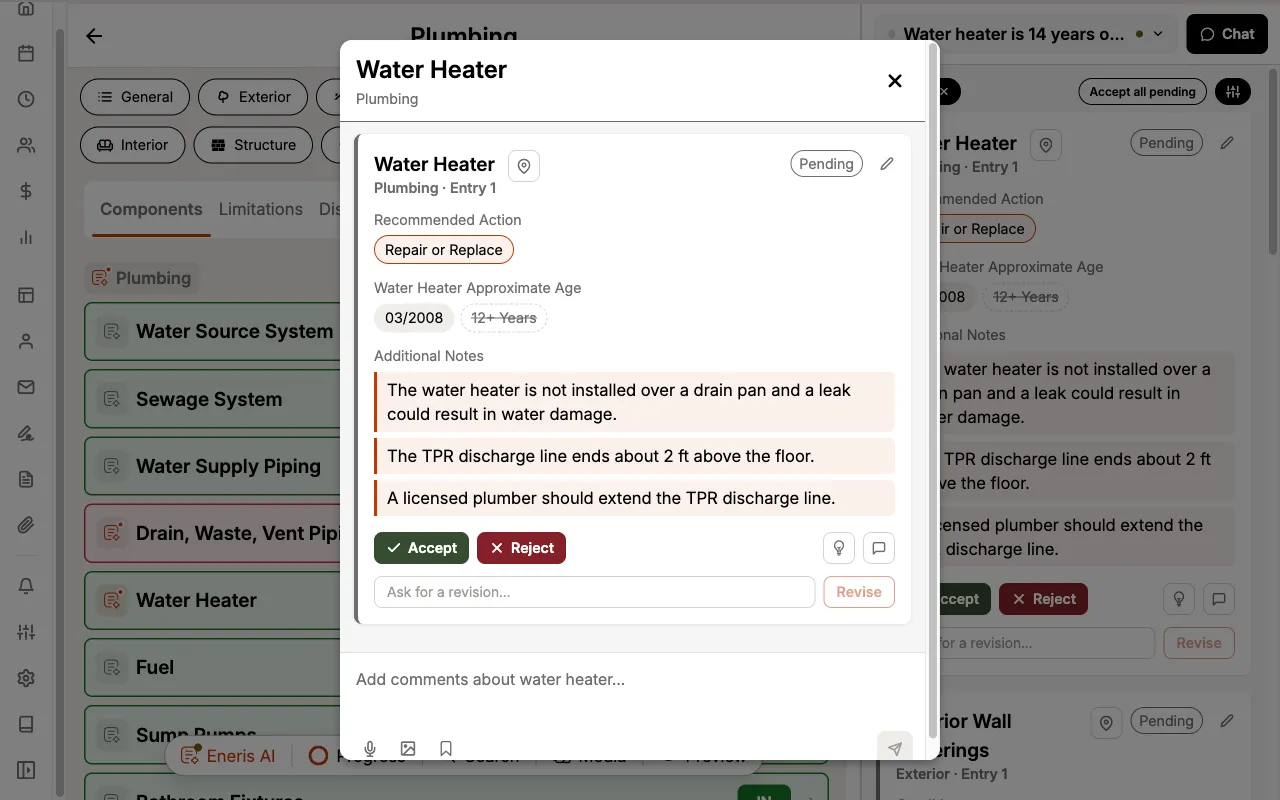
Messages sent from here go to your current chat, already tagged with the component or section, so you don't have to tell Eneris AI where the observation belongs.
AI instructions
AI instructions teach Eneris AI how you write: the terms you prefer, how long notes should be, and phrases to always or never use. Eneris AI follows them every time it drafts a suggestion.
There are three sets of instructions:
| Set | Who it applies to | Where to edit it |
|---|---|---|
| Form-specific instructions | This Inspection Form only | The Eneris AI panel |
| My instructions | Only you, on every form | Preferences or the Eneris AI panel |
| Shared instructions | Everyone on your team, on every form | Preferences or the Eneris AI panel |
When two sets disagree, the more specific one wins: form-specific instructions first, then yours, then your team's. Anything you say in a chat message overrides all three for that request.
To edit your instructions, select Preferences, then AI instructions under Eneris AI. Write your instructions and select Save my instructions or Save shared instructions. In the Eneris AI panel, select AI instructions at the top of the chat to edit all three sets, including the instructions for the form you have open.
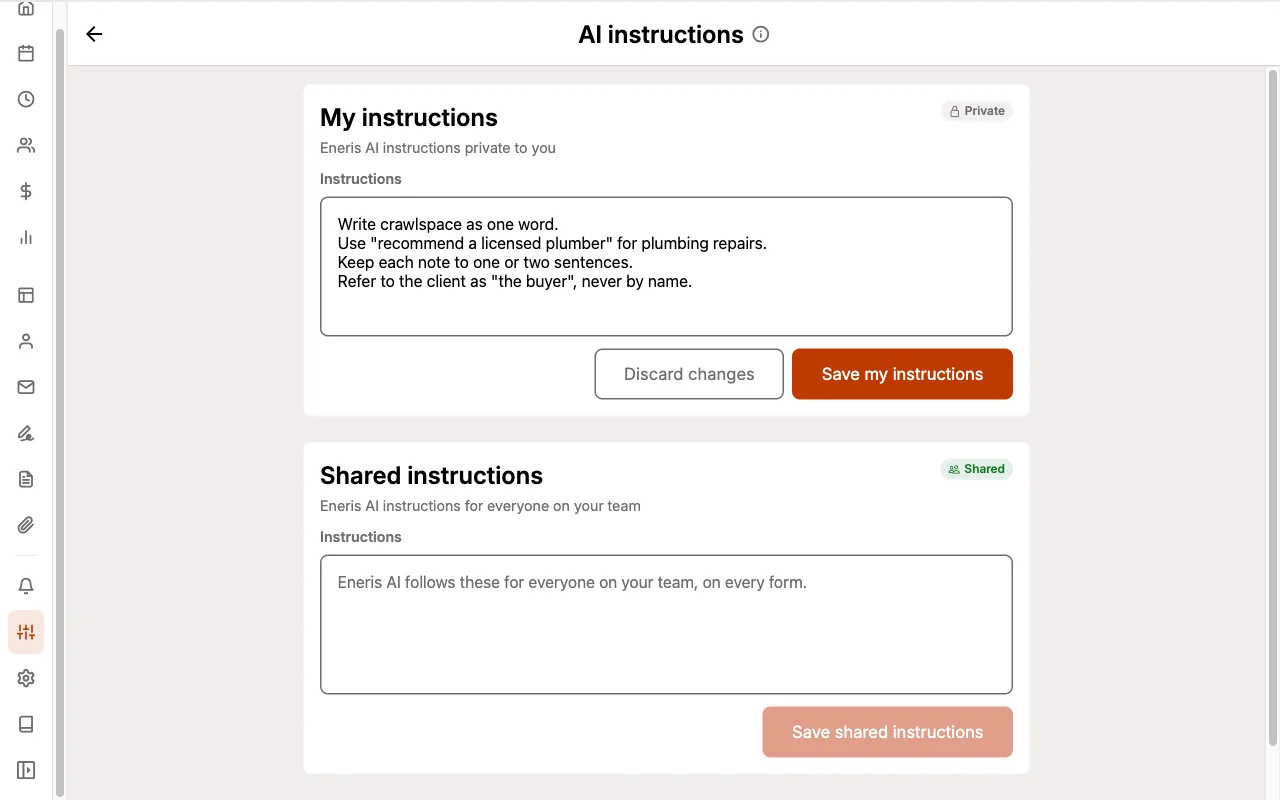
Write one rule per line, the way you'd brief a new inspector:
- Be specific: "Write crawlspace as one word", not "Fix spelling".
- Say what to do, not only what to avoid.
- Quote the wording you want when it matters.
- Keep rules short: split a paragraph into separate lines.
Anyone on your team can edit Shared instructions, and changes apply to everyone's next draft.
Setting up Eneris AI from your forms
Not sure where to start? Eneris AI can write your first Shared instructions for you by reading forms you've already completed.
When no instructions have been written yet, a Set up Eneris AI button appears in the chat. You can also select Set up from forms in the AI instructions sheet at any time.
- Select
Set up Eneris AI. - Choose which recent inspection forms Eneris AI should read. The newest are selected for you.
- Select
Read 8 forms and suggest shared instructions. The number matches how many forms you chose.
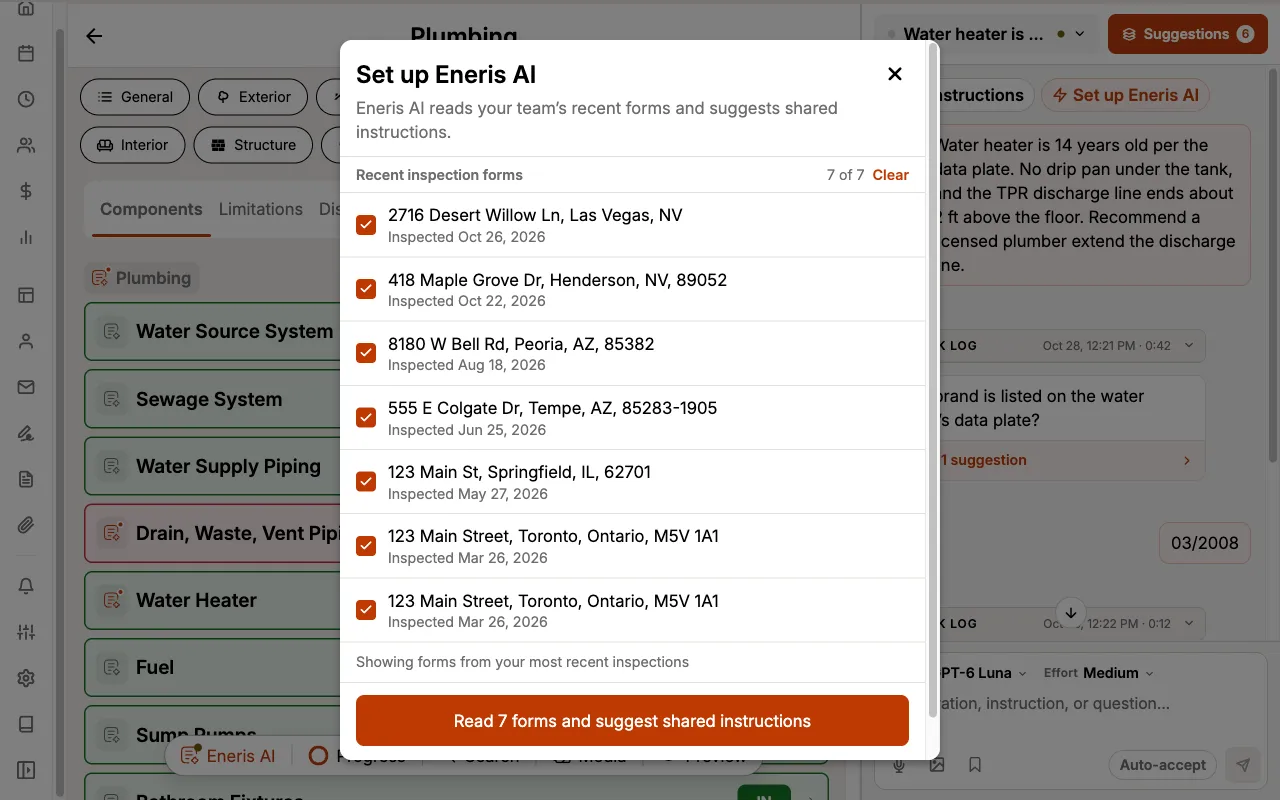
Eneris AI opens a Set up Eneris AI chat, reads the comments in those forms, and proposes Shared instructions that capture how your team writes. Review them like any other suggestion: Accept, Accept and edit, Reject, or ask for a change.
Saved messages
Saved messages are messages you send often, saved so you don't have to retype them. Select the bookmark under the message box and choose one to place it in the message box.
To save a message you sent in a chat, select it and choose Save this message to reuse later.
To manage your saved messages, select Preferences, then Saved messages under Eneris AI.
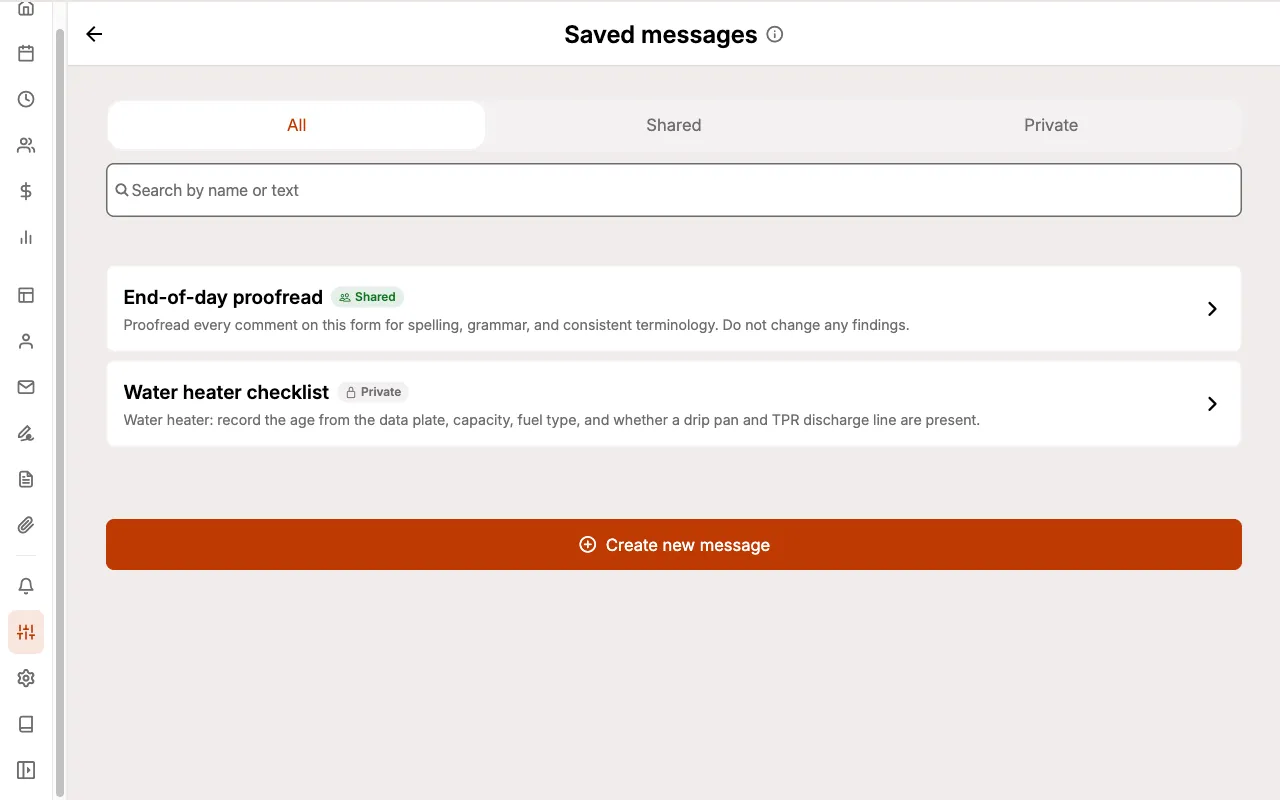
To add one, select Create new message, enter a Name and the Message, and choose who can see it:
- Private: only you can see and use it.
- Shared with team: everyone on your team can see, use, and edit it.
Working offline
On the iOS and Android apps, you can keep talking to Eneris AI without a connection. Your messages, photos, and answers are saved on the device and marked queued, pending sync.
When you're back online:
- Sync the form. This delivers your queued messages to Eneris AI. Background syncing delivers them for forms you don't have open.
- Select
Runin the bar above the message box to have Eneris AI work through them.
Syncing delivers your messages but never starts a run by itself, so Eneris AI doesn't spend your credits until you say so.
While offline:
- Suggestions and work logs are hidden until you reconnect.
- Voice notes are unavailable, so type your note instead.
- Your own and shared instructions, and saved messages, can be used but not changed. Form-specific instructions can still be edited.
In a web browser, Eneris AI needs a connection to send messages. If the connection drops, Eneris reconnects automatically.
AI credits
Eneris AI usage is measured in AI credits. Each run uses credits based on the model and effort you choose, and voice notes use a small amount for transcription.
| Plan | Monthly AI credits |
|---|---|
| Paid plans | 2,000 for each team member |
| Free trial | 2,000 shared by the team |
| Free plan | 200 shared by the team |
Credits reset each month. To see how many you've used, open Settings and look under Subscription details.
If you run out, Eneris AI tells you Usage limit reached and can't take new messages until your credits reset next month. Sending a lot of requests in a short time can also pause Eneris AI briefly; try again in a moment.
Reporting a bad response
If Eneris AI gets something wrong, select its reply, then the thumbs down. You can choose what went wrong, such as Inaccurate or Wrong component, and add details. Your feedback goes to the Eneris team so we can improve Eneris AI.