Online Scheduling
Eliminate the back-and-forth of booking inspections. Share a single link where clients pick a time and submit their details, with every request reviewed before it's confirmed. Everything flows into Eneris automatically, so you spend less time coordinating and more time inspecting.
Booking page
A Booking page is the public page you publish for clients to book through. You can share the link with clients directly or link to it from your website.
With booking pages you can:
- Publish a shareable Booking link for each service you offer.
- Control your availability with weekly time windows, lead time, slot granularity, and conflict blocking.
- Decide which client details to collect, and which are optional or required.
- Optionally attach quote line items so an Invoice is created the moment a booking is accepted.
- Review Pending, Accepted, and Rejected booking requests in one place.
The Bookings hub
Selecting Bookings in the main side menu opens the Bookings hub. A small notification dot appears on the menu item whenever there are pending booking requests, so they are easy to spot at a glance.
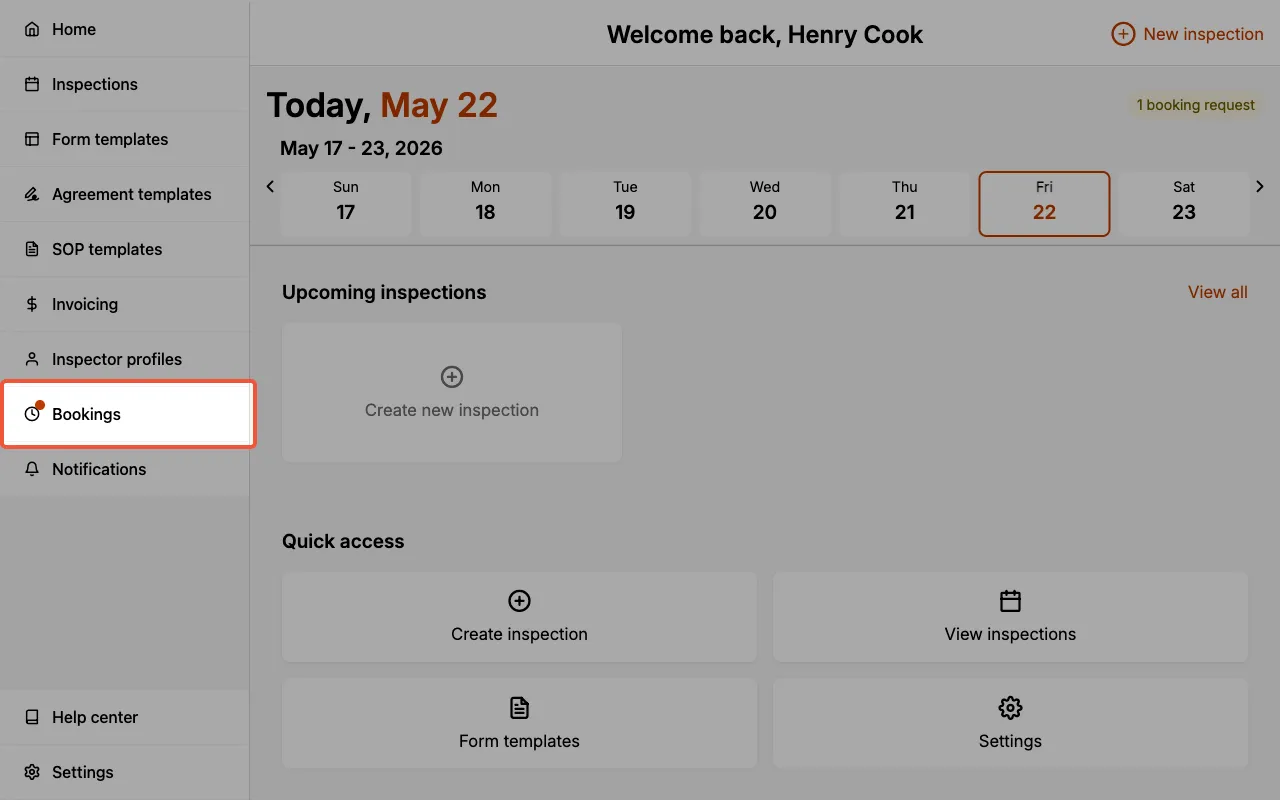
The hub has two tabs:
- Booking requests, where you review and decide on incoming requests.
- Booking pages, where you create, share, and edit the public pages clients book through.
Sharing a booking page
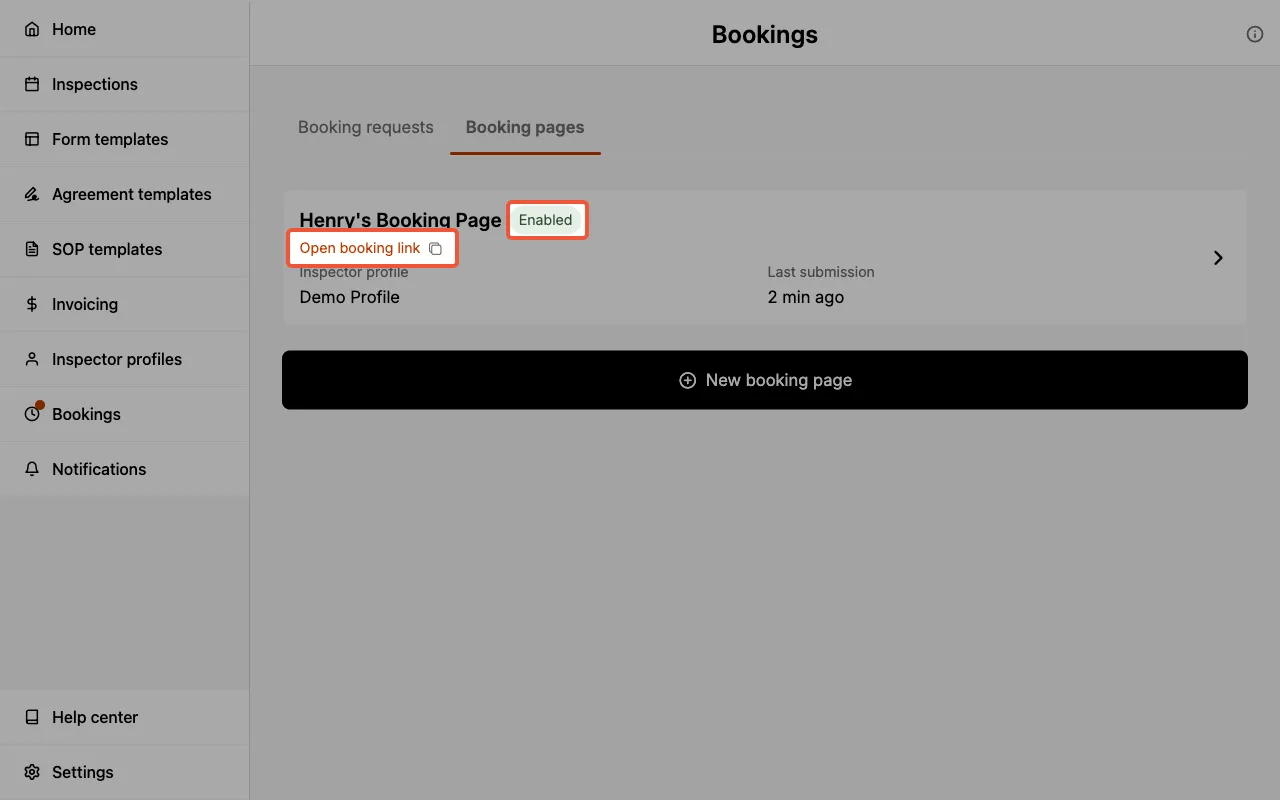
On the Booking pages tab, each card shows the page name, an Enabled or Disabled badge, the assigned Inspector Profile, and the timestamp of the most recent submission.
- Select the copy icon to copy the booking link to your clipboard.
- Select Open booking link to open the public page in a new tab.
- Select the delete action to remove a page.
Creating a booking page
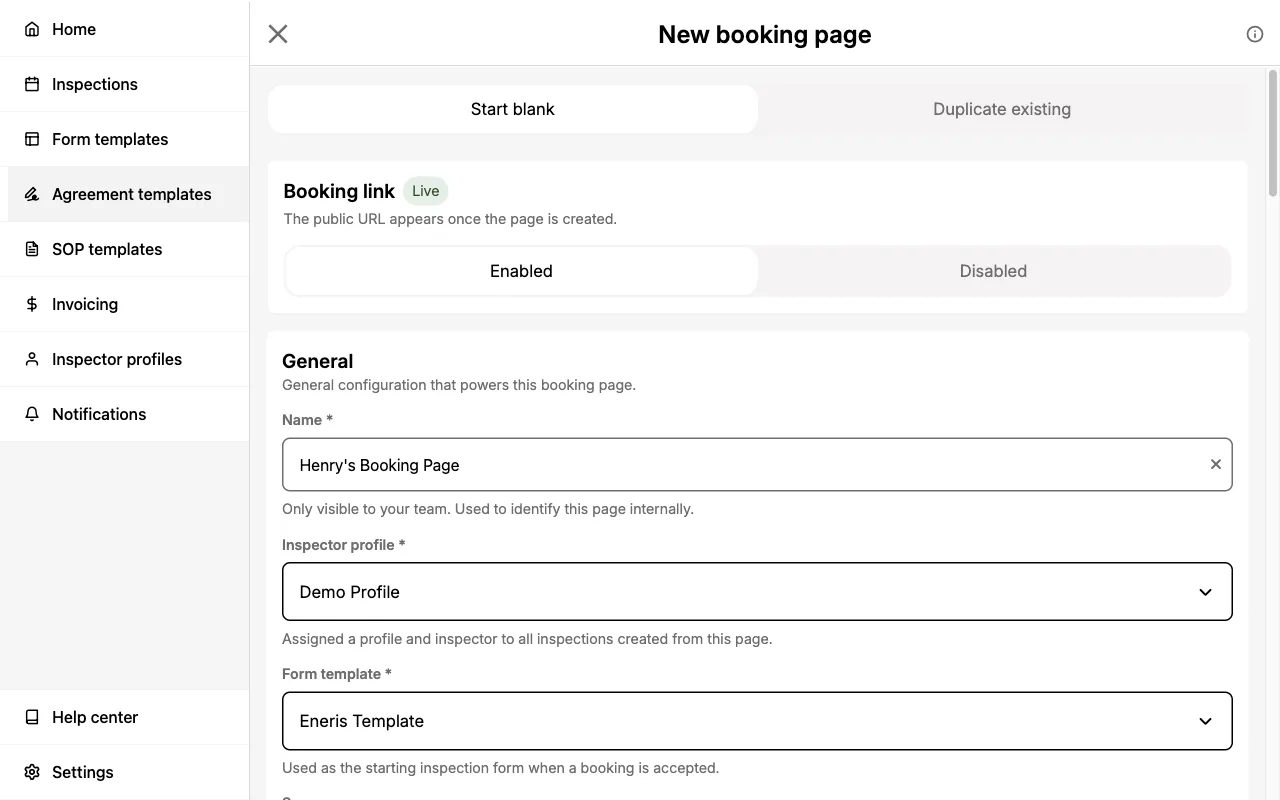
Select New booking page to open the creation form. You can either Start blank or Duplicate existing, which clones the configuration of a page you already have.
The form is grouped into five sections.
General
- Name (required). Internal name that is unique across your team.
- Inspector Profile (required). The profile that bookings on this page will be associated with.
- Form Template (required). The template used when an accepted request becomes an Inspection.
- Success Message. The text the client sees on the confirmation screen after submitting.
- Theme. Choose System, Light, or Dark for the public page.
- Notify additional team members. The team members who get emailed when a request arrives. The assigned inspector is always emailed, even if they are not selected here.
Service Details
Set the service name, description, and duration.
You can optionally add quote line items (unit price, quantity, tax rate). When an inspector accepts a booking request, these items are used to create an unpaid Invoice for the new Inspection.
Quote line items are a frozen snapshot taken when the booking page is saved. Later edits to the underlying Pricing Items do not propagate to existing booking pages.
Availability
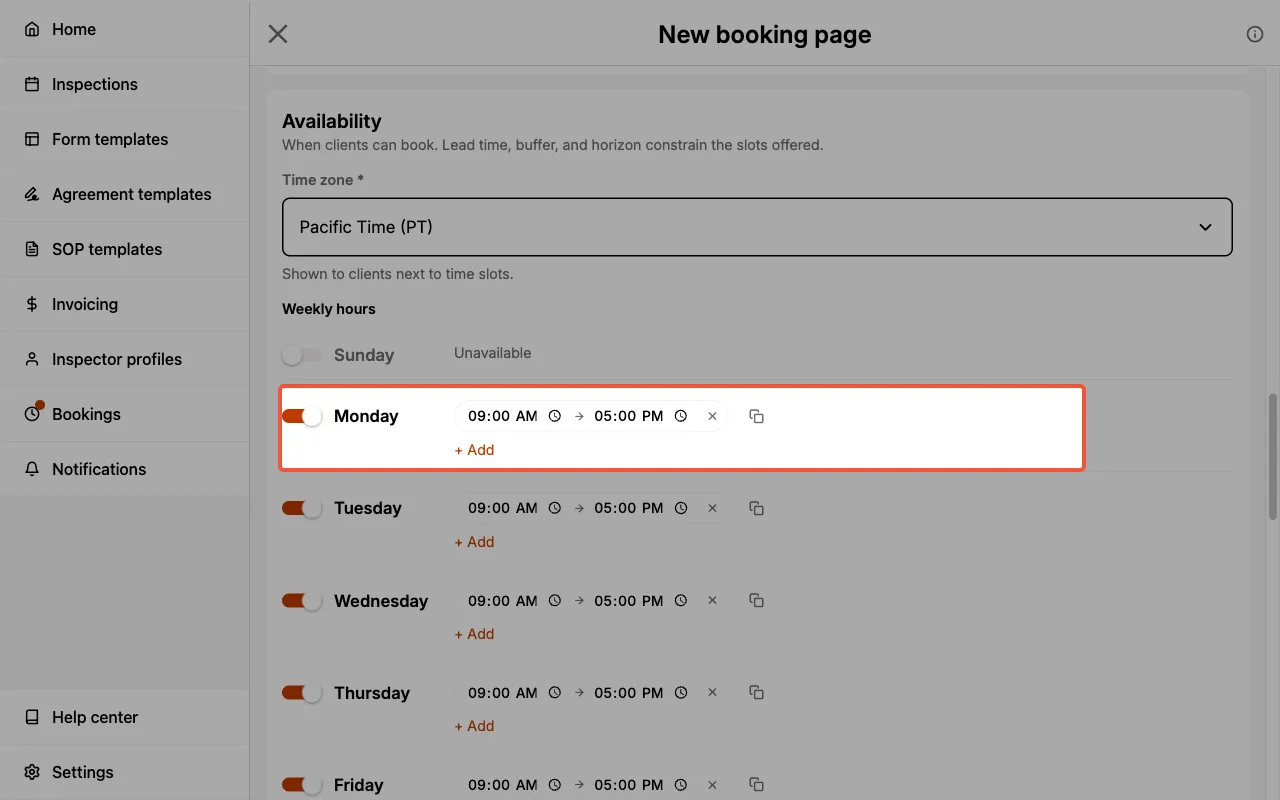
- Time zone. Used to compute available slots and shown to the client on the public page.
- Weekly time windows. For each day of the week, set the start and end times of the window during which clients can request appointments.
- Minimum notice (hours). Minimum advance notice for a booking. Defaults to 8 hours.
- How far in advance clients can book (days). How far in the future bookings are allowed (1 to 180 days).
- Time slot interval (minutes). Granularity of the time grid the client picks from. Defaults to 60 minutes.
- Buffer time between bookings (minutes). A gap padded between existing inspections and pending booking requests when blocking conflicts. Defaults to 0.
- Block off times that conflict with other inspections. When enabled (the default), slots that overlap existing inspections or pending booking requests are hidden from the client.
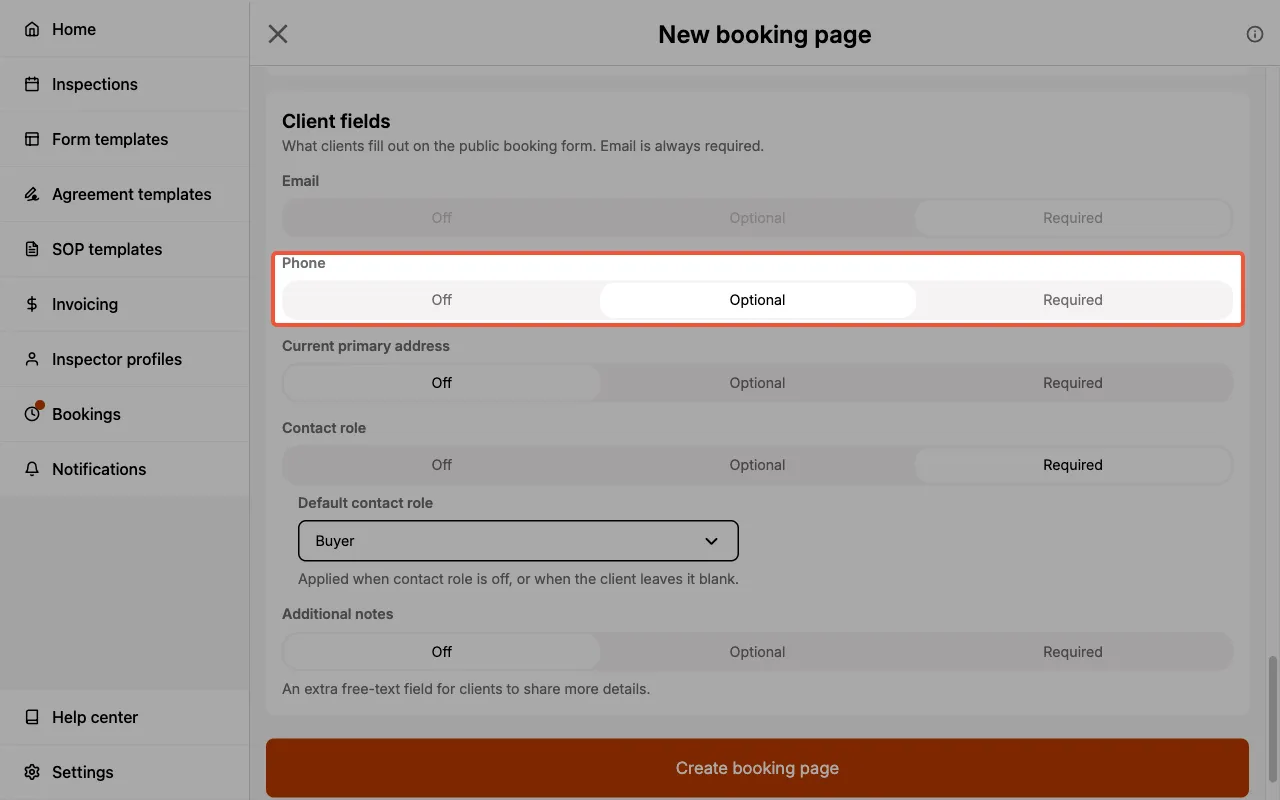
Client Fields Configuration
For each of the following fields, decide whether it is Off, Optional, or Required on the public page:
- Phone
- Current primary address (the address that your client currently resides at)
- Contact role (the dropdown of who is requesting, e.g., Buyer)
- Additional notes (with a customizable label and helper text)
Name and email are always required and cannot be turned off.
Booking Link
A single Enabled / Disabled toggle that controls whether the public link is live. Disable a page if you want to pause new submissions without deleting the configuration.
Once you are happy with the form, select Create booking page. You can return to edit any section later.
The scheduling page
Clients open your booking page at a shareable link. No sign-in is required.
The page is a three-step form with a header card showing the assigned inspector's name, your business name and portrait photo, the service name, and the quote amount.
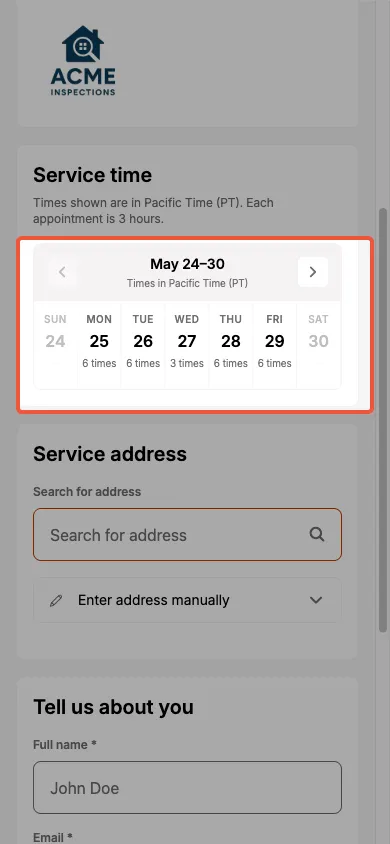
Step 1: Service time
The client picks an available time from a grid filtered by your availability rules.
Step 2: Service address
The client enters the address where the inspection should take place.
Step 3: Tell us about you
The client provides their contact details. Which fields are visible (and which are required) depends on your Client Fields Configuration.
Success state
After submitting, the client sees a confirmation screen with a checkmark, the heading We got your request., a line that reads A confirmation of your request has been sent to [email], a summary of the booked date, time, and duration, and the request ID at the bottom.

Managing booking requests
The Booking requests tab lists submissions across all your booking pages. Use the status filter at the top to switch between Pending, Accepted, Rejected, and All.
Each request card surfaces:
- Requested date and time, shown in the booking page's timezone.
- Service name and quote total.
- Contact name, email, and phone (if collected).
- Service address (if collected).
- Contact role and additional notes (if collected).
- Submission timestamp.
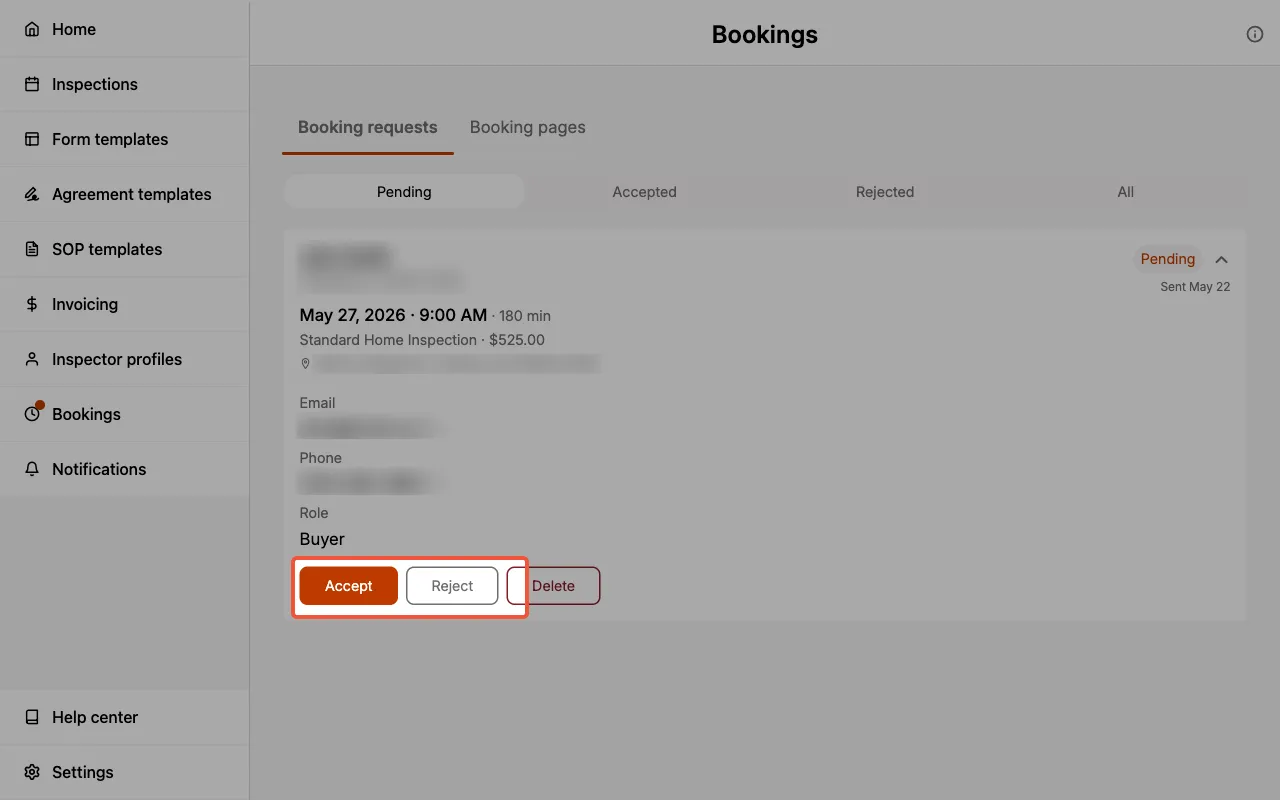
Accept
Creates a new Inspection using the request's address, contacts, profile, and form template. Any Additional notes the client submitted on the public page are carried over into the Internal memo on the new Inspection Form, after any default the form template sets. If the booking page has quote line items, an unpaid Invoice is also created.
Reject
Marks the request Rejected. The client is emailed an update with the subject Update on your booking request, and the assigned inspector is CC'd.
Delete
Removes the request entirely.
Modify request
Pending requests can be edited in-place from the request card via Modify request. Only the following fields are editable:
- Requested time
- Duration
- Service address
- Notes
Other details (the contact's name, email, phone, and role; the assigned inspector profile; the form template; and the service line items) are frozen at submission and can only be changed once the request is Accepted and the resulting Inspection is created. From there, edit them on the inspection itself.
Only Pending requests can be modified. Once a request is Accepted or Rejected, the Modify request action is no longer available.
Notifications
Booking lifecycle events trigger email notifications only.
- New request submitted (public page submission):
- The client receives a We got your booking request confirmation.
- The assigned inspector receives a New booking request for [service name] email.
- Anyone listed under Notify additional team members on the booking page is also emailed.
- Accepted: the client is emailed Your booking request is confirmed, with the assigned inspector CC'd.
- Rejected: the client is emailed Update on your booking request, with the assigned inspector CC'd.
Permissions
Booking pages and booking requests are role-scoped. Expand the permissions table on the Multi-Inspector page for the full matrix. In short:
- Admin and Scheduler can create, edit, and delete booking pages, and can act on any booking request on the team.
- Inspector can only see and act on booking requests that were routed to their assigned Inspector Profile.
Related
- Inspector Profiles: the profile chosen when configuring the page.
- Form Templates: the template used when an accepted request becomes an Inspection.
- Invoicing and Payment Collection: quote line items and the invoice created on Accept.
- Inspections: the artifact created when a booking request is accepted.
- Multi-Inspector: the role-scoped permissions that govern who can manage booking pages and requests.