Offline Forms
Eneris is built for inspectors whether they have internet access or not. With Offline Forms, you can access your Inspection Forms anytime, anywhere.
- Work without internet – Work on inspections while completely offline.
- Automatic saving – All changes are saved locally to your device (as long as storage space is available).
- Reliable access – Previously synced Inspection Forms stay available offline for up to 30 days.
Offline Forms will be automatically removed from your device if the last synced time is more than 30 days.
- This automation is in place to help ensure your mobile device storage remains free.
- This also keeps your offline data synchronized with our servers, where outdated data is automatically cleaned up to maintain optimal performance.
What is an Offline Form?
An Offline Form is a local copy of an Inspection Form saved to your mobile device.
Saving the Inspection Form data to your mobile device allows you to continue working on Inspections even when you have no internet connection.
Offline Forms are local saves of Inspection Forms only and not the entire Inspection.
- This means certain actions will be unavailable when conducting inspections without internet. Specifically, the following actions are unavailable:
- Publishing your report
- Sharing your report
- Creating and sharing service agreements
- Any actions from the Inspection menu
- Adding or updating contacts
- Adding or updating the Invoice
- Adding or updating property details
- Updating the Inspector Profile
- Adding or updating general remarks and the internal memo
Once you've completed the physical inspection of the property and filled out the Inspection Form, reconnect to the internet to publish and share the report with your client(s).
Creating Offline Forms
An Offline Form is automatically created when you create an Inspection on your device.
- Offline Forms are linked to Inspection Forms. Since each Inspection can have multiple Inspection Forms, each Inspection can also have multiple Offline Forms—one per inspection type at the property.
- Anytime you navigate into an Inspection Form from the mobile app, if the form does not exist on the device, we will download all the necessary files to your device, so it may take longer to load the form when you open it the first time.
In the Offline Forms page, when you select the sync button:
- All forms that have not been synced will attempt to sync.
- Old Offline Forms will be removed from your device storage.
- New Offline Forms that have been created but not yet saved to your device will be saved.
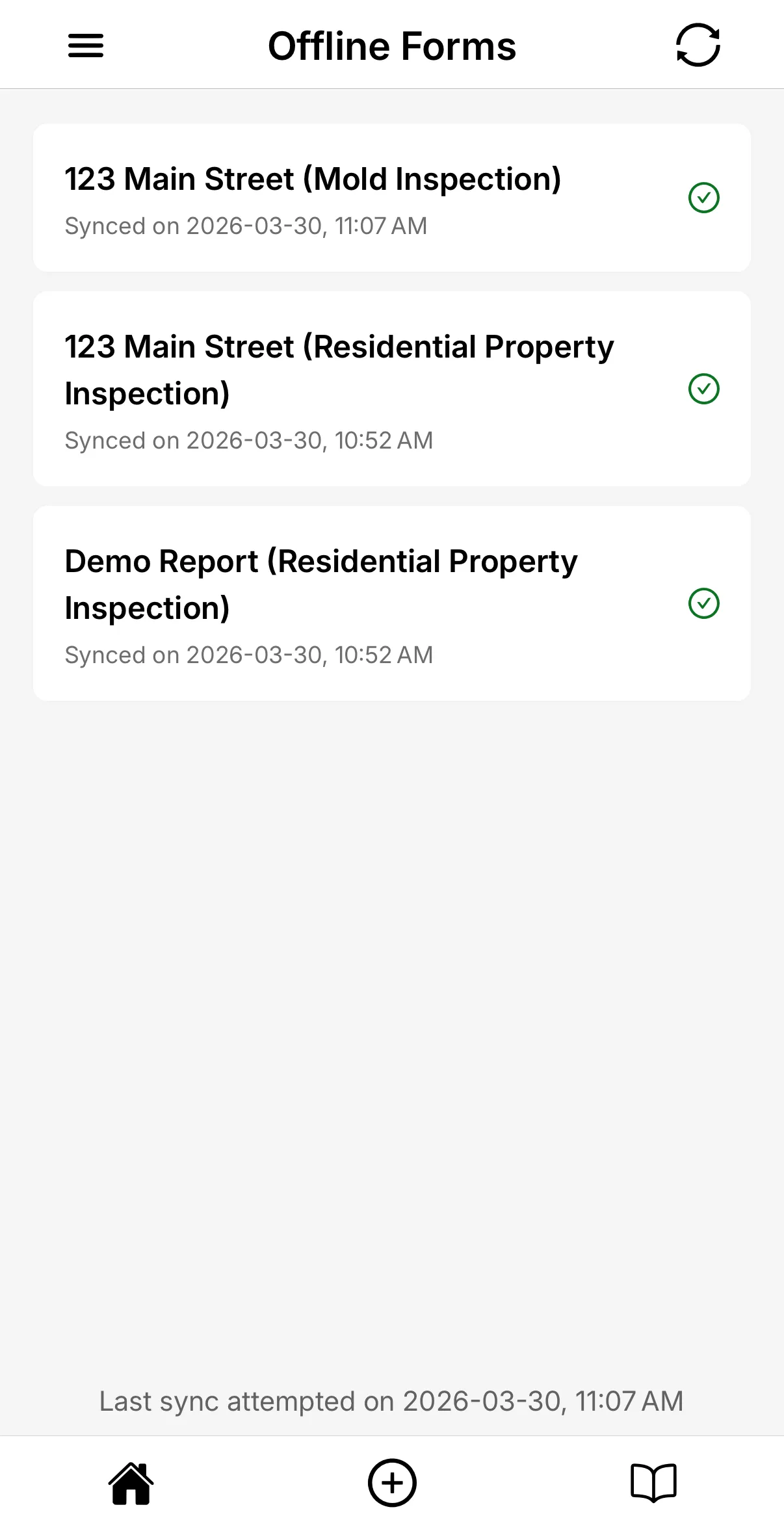
There can be four types of symbols next to each Offline Form. They represent the state of the form.
- Green checkmark - All changes in the Offline Form are synced.
- Grey circular dot - Pending changes that are saved offline need to be synced.
- Warning triangle - Syncing has failed and an error message should be displayed along with it.
- Spinner - Sync is in progress.
To ensure your changes appear on all devices remember to sync your changes first!
Offline Form storage
To help manage your device's limited storage, Eneris handles Offline Forms with the following rules.
Automatic delete
Synced Offline Forms will be automatically removed from your device if the last synced time is more than 30 days.
Form re-download
If you need to access an Inspection Form that is older than 30 days, navigating to the form from the Inspection will re-save the Offline Form to your device.
Manual delete
You can manually remove offline forms if you need to free up space:
- Navigate to Offline Forms
- Swipe left on the form you want to remove
- Select the delete icon
- Confirm the deletion
Each form in the list shows when it last synced, so you can tell at a glance which ones are safe to clear. If a form is mid-sync or has a problem, that status is shown in place of the date.
Select the sync button in the Offline Forms header to sync every form on your device at once, rather than opening each one. See Syncing.
Deleting Offline Forms from your mobile device does not delete the inspection data from Eneris' cloud servers. You will always be able to access past inspections as we do not delete your data to free up space.
These rules help ensure Eneris runs smoothly while respecting your device's storage limits.
Accessing Offline Forms
Once the Offline Form is saved onto your mobile device you can access it without internet connection. This enables you to continue your onsite inspection without any delays.
Reminder that Offline Forms are local saves of Inspection Forms only and not the entire Inspection.
- This means certain actions will be unavailable when conducting inspections without internet. See the info callout here for more info.
Losing internet connection before navigating into an Inspection Form
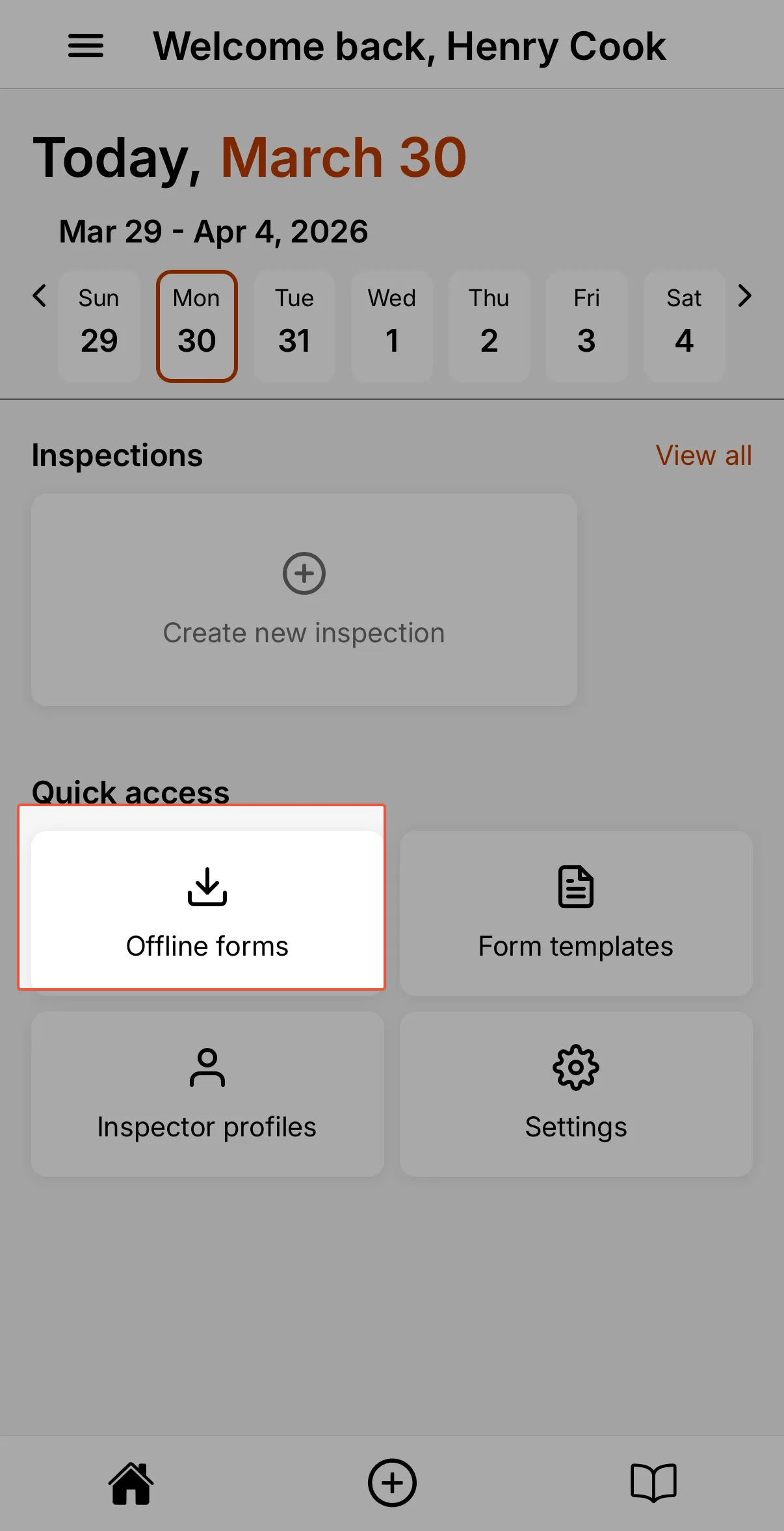
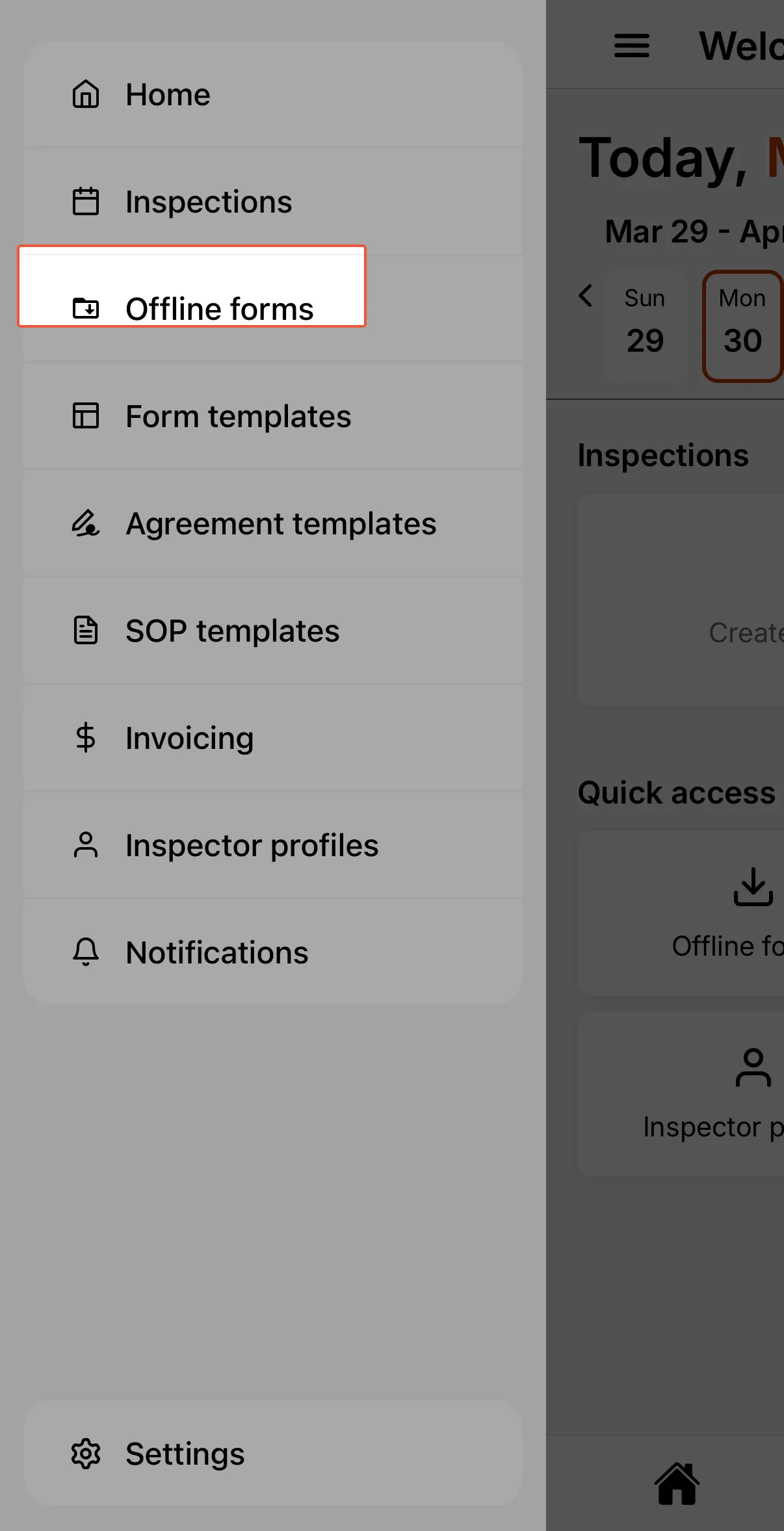
If you have the Eneris application open and lose internet connection before navigating into an Inspection Form there are two ways to access your Offline Forms.
- Through the Quick access section on the home page
- Through the hamburger menu
Losing internet connection before the Eneris application has been opened
If you lose internet connection before opening the Eneris application it will take you to the sign-in page upon opening the app. Instead of signing in, which won't work because internet connection is unavailable, select the View offline forms button.
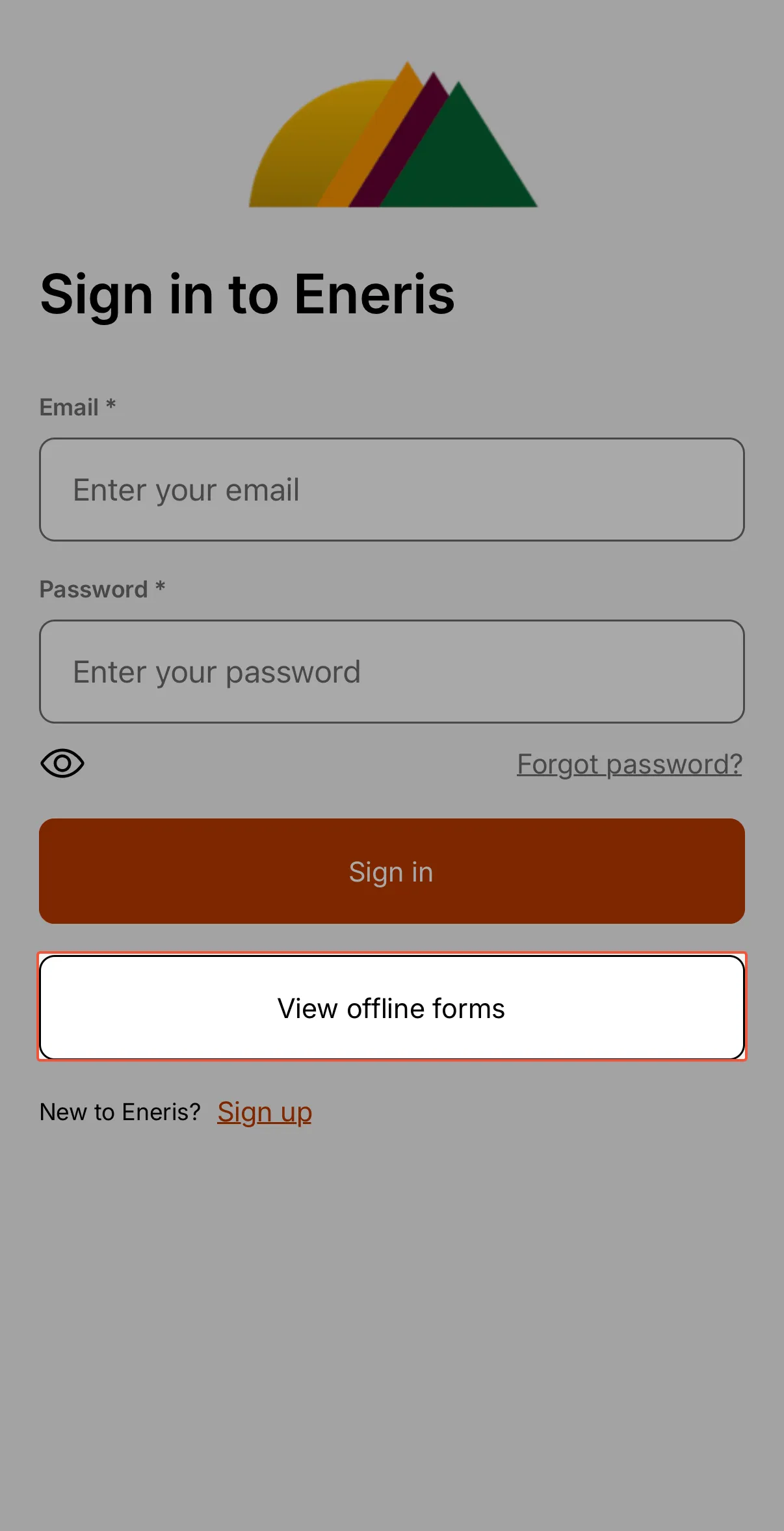
This will directly take you into the Offline Forms menu where you can select the relevant option.