Service Agreement Templates
Service Agreements allow you to create, customize, and enforce multi-party service agreements directly within Eneris. By requiring clients to sign agreements before inspections, you establish liability protection and ensure all parties understand the scope and terms of your services.
Service Agreements are critical for:
- Liability protection — Ensure agreements are signed before performing inspections.
- Multi-signature support — Handle unmarried buyers, siblings, investors, and other multi-party scenarios.
- Workflow efficiency — Eliminate the need for external tools e-signature tools or paper-based agreements.
Service Agreement Templates are reusable across multiple Form Templates. Set them up once and apply them to any template you create.
What is a Service Agreement?
A Service Agreement is a legally binding document that defines the terms and conditions of your inspection services. It outlines what you will and will not inspect, your liability limitations, and other important terms that protect both you and your clients.
Including a signed Service Agreement with your inspections helps:
- Protect you from liability claims
- Set clear expectations about the scope of the inspection
- Provide documentation that clients acknowledged and agreed to your terms
Default Service Agreement Templates
The following default Service Agreement Templates are available in Eneris:
- Eneris template
- International Association of Certified Home Inspectors (InterNACHI) service agreement template
- Canadian Association of Home & Property Inspectors (CAHPI) service agreement template
- Home Inspectors Association BC (HIABC) service agreement template
If there is a template you would like to see, we would love to hear about it.
Managing Service Agreement Templates
View Service Agreement Templates
To view your existing Service Agreement Templates:
- Navigate to Agreement templates in the sidebar.
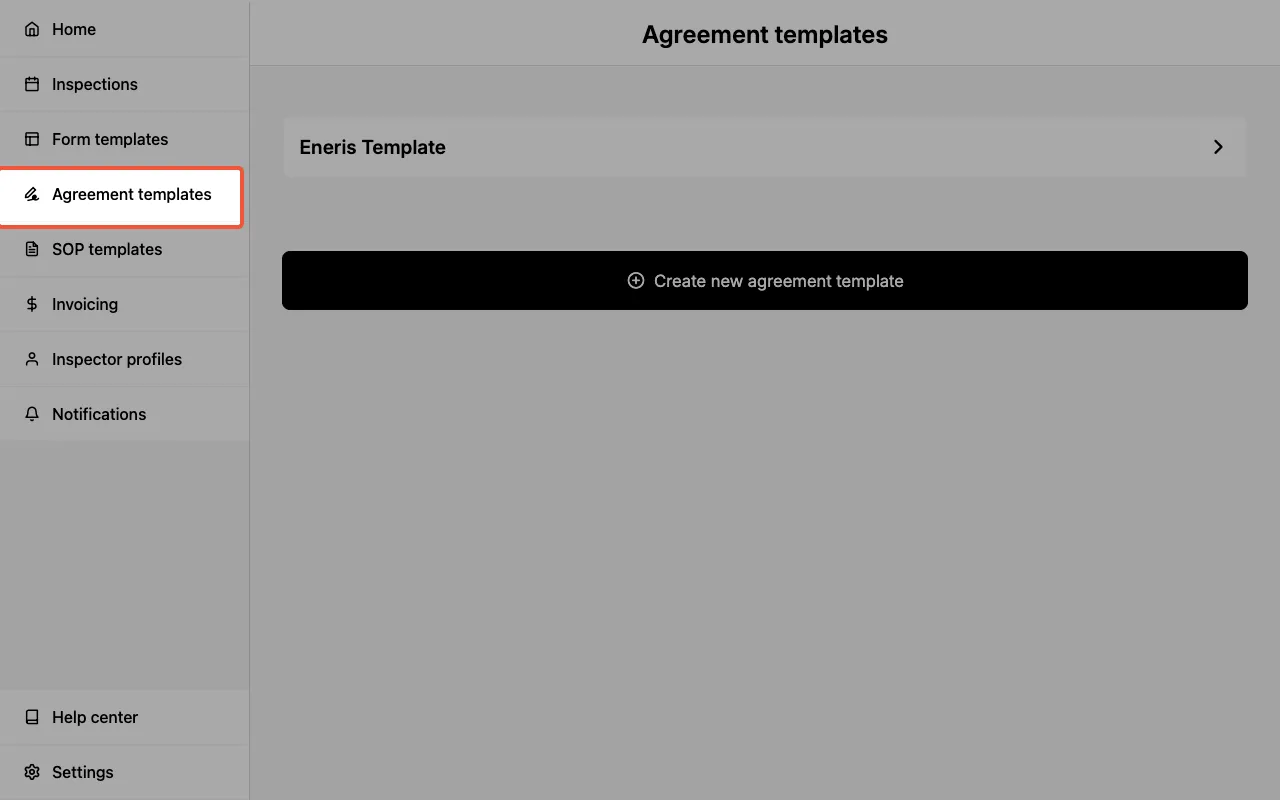
You will see a list of all available Service Agreement Templates, including any templates you have created.
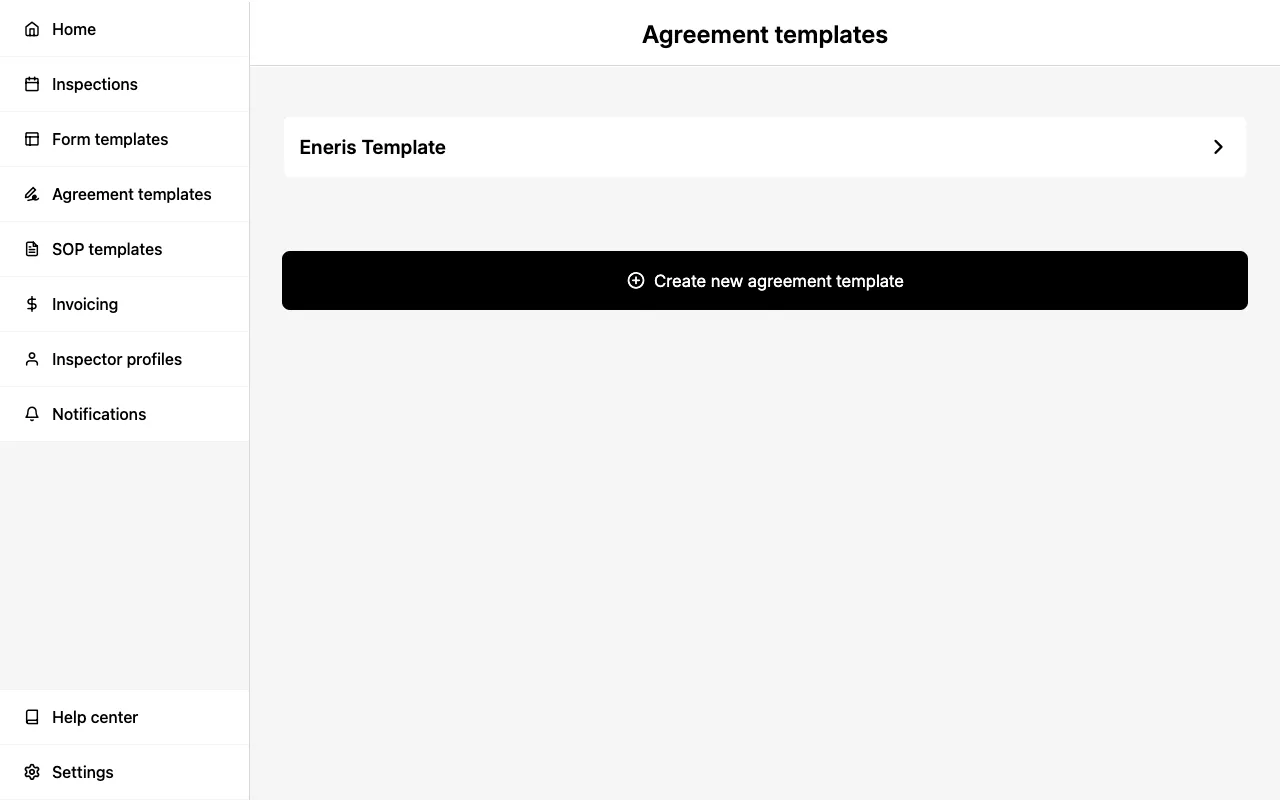
Create a Service Agreement Template
To create a new Service Agreement Template:
- Navigate to Agreement templates in the sidebar.
- Select
Create new agreement template. - Choose from one of the available templates or create a blank template to start from scratch.
- Update the
Agreement template nameas necessary and then selectCreate new. - Enter a Name for your template (this is for internal reference only).
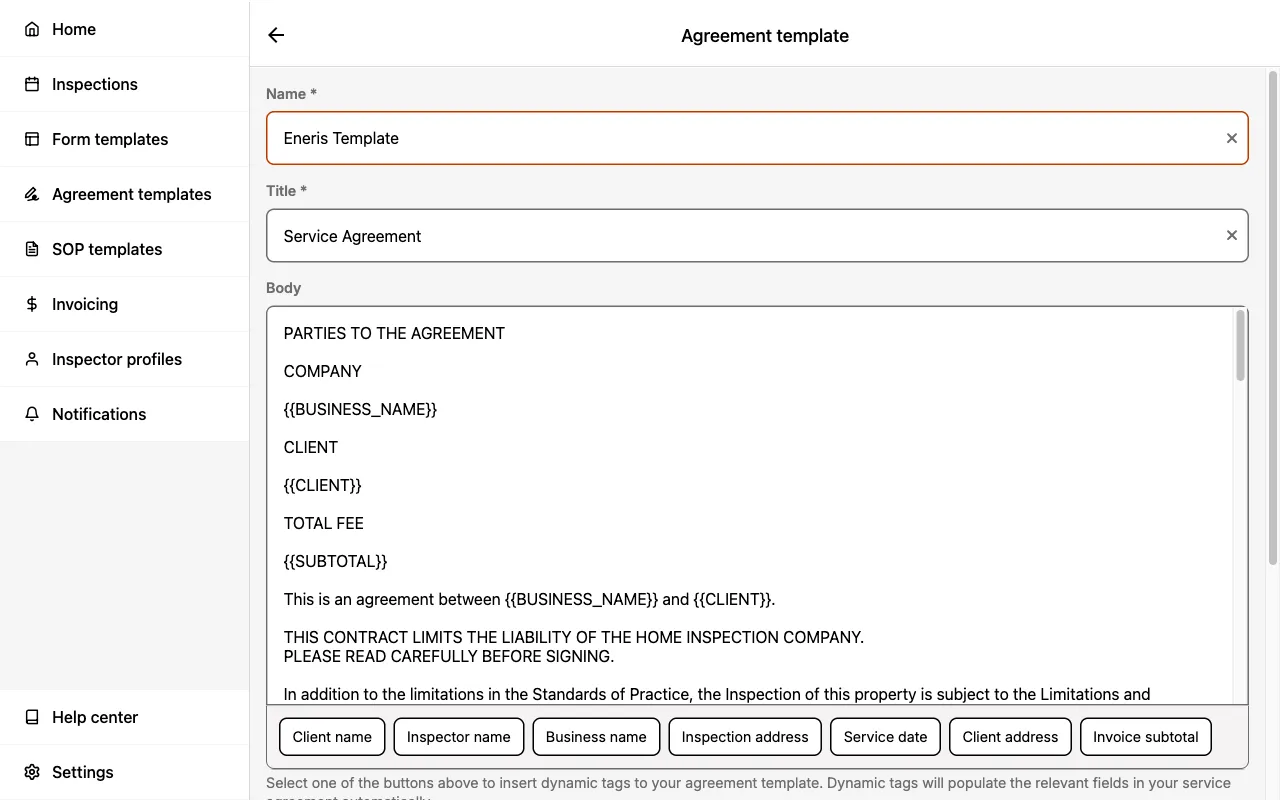
- Enter a Title (this appears in your PDF reports).
- Enter the agreement content in the Body field.
- Optionally, insert Dynamic Tags to dynamically populate inspection-specific information.
- Select
Save changesat the bottom of the page.
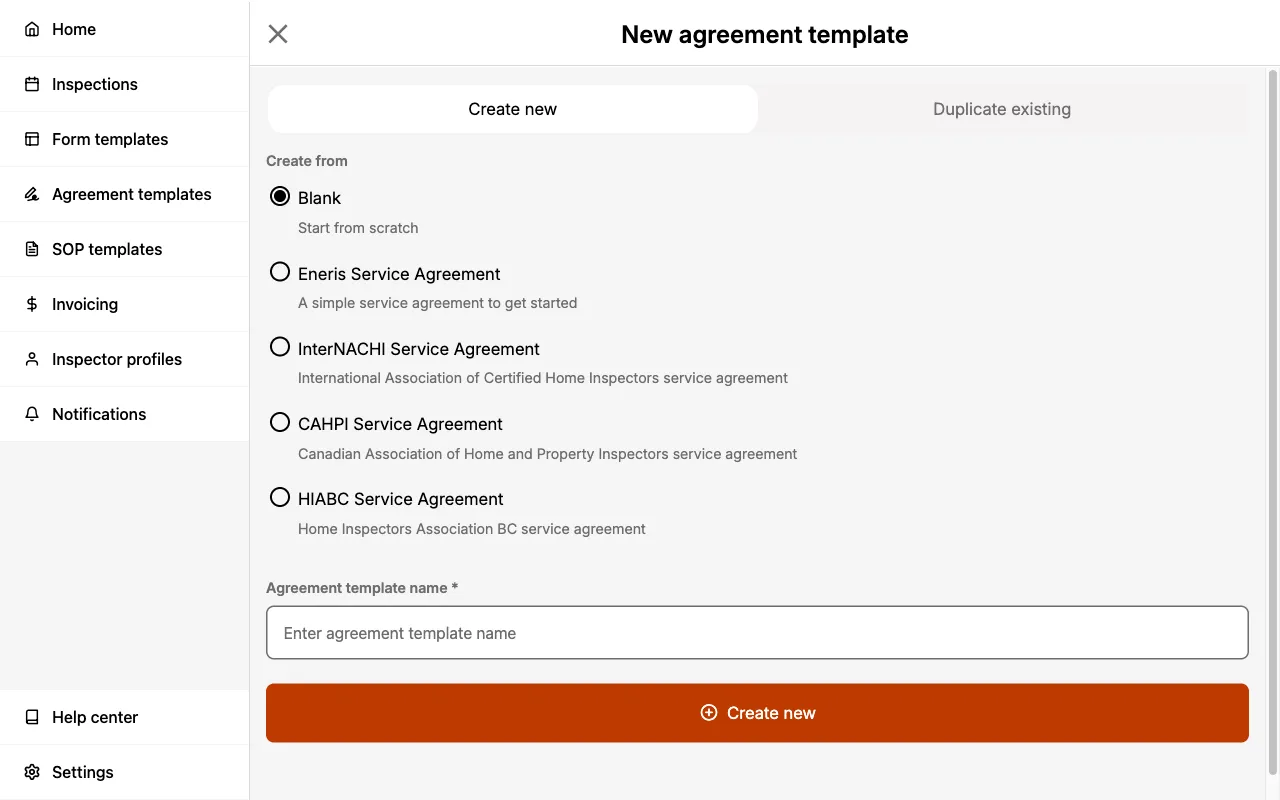
The Name field is used to identify the template in your list. The Title field is what appears in your client-facing PDF reports.
Edit a Service Agreement Template
To modify an existing Service Agreement Template:
- Navigate to Agreement templates in the sidebar.
- Select the template you wish to edit.
- Update the Name, Title, and Body fields as needed.
- Select
Save changes.
Changes to a Service Agreement Template only affect new Inspections created after the change. Existing inspections retain the Service Agreement content that was embedded when they were created.
Delete a Service Agreement Template
To delete a Service Agreement Template:
- Navigate to Agreement templates in the sidebar.
- Select the template you wish to delete.
- Scroll to the bottom and select
Delete agreement template. - Confirm the deletion when prompted.
Deleting a Service Agreement Template cannot be undone. Existing inspections that use this template will retain their embedded Service Agreement content.
Dynamic Tags
Dynamic Tags allow you to dynamically insert inspection-specific information into your Service Agreement Templates. When a service agreement is Published, these tags are automatically replaced with the actual values.
Insert them using the tag buttons beneath the body field, which are grouped into Contacts, This inspection, and Your business.
Contacts
| Tag | Description |
|---|---|
{{CLIENT}} | The name of the inspection's primary contact |
{{SECONDARY_CLIENT}} | The name of a second contact sharing the primary contact's role, such as a co-buyer |
{{CLIENT_ADDRESS}} | The primary contact's own address |
This inspection
| Tag | Description |
|---|---|
{{ADDRESS}} | The address of the property being inspected |
{{DATE}} | The scheduled inspection date |
{{TIME}} | The scheduled inspection time |
{{SUBTOTAL}} | The invoice subtotal for the inspection |
{{TOTAL}} | The invoice total for the inspection |
Your business
| Tag | Description |
|---|---|
{{INSPECTOR}} | The inspector's name from their Inspector Profile |
{{INSPECTOR_EMAIL}} | The inspector's email address |
{{BUSINESS_NAME}} | Your business name |
{{BUSINESS_PHONE}} | Your business phone number |
{{BUSINESS_WEBSITE}} | Your business website |
{{BUSINESS_ADDRESS}} | Your business address |
When a Service Agreement Template is applied to an Inpsection Form, Dynamic Tags are converted to actual text values. This conversion is one-way — the tags cannot be reverted once applied.
You can preview how the Dynamic Tags will appear before publishing the Service Agreement for client signature(s).
Inspector Signature
Your signature appears on all Service Agreements you send for signing. To set up your inspector signature:
- Navigate to your Inspector Profile.
- Locate the Inspector Signature field.
- Sign or select
Generate signature from name - Select
Submit - Select
Save changes
Your signature will automatically appear on all Service Agreements associated with your inspections.
Your inspector signature is a one-time setup. Once configured, it applies to all Service Agreements across all inspections where you are the primary inspector.
Once a signature is on file, an Include signature in checklist appears beneath the signature pad, letting you choose which documents it is stamped on: service agreements, report cover letters, and invoices. Service agreements are selected by default, so no action is needed to keep signing them as before. See Inspector signature placement if you want to change it.
Linking Service Agreements to Form Templates
To associate a Service Agreement Template with a Form Template:
- Navigate to Form templates in the sidebar.
- Select the Form Template you wish to modify.
- Locate the Service agreement template section.
- Select the edit icon then select the desired Service Agreement template from the menu.
- Navigate back a page then select
Savein the upper right.
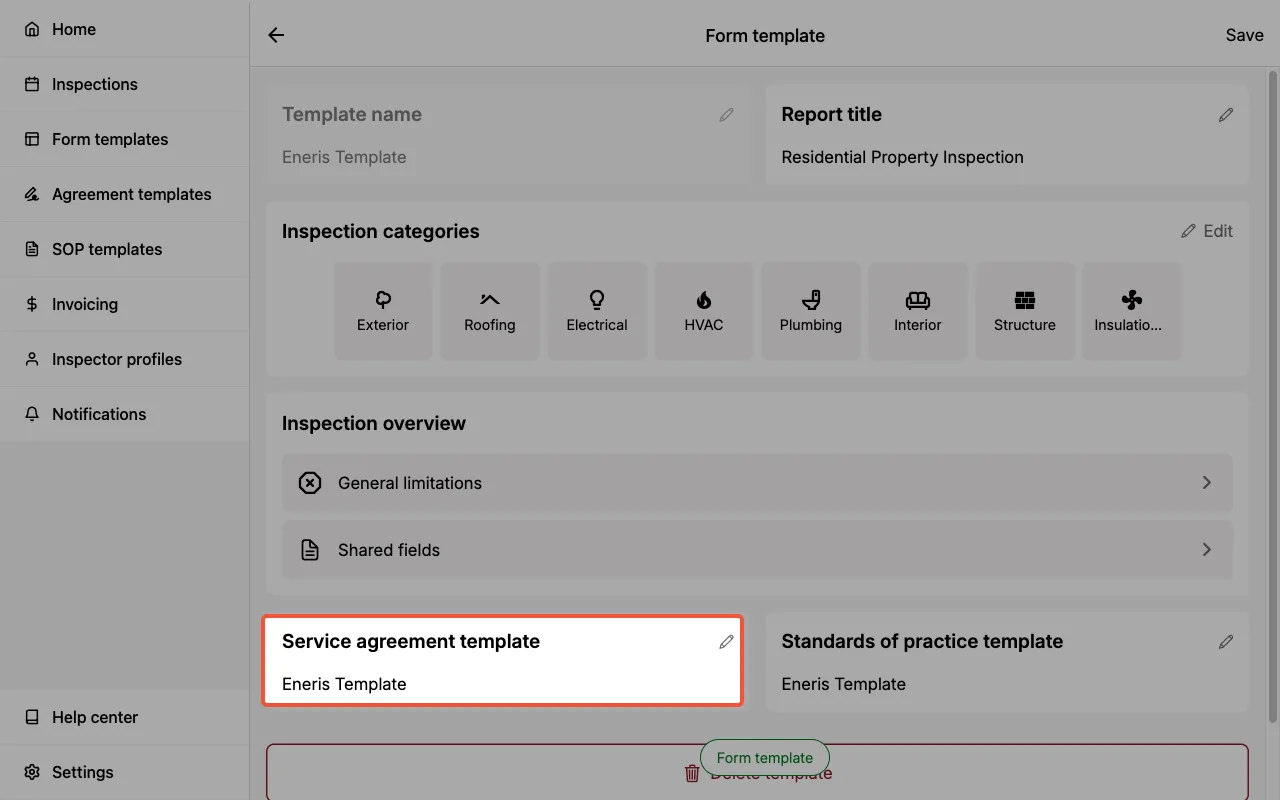
Once linked, the Service Agreement is automatically created when creating new Inspections using that Form Template. The agreement content is copied into the inspection, allowing for per-inspection modifications, if needed.
Service Agreements in Inspections
Service Agreements are managed from the Service agreements section on the Inspection page. Each agreement appears as a card showing the form it belongs to, the agreement title, its current state, and the list of signers.
When you create an Inspection using a Form Template that has a Service Agreement linked, the agreement is automatically created and appears in this section.
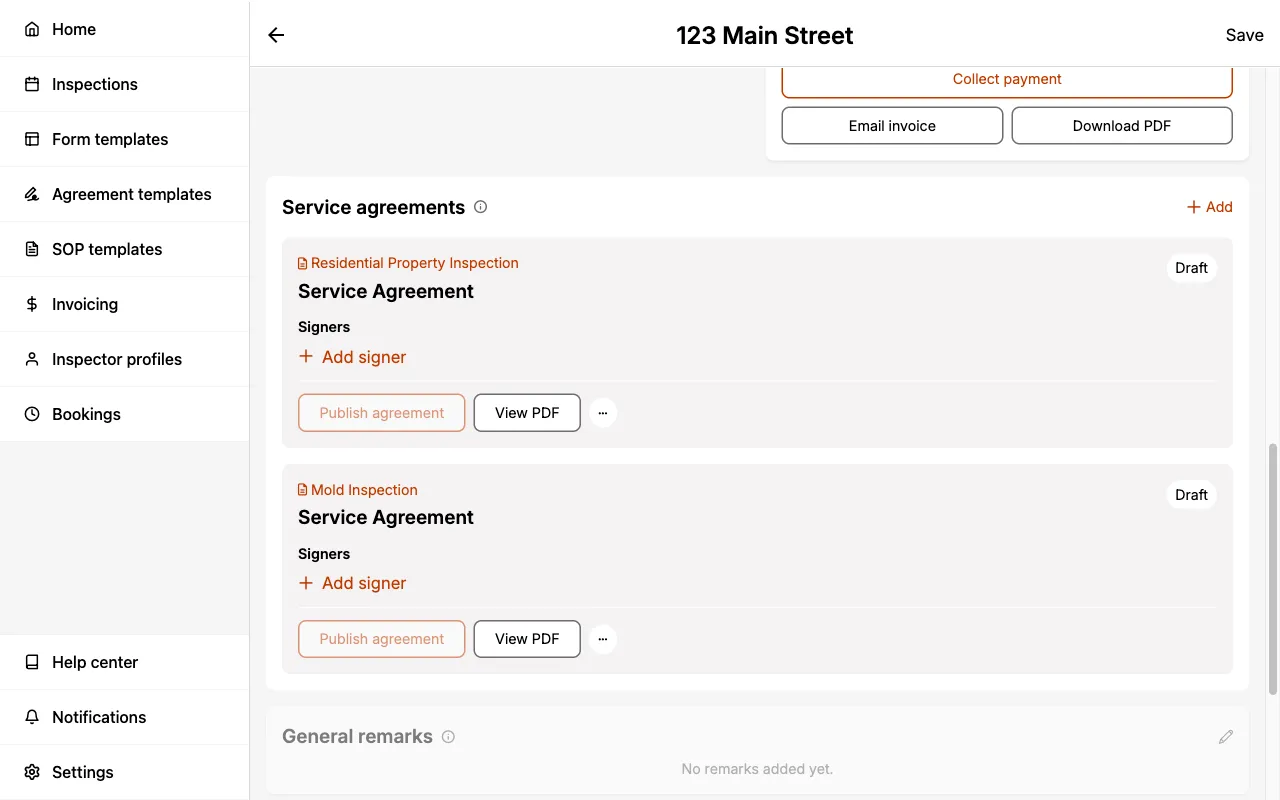
Adding a Service Agreement
To add a Service Agreement to an inspection:
- Navigate to the Inspection page.
- Locate the Service agreements section.
- Select
Add. - In the New service agreement sheet, select the Inspection form the agreement is for. The first form without an agreement is preselected, and forms that already have one are marked
(Already has an agreement). - Select the Agreement template to use.
- Select
Create agreement.
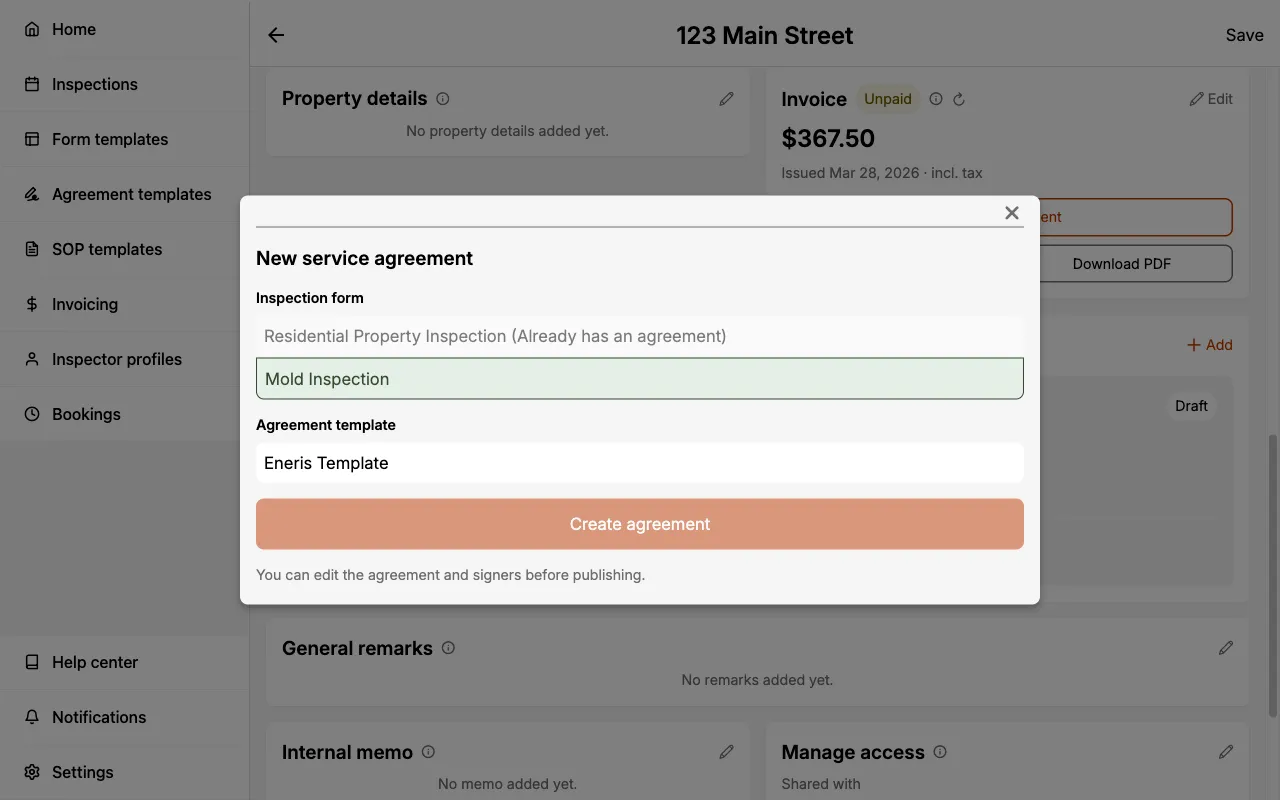
The new agreement is created in the Draft state, so you can edit the agreement and signers before publishing.
Each Inspection Form can have a maximum of one Service Agreement.
Making Ad-Hoc Changes
You can modify the Service Agreement content for a specific inspection by selecting the ellipsis on the agreement card and choosing Edit agreement. This is useful when:
- A client requests additional scope clarifications
- You need to add project-specific limitations
- You want to customize terms for a particular situation
Changes made to an inspection's Service Agreement only affect that specific inspection. They do not update the original Service Agreement Template.
Making changes to a Service Agreement after it has been signed will clear all existing signatures. Clients will need to re-sign the updated agreement.
Service Agreement States
Serivce Agreements can be in one of three states: Draft, Published, or Signed.
Draft— Service Agreement can still be configured. Either the content is being edited or signers are being added.Published— Service Agreement has been finalized and is ready for signature. Add additional signers and/or request missing signatures.Signed— Service Agreement has been signed by all signers.

Changes to the Service Agreement are possible regardless of what state it is in. However, making changes when it is in the Published or Signed states will clear all existing signatures. Clients will need to re-sign the updated agreement.
Publishing a Service Agreement
Publishing the Service Agreement means the agreement is finalized and ready for signature.
- Navigate to the Inspection page.
- Locate the agreement's card in the Service agreements section.
- Select
Publish agreement. - The Service Agreement is now in the
Publishedstate and ready for signatures.
The Publish agreement button is only enabled once the agreement has at least one signer. Add signers with the Add signer button on the agreement card.
Once all signers have signed the Service Agreement it will automatically convert to the Signed state. All signers will receive an email confirmation.
Viewing Signature Status
The Signers list on the agreement card displays the current signature status, which shows how many parties have signed (e.g., "2/3 signed"), with a Signed badge next to each signer who has completed their signature. This allows you to quickly see if any signatures are still pending.
Multi-Signature Support
Eneris supports up to 10 signatures on a single Service Agreement, accommodating complex scenarios such as:
- Unmarried couples purchasing together
- Siblings or family members as co-buyers
- Investors or business partners
- Any combination of multiple parties
Configuring Signers
Signers are managed in the Signers list on the agreement card. Select Add signer and choose which contacts from the Inspection need to sign. Only contacts associated with the inspection can be added as signers.
Signatures are arranged in two columns in the final document to save space, with the inspector's signature appearing last.
At this time, only the primary inspector's signature will appear in the Service Agreement.
In-Person Signing
For in-person signing:
- Ensure the Service Agreement is in the
Publishedstate. - Locate the signer in the Signers list on the agreement card.
- Select the
Signpill next to their name. - Hand the device to the signer.
- The Service Agreement will appear with a name and signature box at the bottom of the page.
- The signer types their name and signs/generates their signature.
- Select
Submit.
Off-Site Signing
To send a Service Agreement to all pending signers at once:
- Ensure the Service Agreement is in the
Publishedstate. - Select
Request signatureson the agreement card. - Optionally, choose an Email template to fill in the subject and message for you.
- Optionally, add a personal Message for the recipients.
- Select
Send request. This sends a signature request email to every signer who has not yet signed the Service Agreement.
The signature request email includes the inspection address, along with the inspection date and time shown in the signer's time zone.
The same Email template menu appears when you select Share agreement PDF, and when you request a signature from a single signer. See Email Templates to set one as the automatic choice.
To request a single signature instead, select the Request pill next to an individual signer's name.
Signers without an email address on their contact are skipped when sending requests. Add an email to their contact first, using the ellipsis menu next to their name and selecting Edit contact.
Managing Signatures
If a signature needs to be corrected:
- Locate the signer in the Signers list on the agreement card.
- Select the ellipsis menu next to their name.
- Select
Delete signature. - Select the
SignorRequestpill next to their name to collect a new signature.
Signatures are tied to the Service Agreement. If the agreement is deleted, all associated signatures are also removed.
Electronic Signing Interface
The signing interface works across all platforms:
Web:
- Sign using your mouse or trackpad
- Full signature pad interface
Mobile:
- Sign using your finger
- Optimized for touch screens
Features:
- Cursive pre-filled option — Generate a cursive signature based on the signer's name
- Free-form drawing — Draw a signature manually
- Delete and re-do — Clear and restart if you make a mistake
Signature Notifications
For Signers
After all signers successfully sign a Service Agreement, everyone will receive an email confirmation acknowledging their signature has been recorded.
For Inspectors
When all required parties have signed the Service Agreement, you receive an email notification confirming the agreement is fully completed.
Service Agreement in Reports
When you publish a report, the Service Agreement appears in the PDF report.
Placement:
- Second-to-last section (before Standards of Practice)
- Added to the Table of Contents
Content includes:
- Title — The Service Agreement title you specified
- Body — The full agreement text
- Signatures — All collected signatures with printed names and date of signature
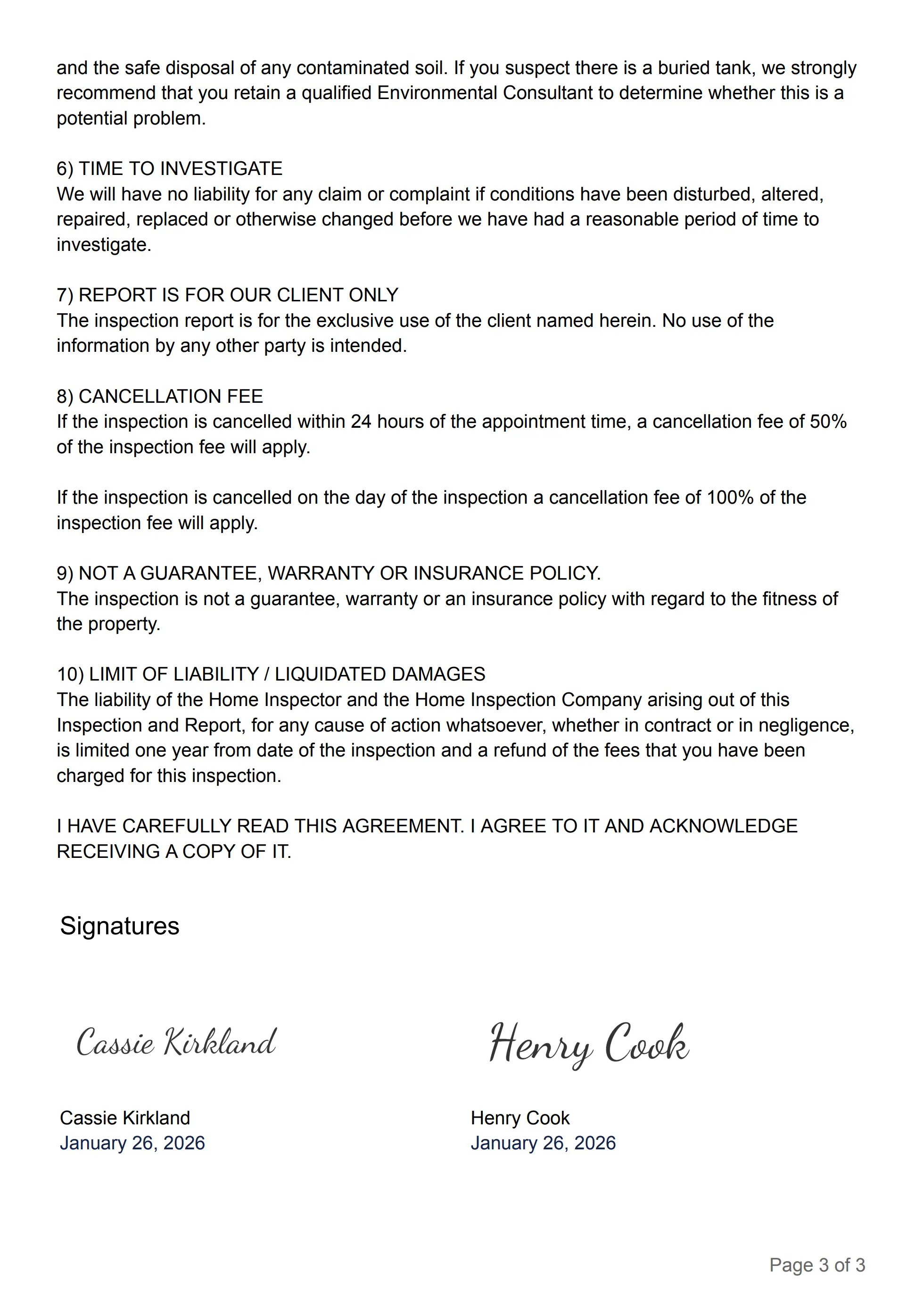
If additional signatures are collected after the report is published, you must manually re-publish the report to include the new signatures.
Standalone PDF
You can generate and share a fully signed Service Agreement as a standalone PDF document, separate from the inspection report.
Generating a standalone Service Agreement PDF
To generate a standalone PDF:
- Navigate to the Inspection page.
- Locate the agreement's card in the Service agreements section.
- Select
View PDF.
This helps further verify the signatures have been completed.
Sharing a standalone Service Agreement PDF
To share a standalone PDF:
- Navigate to the Inspection page.
- Locate the agreement's card in the Service agreements section.
- Select the ellipsis on the card. This is the actions menu.
- Select
Share agreement PDF.
Share agreement PDF is available once the agreement is in the Published or Signed state.
This is useful when clients request a copy of just the signed agreement without the full inspection report.