Reports
A report is the final product generated from your Inspection. Once your inspection is complete, all entered data is compiled into one or more deliverables (an interactive Web report, an Inspection report (PDF), an Inspection summary (PDF), or any combination) that you can review, publish, and share with clients.
Previewing a report
Use the Preview changes feature to quickly check how your report looks before publishing it. This lets you verify that:
- All entered data is showing up correctly.
- Media and formatting appear as expected.
- No key information is missing.
To see a preview, you must first save your report and then select the Preview changes button. By default, this opens the Web report preview, which works offline.
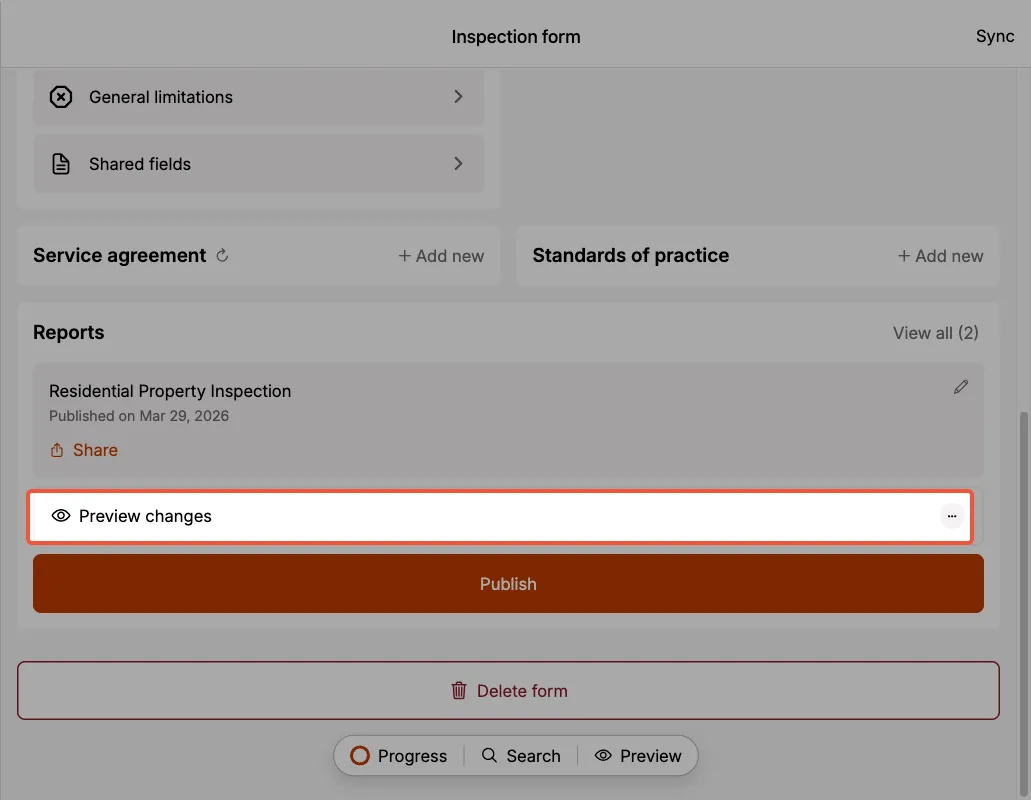
The preview lets you review the output of your work so far.
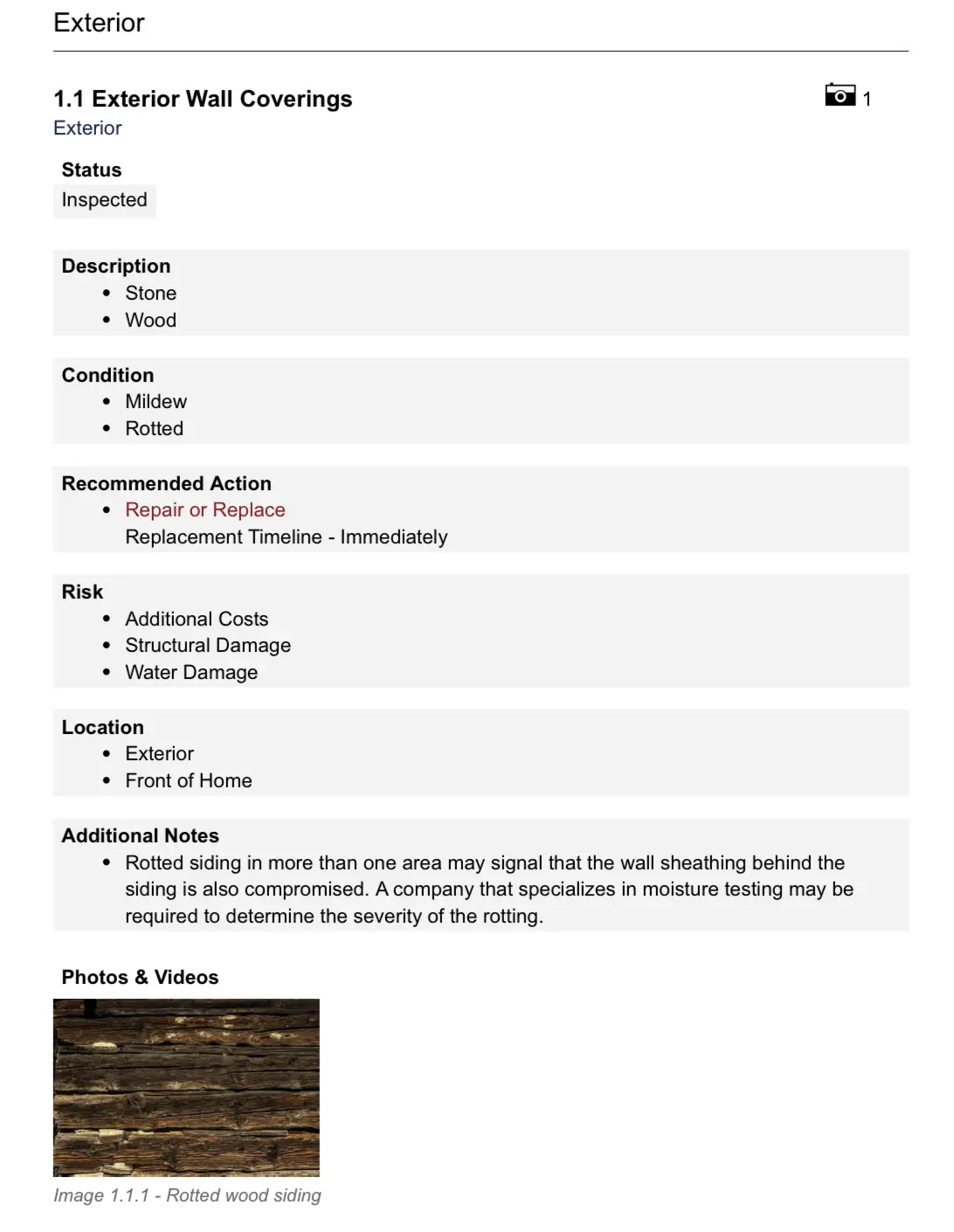
Previews are short-lived and are not meant to be shared. To generate a shareable report, see publishing a report.
Report formats
When you publish, you can generate up to three different deliverables from the same inspection:
- Web report: an interactive online report that opens in a browser. Recipients can search the report, jump between sections via sticky category tabs, expand the list of actionable findings, browse summary tables, enlarge images, and download the PDFs (if also published) from inside the page.
- Inspection report (PDF): a comprehensive PDF containing all inspection details, findings, media, and entered data. Best for offline access, printing, and archival.
- Inspection summary (PDF): a condensed PDF that focuses on key summaries and highlights from your inspection. The summary document is titled with your report title followed by "Summary" (e.g., "123 Main Street Summary"). The summary is generated based on the selections you made in the summary label field within each component.
These are the capabilities of each format itself, and are not configurable:
| Feature | Web report | Inspection report (PDF) | Inspection summary (PDF) |
|---|---|---|---|
| Format | Interactive web page | Static PDF | Static PDF |
| In-page search | ✓ | – | – |
| Enlarged images | ✓ | – | – |
| List and Grid views | ✓ | – | – |
| Light/dark theme | ✓ | – | – |
| Preview offline | ✓ | – | – |
| Viewable offline (recipient) | – | ✓ (after download) | ✓ (after download) |
| Shareable link | ✓ | ✓ | ✓ |
What each format can contain
What actually goes into each document is not fixed. Your team chooses it under Report Preferences, along with the order the sections appear in and the colors they are branded with.
The table below shows which sections each format supports, and whether each one is on or off before anyone changes anything.
| Section | Web report | Inspection report (PDF) | Inspection summary (PDF) |
|---|---|---|---|
| Title page | – | Always on | Always on |
| Cover letter | – | On | Off |
| Table of contents | – | On | On |
| Invoice | – | On | Off |
| Actionable findings | On | On | Off |
| Overview of summaries | On | Off | On |
| Summary sections | Off | Off | On |
| General information | On | On | Off |
| Detailed findings | On | On | Off |
| Service agreement | – | On | Off |
| Standards of practice | On | On | Off |
| Appendices | On | On | Off |
On and Off are starting points you can change. A dash means the section is not available in that format at all.
The two PDFs draw on the same set of twelve sections, so anything one can show, the other can too. What separates them out of the box is only which sections start switched on: the Inspection report starts as a full record, and the Inspection summary starts as a short digest. Switch Detailed findings on in the summary and it stops being a summary, which is usually not what you want, but nothing prevents it.
The Web report is the exception. It has no title page, cover letter, table of contents, invoice, or service agreement, because those are either fixed parts of the page or belong to a printed document.
When to use each format
Use the Web report when:
- Clients want to read the report on a phone, tablet, or laptop without dealing with a PDF.
- Recipients benefit from in-page search, enlarged images, and direct links to specific findings.
- You want a single link that always points to the latest published version.
Use the Inspection report (PDF) when:
- Clients, lenders, or legal/compliance processes require a static archival document.
- The recipient needs to read or print the report offline.
- You're providing a complete record of every detail and observation.
Use the Inspection summary (PDF) when:
- Clients need a quick overview of key findings before the full report is reviewed.
- Decision-makers want an executive summary they can forward easily.
Publishing the Web report alongside both PDFs gives you maximum flexibility. Recipients can read interactively online, and you still have static PDFs to send to lenders, contractors, or anyone who prefers a downloadable document.
Any appendices attached to the Inspection Form are included at the end of the Web report and the Inspection report (PDF). The Inspection summary (PDF) leaves them out, though you can switch the Appendices section on for it under Report Preferences.
Previewing other formats
When using the Preview changes feature, you can choose which format to preview:
- Select the ellipsis next to the
Preview changesbutton. - Choose between:
- Web report: preview the interactive Web report (works offline).
- Inspection report (PDF): preview the full detailed PDF.
- Inspection summary (PDF): preview the condensed summary PDF.
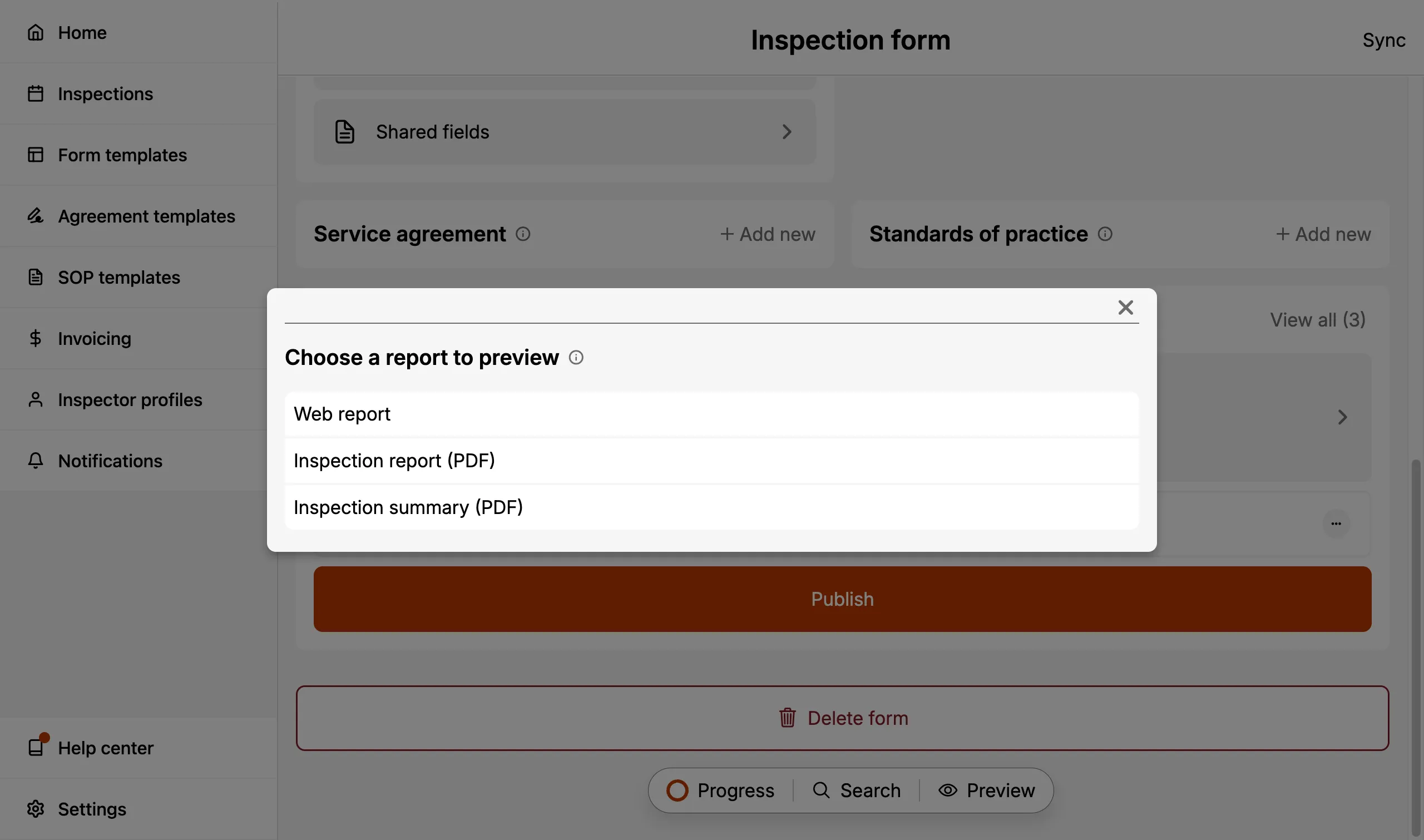
This allows you to review any format before publishing.
The PDF previews require an internet connection to generate. The Web report preview is rendered locally on your device and works offline.
Publishing a report
Publishing the Inspection Form creates a point-in-time report for record-keeping and sharing. Once published, you'll be able to share the report with clients and other contacts.
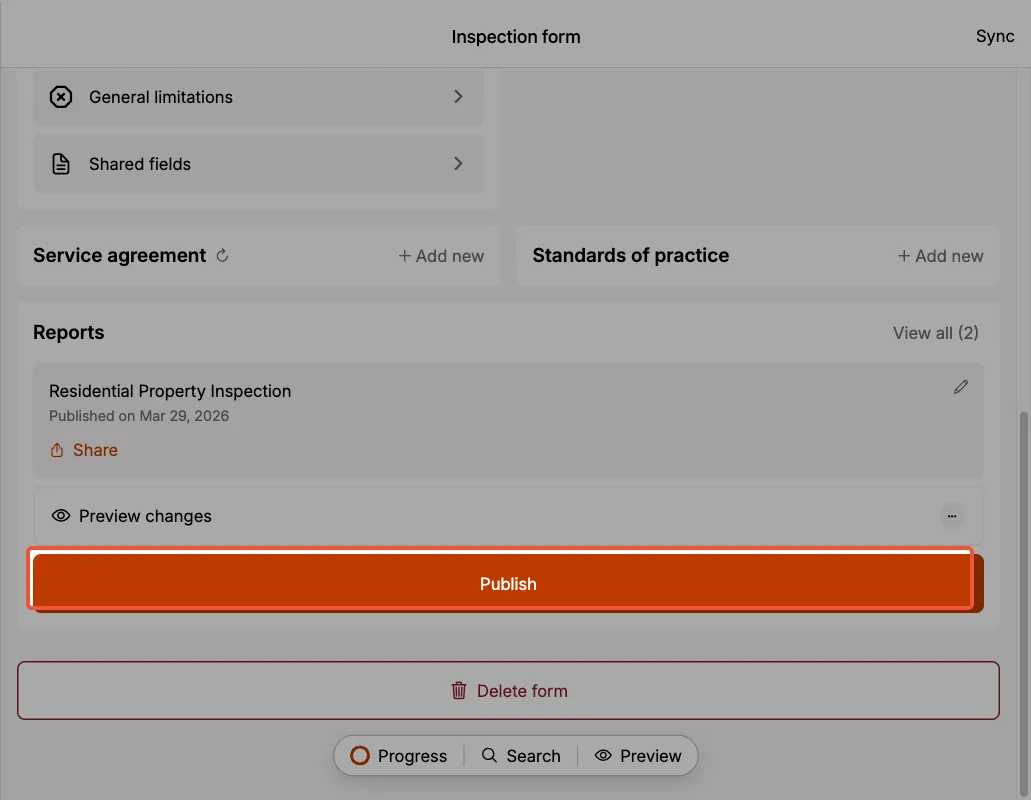
Selecting what to publish
When publishing, you can choose which formats to publish:
- The Web report, the Inspection report, the Inspection summary, or any combination.
- The Web report is selected by default. You can uncheck it if you'd prefer to publish only PDFs.
- At least one format must remain selected for the Publish button to be enabled.
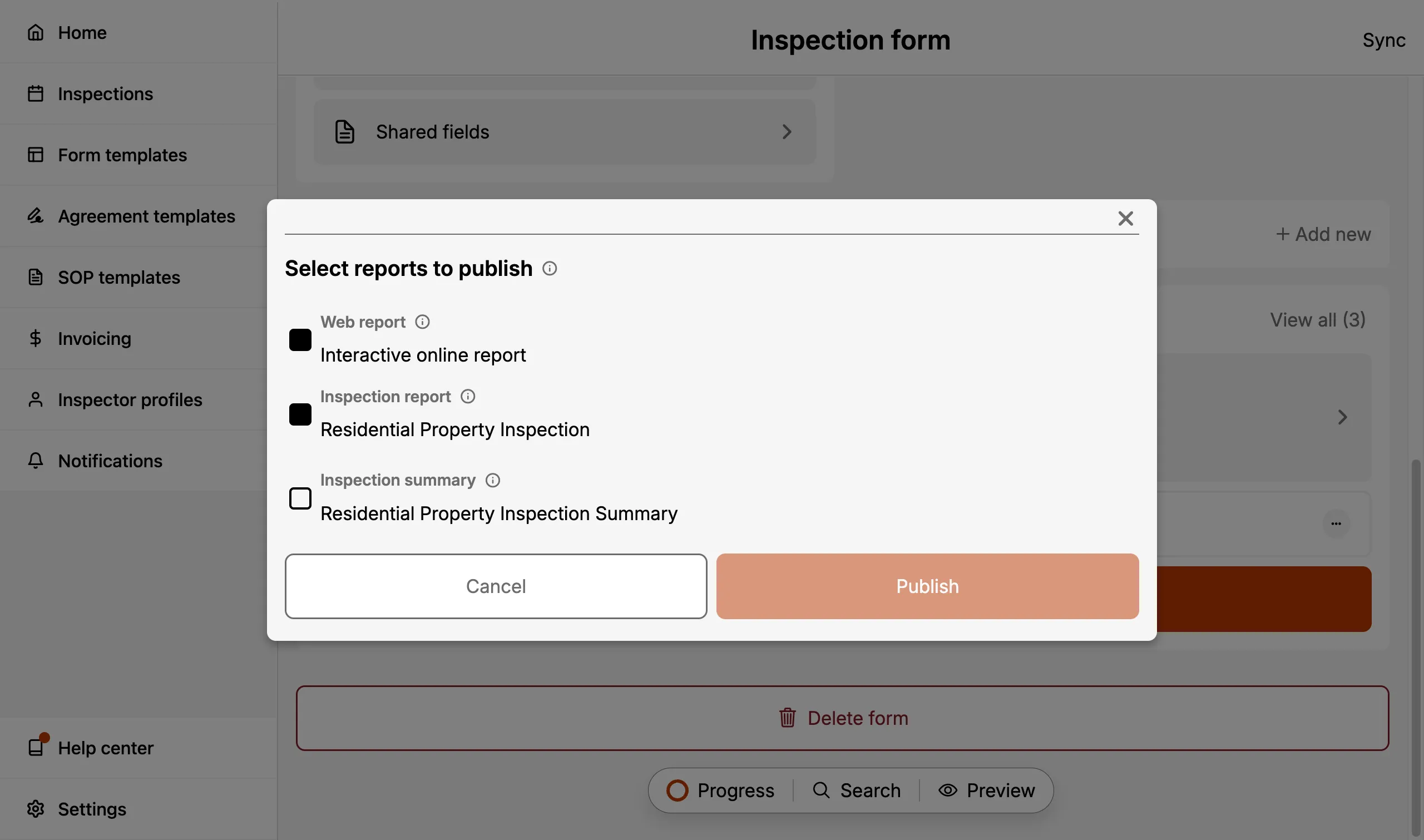
All selected formats are generated and saved as part of the same report version.
Consider publishing all three formats together. The Web report gives clients an interactive, mobile-friendly experience, while the PDFs cover offline, archival, and quick-summary use cases.
Customizing a single report
Your team's Report Preferences decide how every report is built, but the odd job needs something different. A commercial client may want the invoice left out, or a particular report may read better with the summary sections switched on.
Rather than changing your team settings and remembering to change them back, select Customize this report in the Publish sheet. The panel that opens carries the same controls as the Report Preferences screen:
- Branding: the brand and accent colors
- Contacts: how many contacts are listed, and whether their addresses appear
- Title page and sections: per document, exactly as on the preferences screen
Everything starts from your team's saved preferences, so you are adjusting the settings you already use rather than starting from scratch. Only the documents you ticked to publish appear as tabs.
Customizations here apply to this publish only. Your team's saved Report Preferences are not touched, and nothing carries over to the next report. Close the sheet without publishing and your changes are discarded.
Publishing again later starts from your team's preferences once more, so a report you customized will revert unless you customize it the same way again.
If you find yourself making the same customization on every job, it belongs in Report Preferences instead. Set it once and every report picks it up.
The same Customize this report control appears in the Preview changes sheet, where all three formats are available as tabs. Use it to see how a change looks before committing to it in a publish.
If your report preferences cannot be loaded, the panel explains that the report will use your account defaults and its controls are unavailable. Publishing still works.
Publishing achieves a few main things:
- It saves and syncs your report.
- It generates the selected formats at the time of publishing, capturing all inspection entries and other information about the inspection job.
- Each published version is saved as a historical snapshot you can refer back to.
- Enables you to share a previously published report (even if newer versions of the report are available).
- Enables you to easily perform follow-up inspections on a property.
If the inspection was imported from ISN, publishing also sends the report's link back to the matching ISN order automatically. See ISN.
Viewing a published Web report
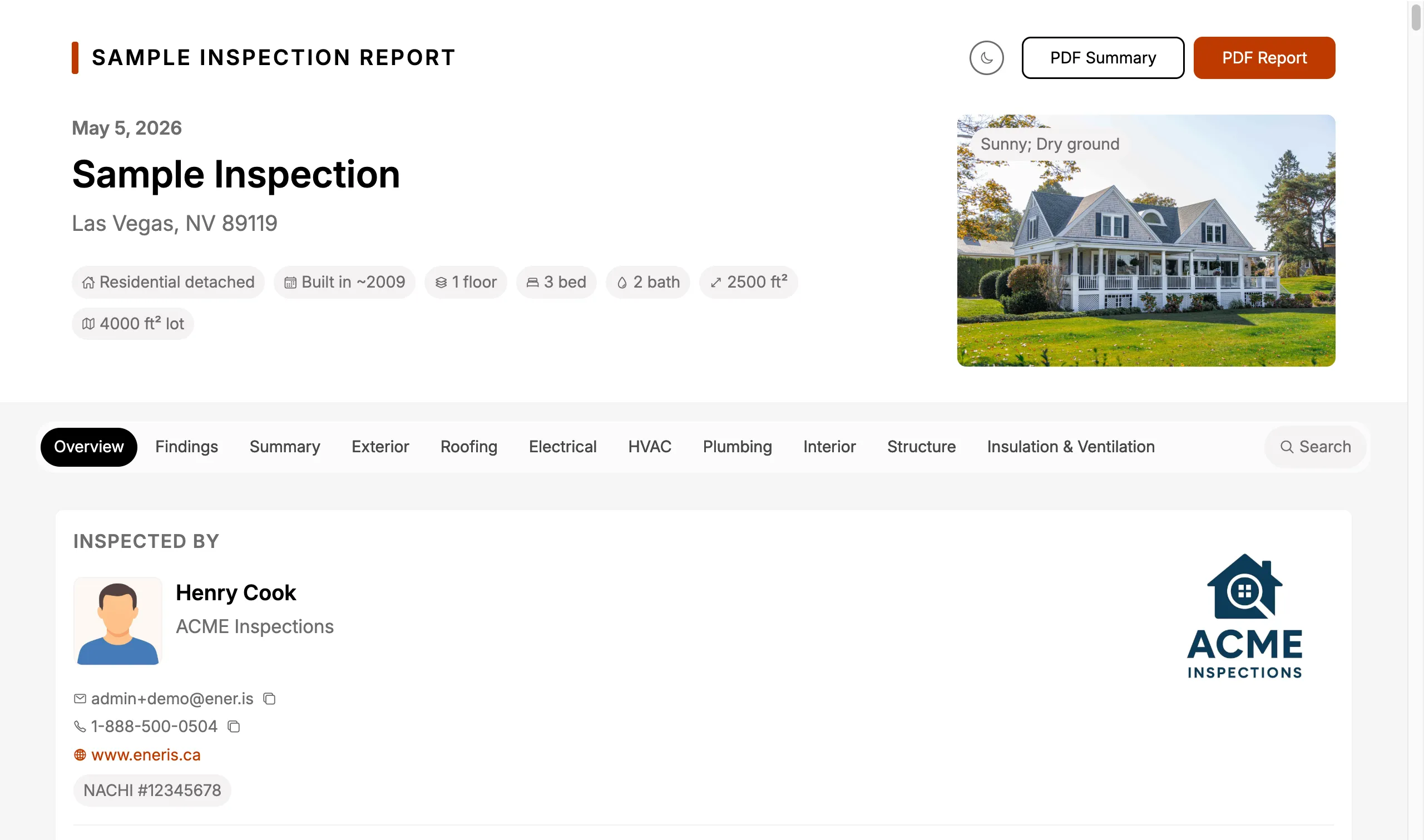
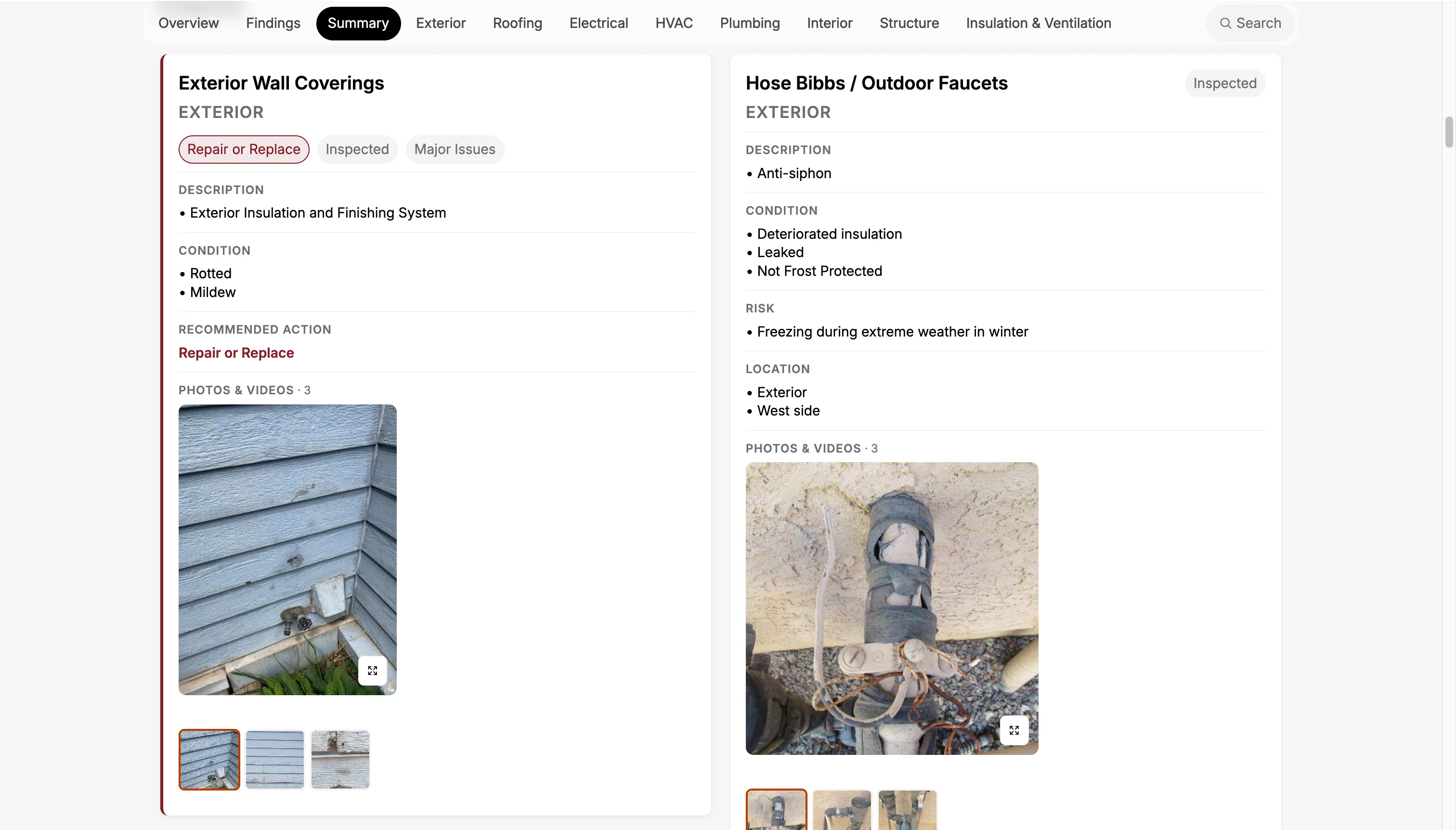
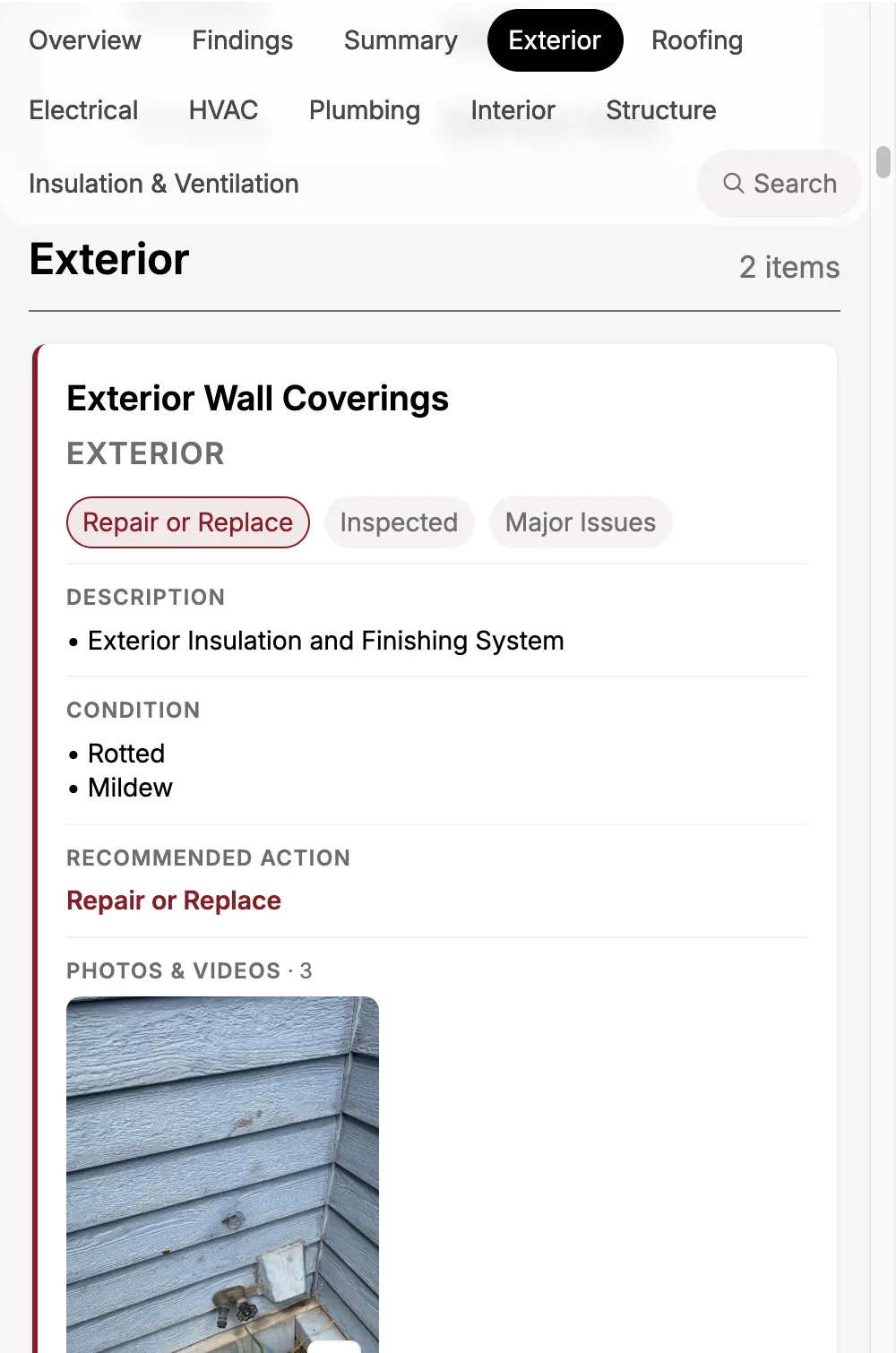
When a Web report is published, the recipient (and you) can open it directly in a browser at the report's link. The page is mobile-, tablet-, and desktop-friendly and includes:
- An Overview with the primary photo, address, inspection date, property details, and the inspector profile. If the profile has a Cover letter, it appears here alongside the inspector's details.
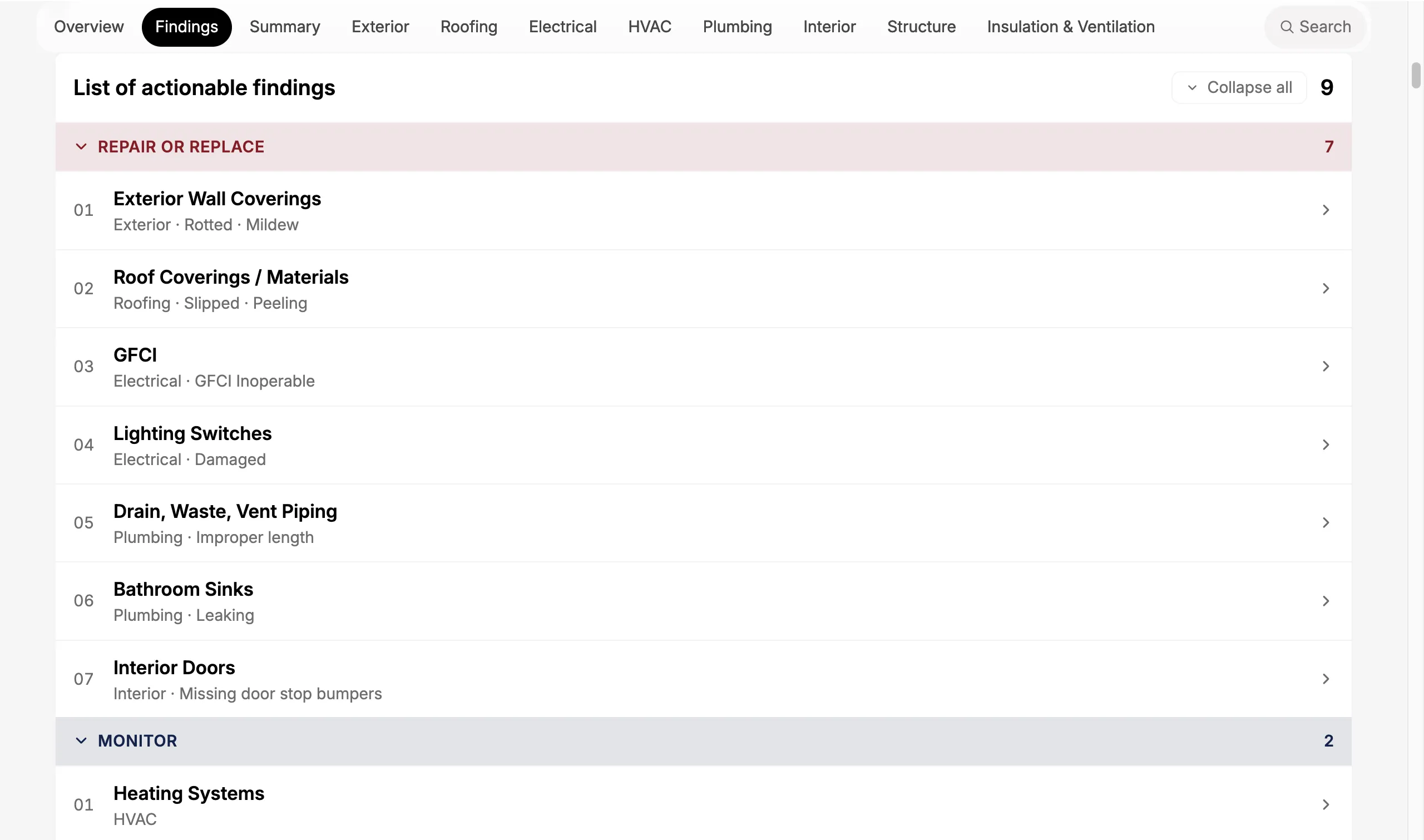
- A Findings section showing the full list of actionable findings, grouped by recommended action (e.g., "Repair or Replace", "Monitor"), with each row linking directly to the corresponding item.
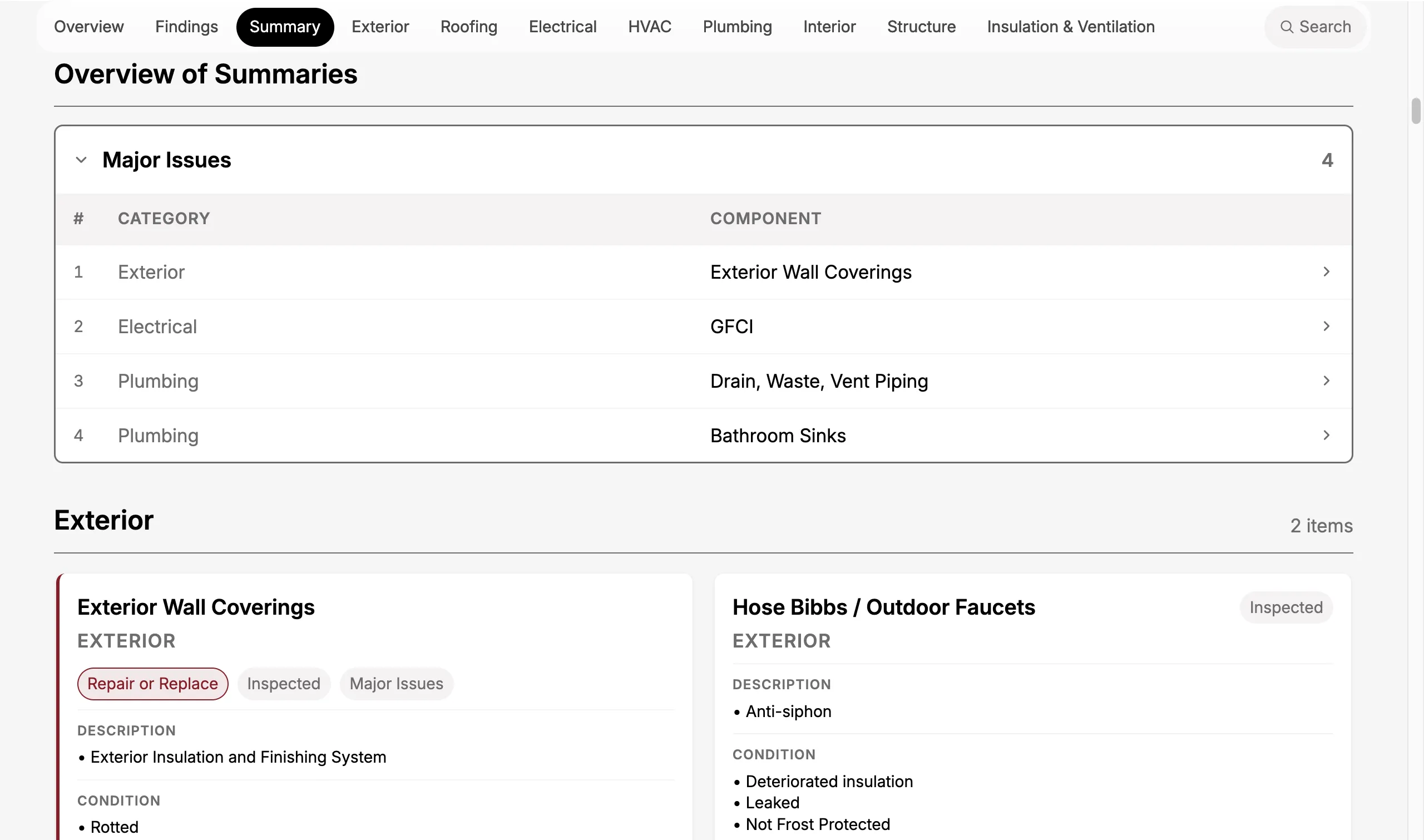
- A Summary table that lists each impacted item by category and component.
- Sticky category tabs (e.g., Exterior, Roofing, Electrical, Interior) that scroll-to-section and stay visible as you read.
- Search: select the magnifying glass in the sticky navigation to search the whole report, and jump straight to a matching item.
- Items with photos, videos, notes, and a color-coded left border indicating the recommended action.
- List and Grid views: the Findings and Summary blocks each carry a
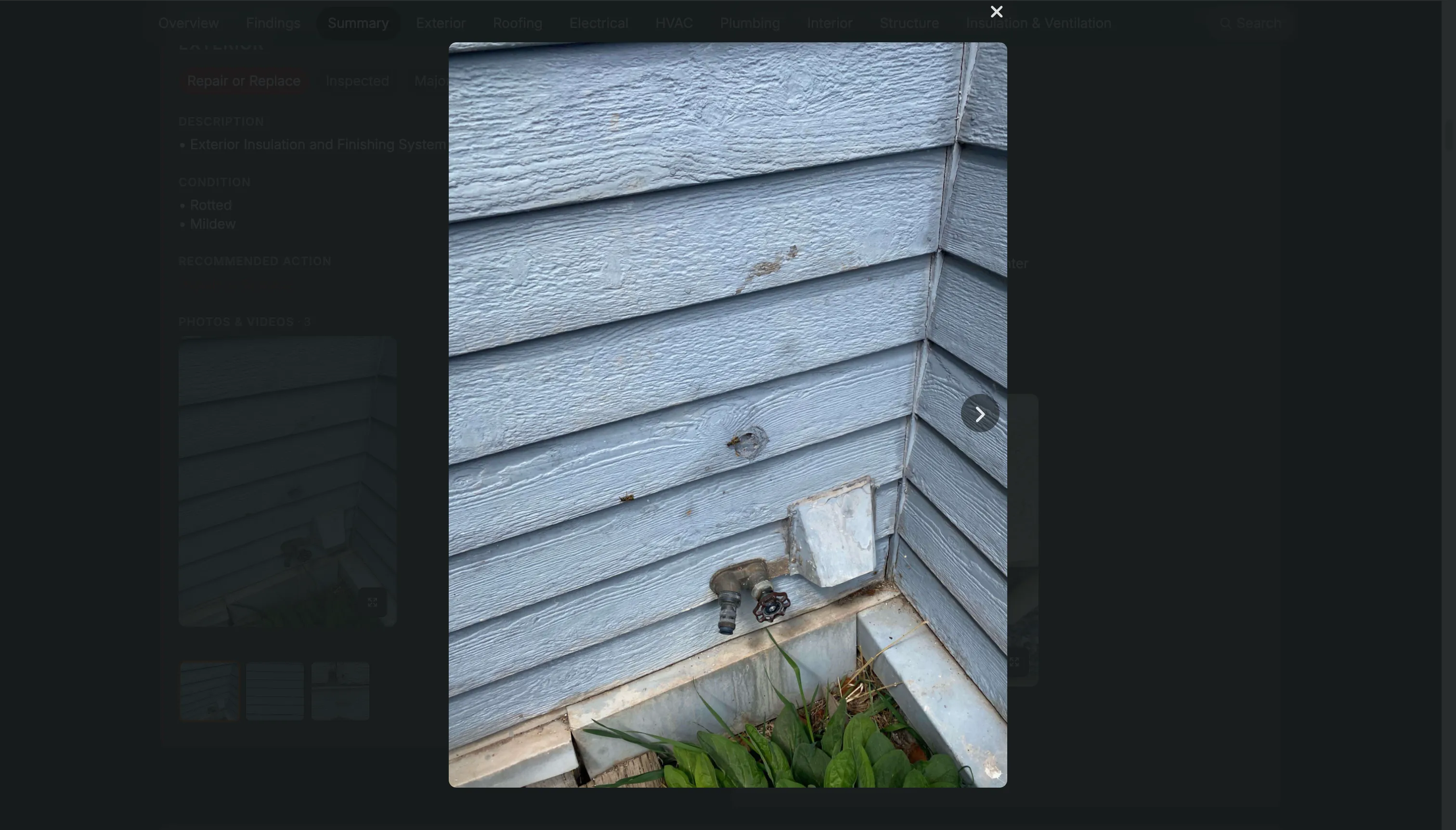
List/Gridtoggle in their header. List is the default; Grid lays the same content out as media tiles. See Switching between List and Grid. - Enlarge Image: tap or click any photo for a full-screen viewer.
- PDF download buttons: if you also published the Inspection report or Inspection summary, recipients can download the PDFs directly from inside the Web report.
- Display mode: the Web report supports both light and dark modes. It opens in the mode matching the device theme of whoever is viewing it, and can be switched at any time.
Browse each view below:
- Overview
- Findings
- Summary
- Items
- Images
- Mobile
Switching between List and Grid
The Findings and Summary blocks can each be read two ways, and a List / Grid toggle in the block header switches between them:
- List is the default. Each finding is a full-width row, which keeps long notes readable and makes it easy to scan straight down the recommended actions.
- Grid lays the same findings out as media tiles, which suits a report where the photos carry more of the story than the write-ups.
- List
- Grid
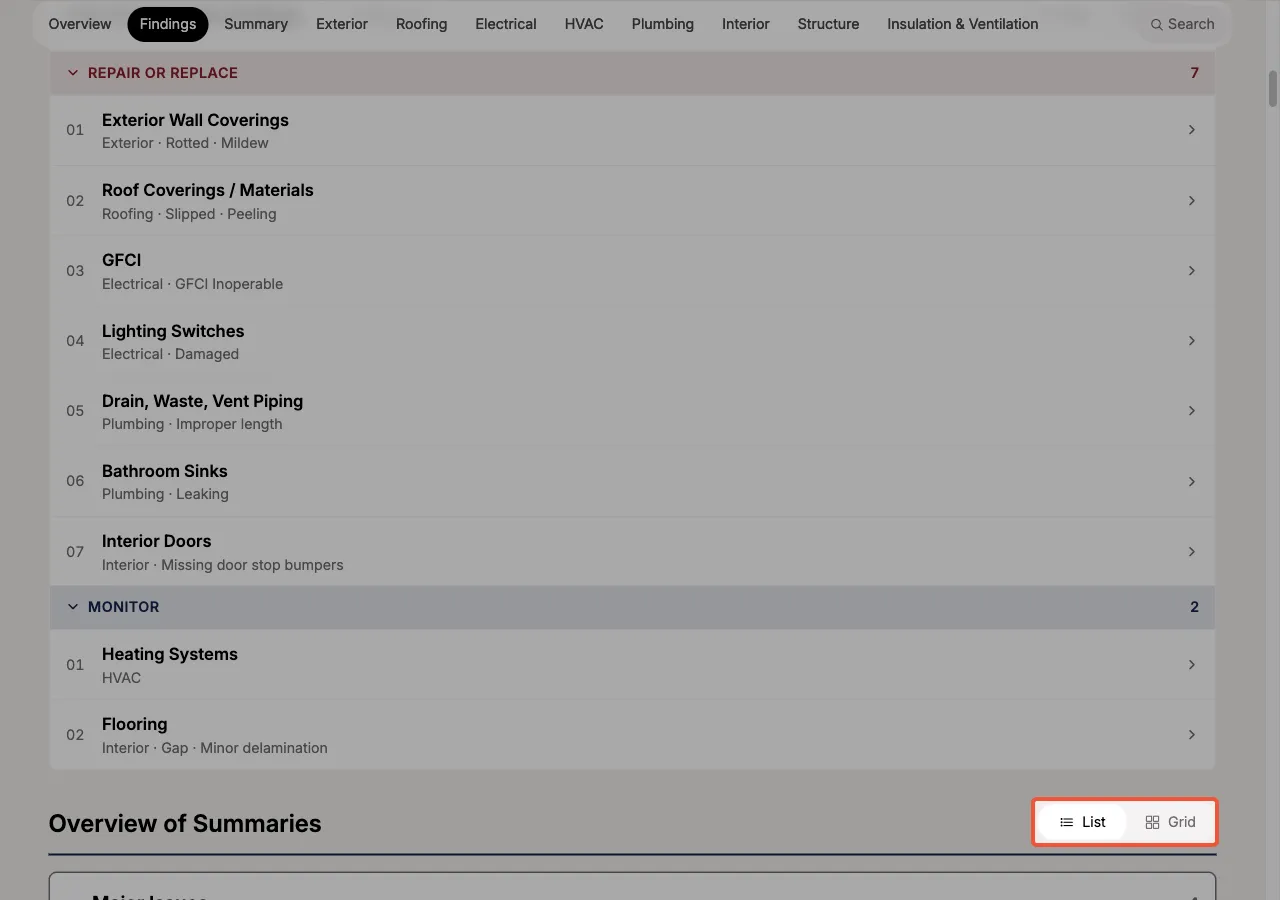
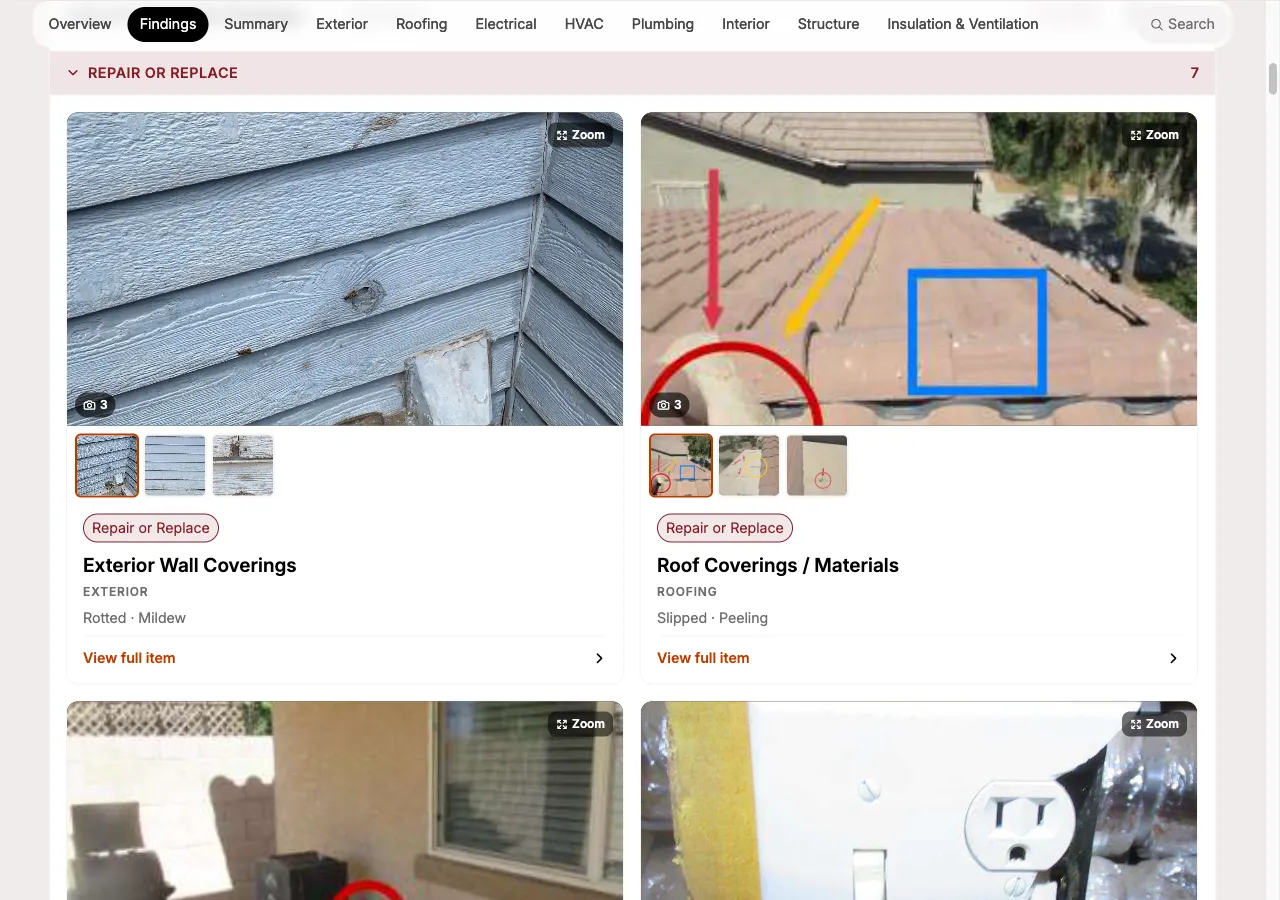
The two blocks are set independently, so you can read findings as a list while viewing summaries as a grid. Your choice is remembered on that device for future reports, so you only have to set it once.
This is a viewing preference, not a property of the report. It changes nothing about what was published, and each recipient sets it for themselves. Your choice does not follow the report to whoever you share it with.
When an item has more than one photo or video, a strip of thumbnails appears beneath it. Selecting a thumbnail swaps which media is shown at full size; it does not open the zoom viewer, so you can move through an item's photos without leaving the page. Items with a single photo show no strip.
Making changes to an Inspection Form after publishing a report
You can always make changes to an Inspection Form after publishing your report. Simply publish the report a second time after your changes to see your updates.
- Reports can be published as many times as needed.
Here's an example:
- 10:00am: You finish your inspection, publish a report, and share it with your client(s).
- 5:00pm: Your client(s) review the report and ask you to correct a few typos.
- 6:00pm: You fix the typos, publish a new version of the report (which saves and syncs your updates), and share the updated report with your client(s).
- Depending on how you shared the report your client(s) will either automatically have access to the latest version or you can choose to manually share the latest version, as well.
This versioning system of published reports ensures a clear audit trail, which is helpful for revisits, legal compliance, or customer questions.
While you can make as many changes as needed to an Inspection Form keep in mind that a published report itself cannot be edited. It can only be marked as public or private.
- e.g., If you have five published reports you can always continue editing the Inspection Form from the fifth published report. You are unable to revert back to the first version and continue editing from there.
View all published reports
To view a list of all published reports for a particular Inspection select the View all button.
- This also allows you to quickly identify which reports are public or private.
Sharing a report
After publishing your report you will be able to share it with your client(s). However, you need to decide on a few things before you can do so:
- Which version of the report you would like to share.
- Who should receive the report.
- The email subject and email body your client(s) will receive.
When you successfully share a report with your client you will be CCed in the email.
If your team has set an Email Template as the automatic choice for Share report, the subject and body arrive already written, with the client's name and property address filled in. Select a different template, or None (standard copy), from the Email template menu at the top of the form.
Report formats in the email
When sharing via email, your published formats appear as buttons in the message:
- If you published the Web report, the email leads with a button that opens the Web report online.
- If you also published the Inspection report and/or the Inspection summary, each appears as a secondary button below for direct PDF download.
- If you only published PDFs, the first PDF becomes the primary button and any additional PDF appears as a secondary button.
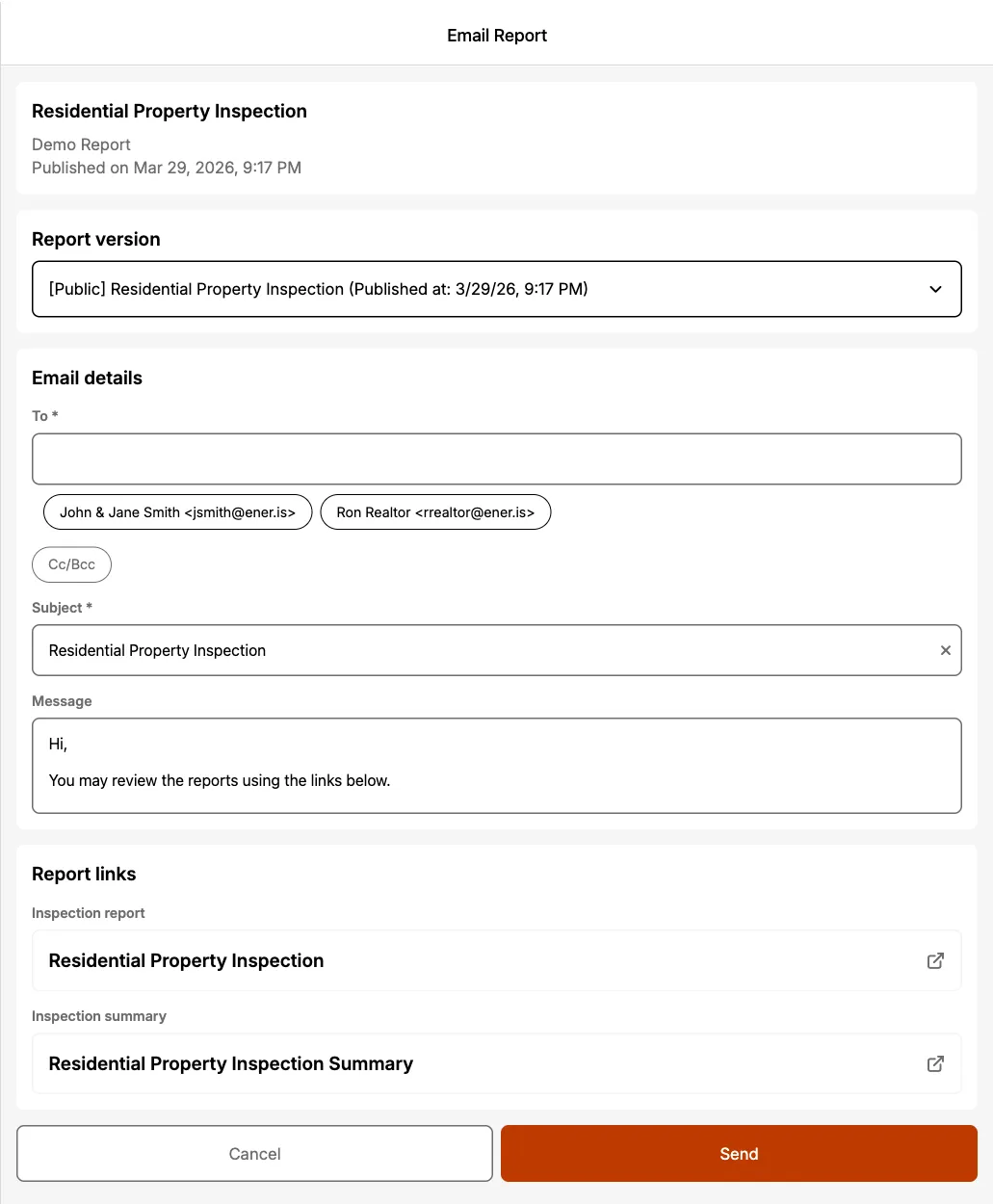
Your recipients will receive a single email with links to whichever formats you've published.
The Web report and the PDFs all respect the same public/private status. Setting a report private makes the Web report URL and every PDF attachment URL inaccessible to recipients.
Sharing the latest version of a report
When sharing a report, you will see an option to select the Report version. Selecting the dropdown menu reveals all of the published reports you have created for this Inspection.
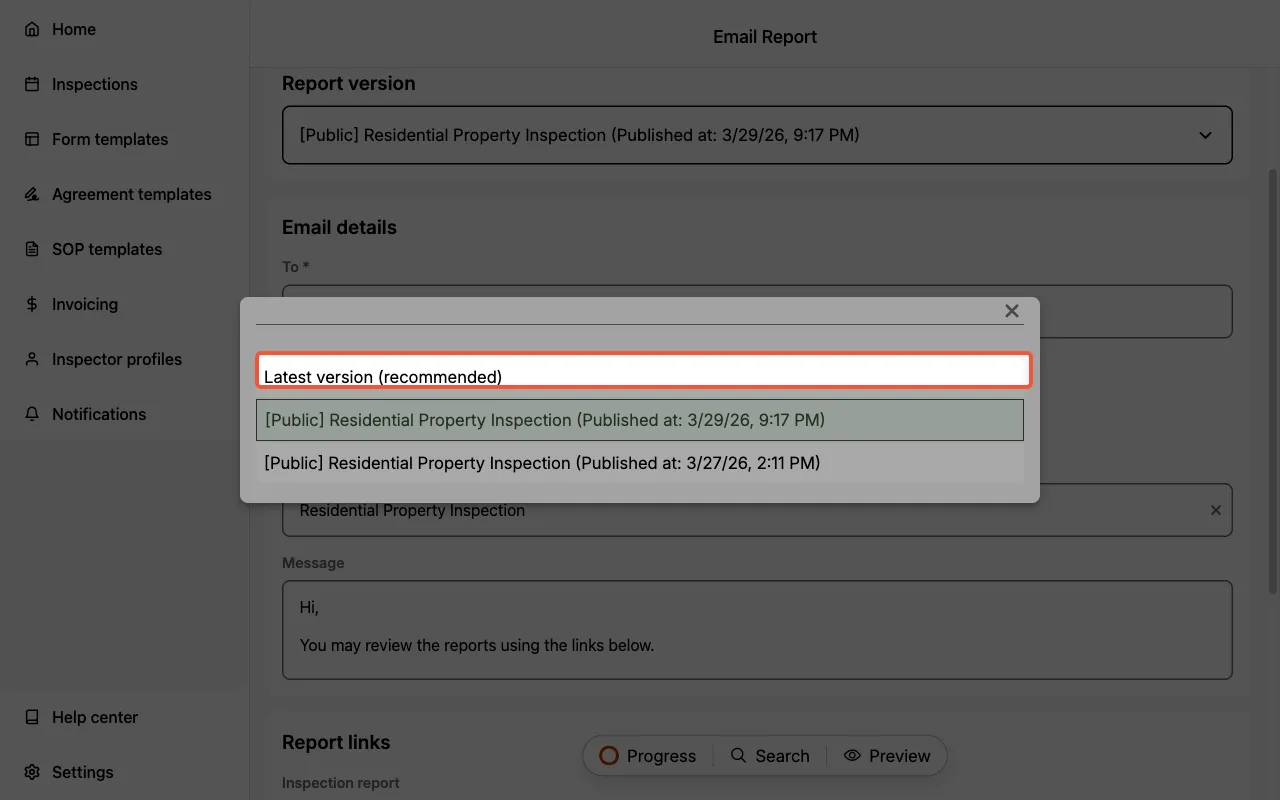
Selecting Latest version (recommended) will include a link that always shows the latest published version of the report when your client(s) click it.
- e.g., You share a report to your client(s) and immediately notice a glaring typo. Selecting
Latest version (recommended)allows you to fix your typo, republish your report, and rest easy knowing that when your client opens the report from this point onward they will have the latest published version of the report.
- No additional notification is sent to your client regarding a newly published version of the report.
- If an older version of the report is shared and includes a summary, but the latest version does not, clicking the summary button in the email will default to opening the first available format on the latest version.
Sharing a specific version of a report
When sharing a report, you will see an option to select the Report version. Selecting the dropdown menu reveals all of the published reports you have created for this Inspection.
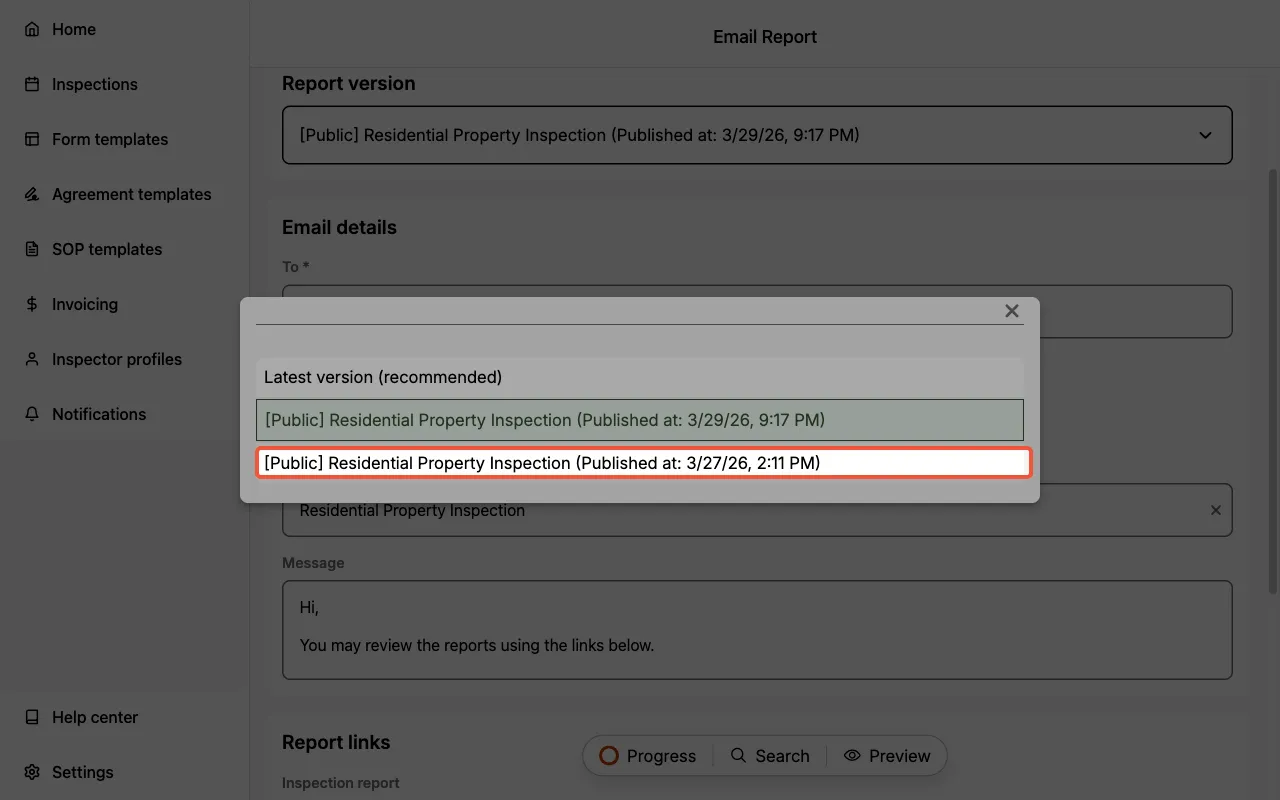
The default option is Latest version (recommended). Selecting any other option will share that specific published report with your client(s).
- e.g., If you published a newer version of the report for your client(s) then you would need to re-share the report.
If your client(s) open the original report and download the PDF onto their computer or mobile device then they will still have access to that version of the report.
Selecting recipients of the report
You can share the report with:
- Any contact already associated with the inspection.
- Any other email address manually entered.
Selecting the To, Cc, or Bcc field reveals options to select the contacts you saved for that Inspection.
- Manually type an email to include them as a recipient, as well.
The Inspection report section at the bottom of the page allows you to do one final review of the PDF report prior to sending it to the recipients.
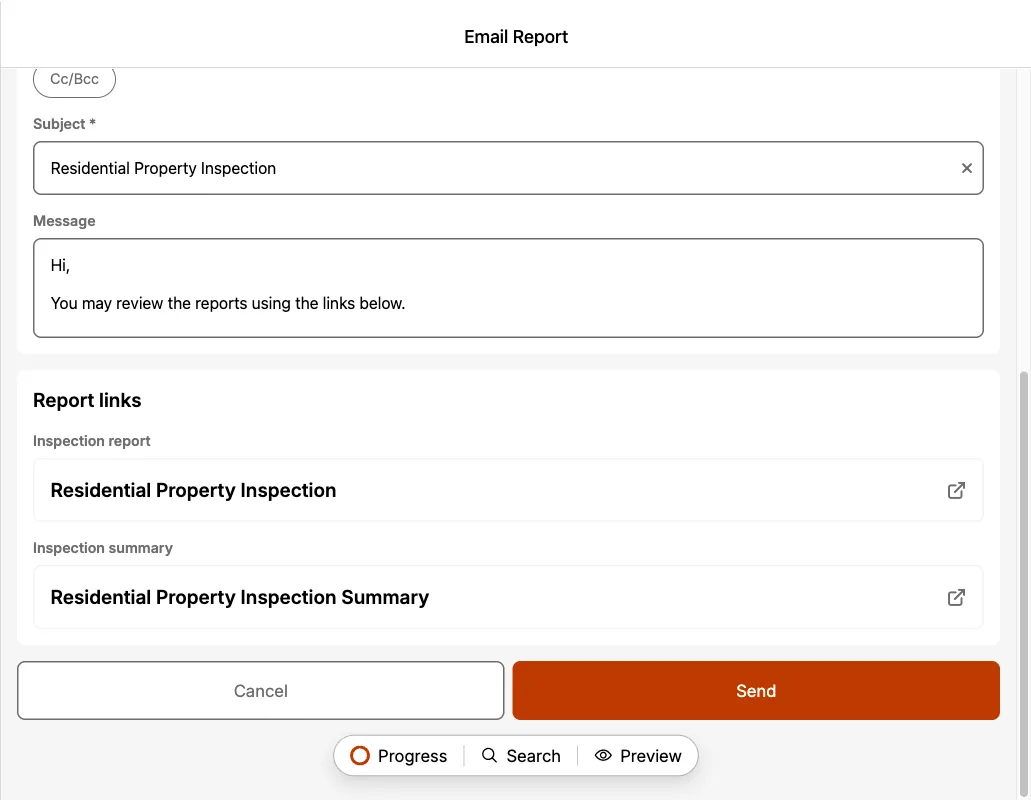
Adding someone as a contact for the inspection does not mean they should receive the report by default. Always confirm with your client(s) who should be receiving the report.
Public vs. Private reports
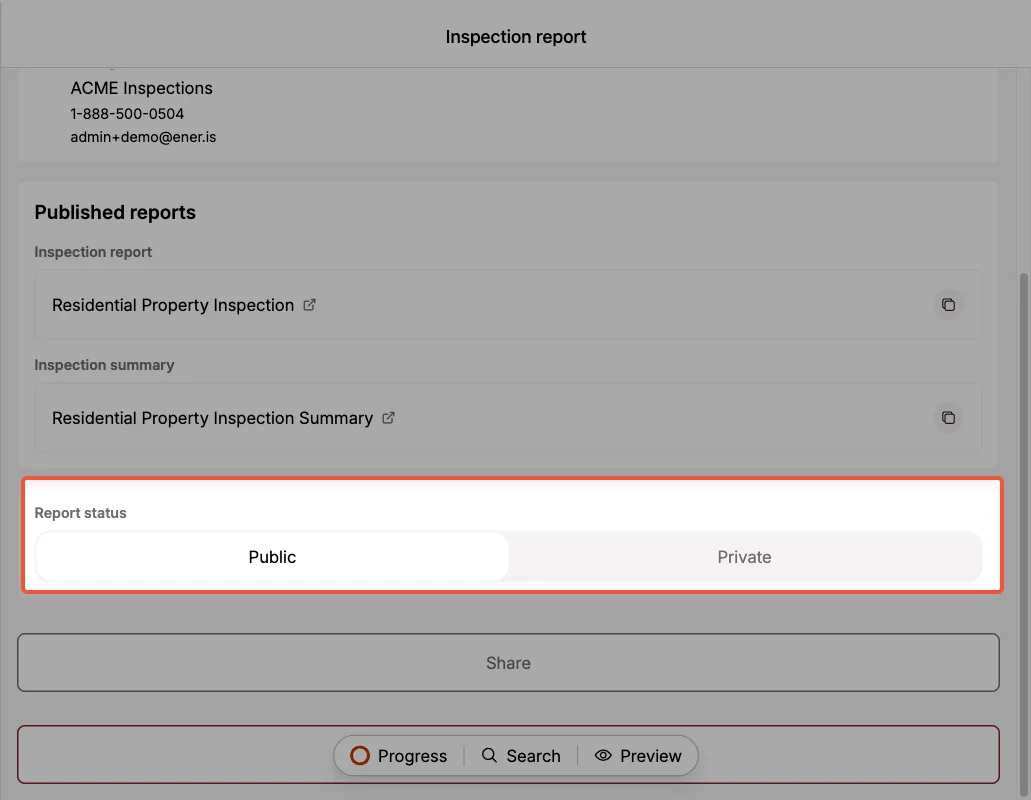
When viewing your list of published reports you will find they each have a Report Status setting, which you can toggle between public or private. The status applies uniformly to every format you published: the Web report URL and every PDF link share the same public/private state.
Public reports
A published report that is public means the report is accessible by anyone you have previously shared the report with (and anyone else it may have been forwarded to).
Private reports
A published report that is private means the report is only accessible by yourself. This is useful if:
- You want to release the report after payment for your service is received.
- You no longer wish to provide public access of the report after some duration of time.
- You are on a multi-inspector plan, your organization's administrator(s) or scheduler(s) will also have access to this report.
How to use the Report Status feature
Report Status is a powerful feature that:
- Provides you with granular control on which published reports remain accessible by your client(s).
- e.g., You can easily see which reports are marked as
publicorprivate.
- e.g., You can easily see which reports are marked as
- Provides you with granular control on how long a published report remains accessible by your client(s).
- e.g., You can mark a published report as
privatewhenever you need, which disables the URL that was automatically included in the email that shared the report.
- e.g., You can mark a published report as
- Helps you ensure your client(s) are always referring to the latest report (in the circumstances where a revision or update needs to be made on your report).
To check and/or edit the Report Status of Published Reports:
-
Navigate to the Reports section.
-
Select
View all.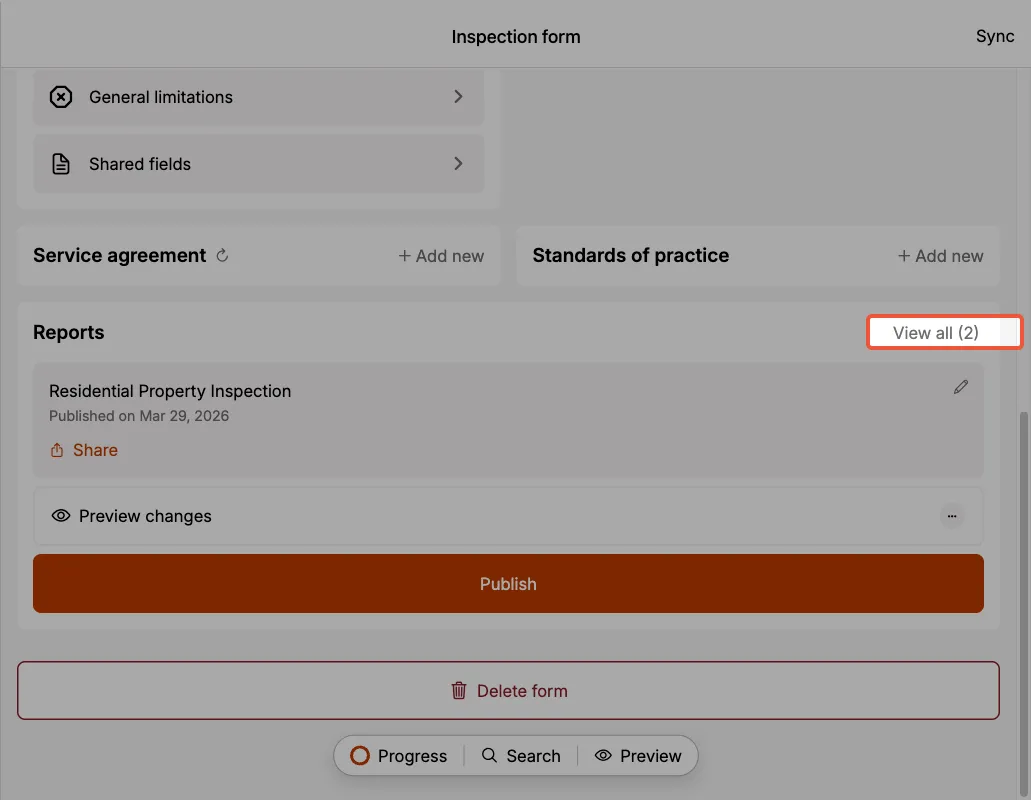
-
Review which reports are
publicorprivate.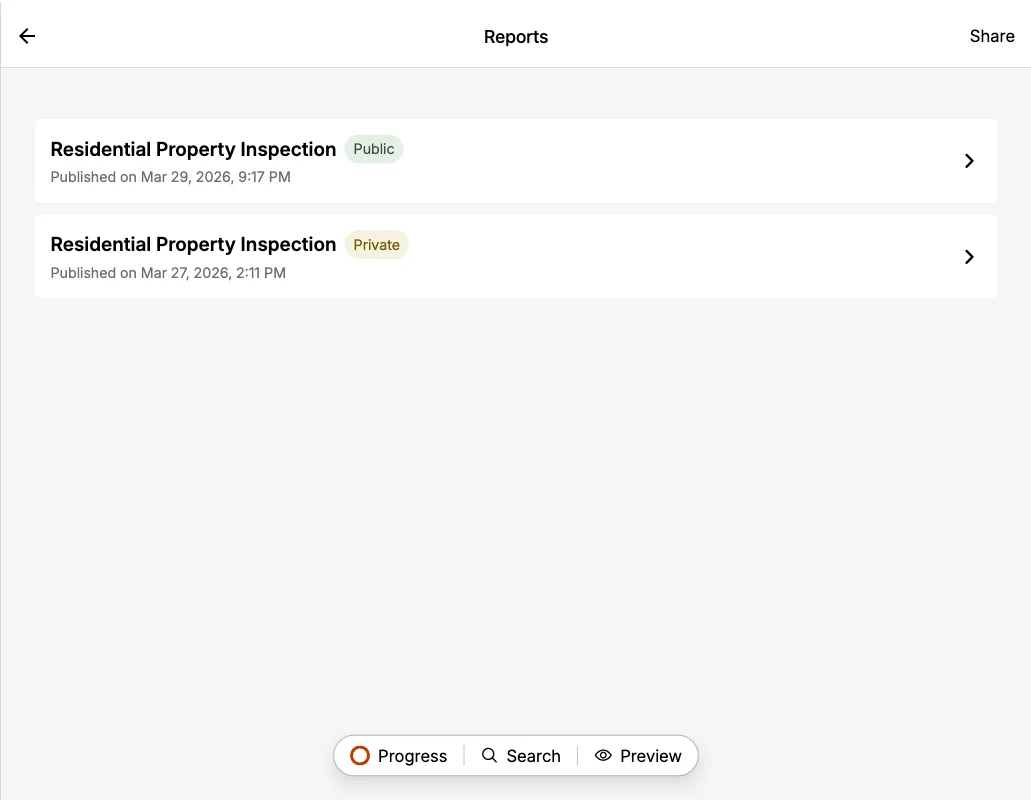
-
If a Report Status needs to be adjusted select the Published Report and navigate to the Report Status toggle.
-
Switch the toggle to
publicorprivate, as needed.
Setting a report as private removes the online access to the report: both the Web report URL and every PDF attachment URL.
- If a report for that Inspection was ever shared via the
Latest version (recommended)report version, then Eneris would look at the Report Status of the latest published report. If that latest published report ispublic, you will also have to set its Report Status toprivateto ensure your client(s) are unable to access it.
If a recipient of your report downloaded the PDF onto their computer or mobile device then they will still have access to that file.