Email Templates
Email Templates let you save the messages you send to clients over and over, so you write them once instead of retyping them for every job. Templates use Dynamic Tags that fill in the client's name, the property address, the service date, and your business details automatically, and they are shared across your whole team.
Email Templates are useful for:
- Time saved — Every report, invoice, and agreement email opens already written, with the details filled in.
- Consistency — Your whole team sends the same professional message, in the same voice.
- Fewer mistakes — Details like the address and the service date come from the Inspection itself, so they are never wrong or out of date.
Email Templates are shared across your entire team. A template one team member creates is immediately available to everyone.
What is an Email Template?
An Email Template is a saved subject line, message body, and closing signature. It has four parts:
- Template name — An internal label so you can find the template in your list. Clients never see it.
- Subject — The email's subject line.
- Body — The message itself.
- Signature block — How the email closes. New templates start with your standard Eneris sign-off.
Templates are not locked to one purpose. Any template can be used for any email you send. What you can do is nominate a template as the automatic choice for a particular kind of email, which is covered in Setting a Default Template.
Managing Email Templates
View Email Templates
To view your existing Email Templates:
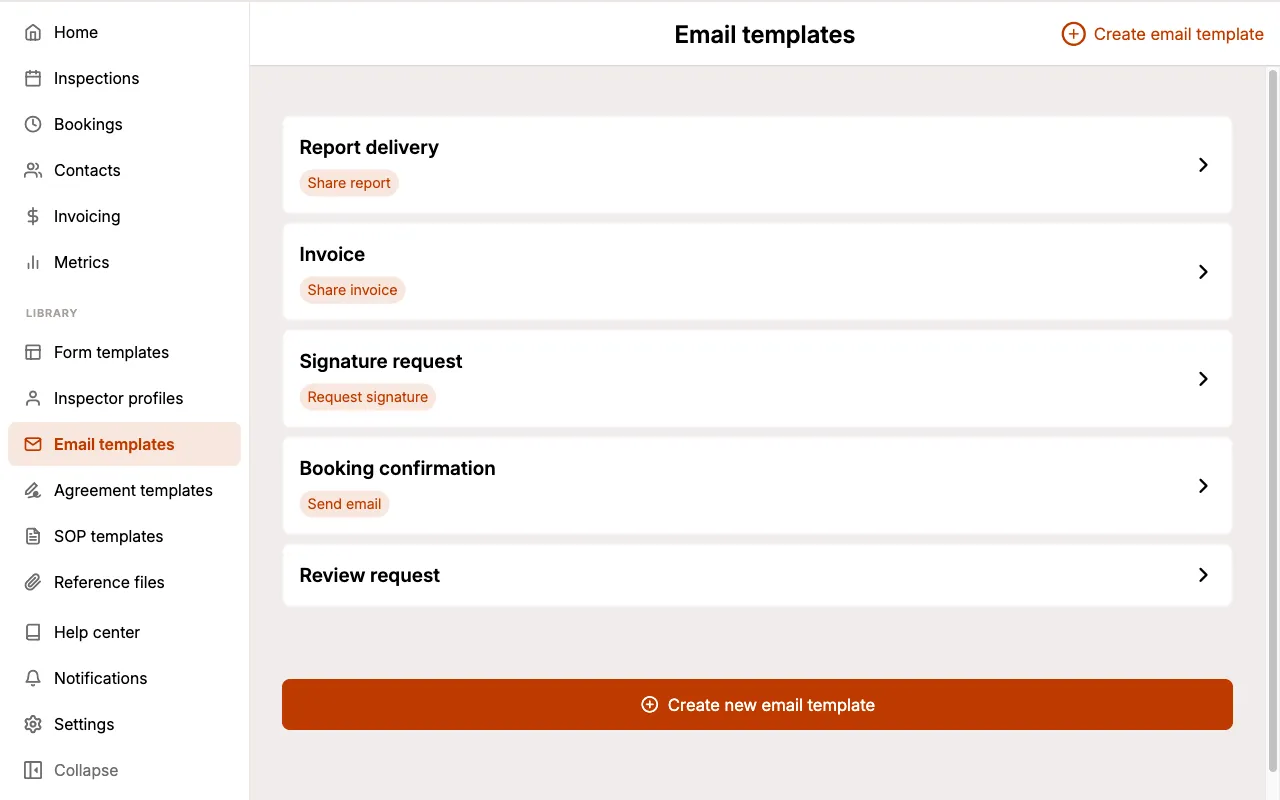
- Select Email templates from the sidebar.
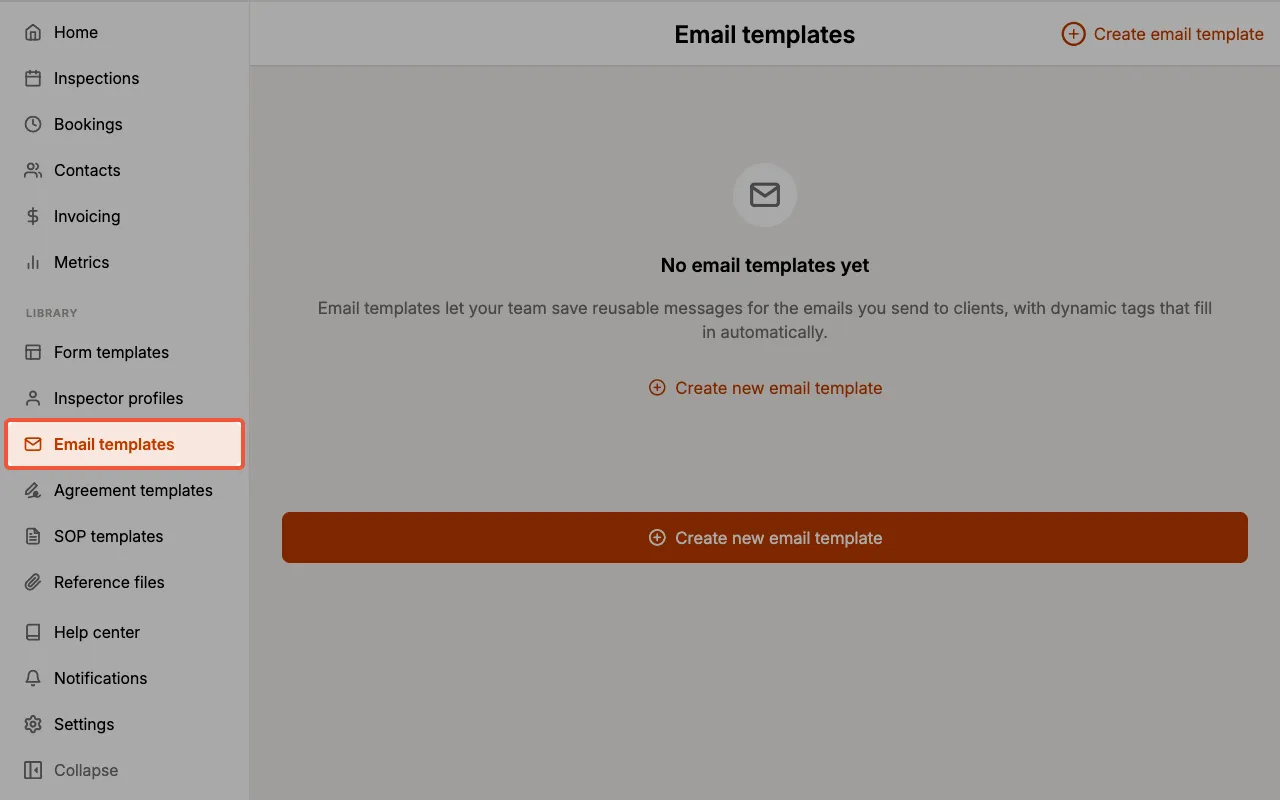
You will see every template your team has created. A template that has been set as the automatic choice for an email type shows a badge naming that type.
Create an Email Template
To create a new Email Template:
- Select Email templates from the sidebar.
- Select
Create new email template. - Leave the segmented control on
Create new. - Choose a starter from the Start from menu, or leave it on
Blank templateto write your own. - Enter a Template name.
- Write the Subject and Body, using the tag buttons beneath each field to insert Dynamic Tags.
- Adjust the Signature block if you want this template to close differently.
- Optionally, select one or more email types under Use this template automatically for.
- Select
Create new.
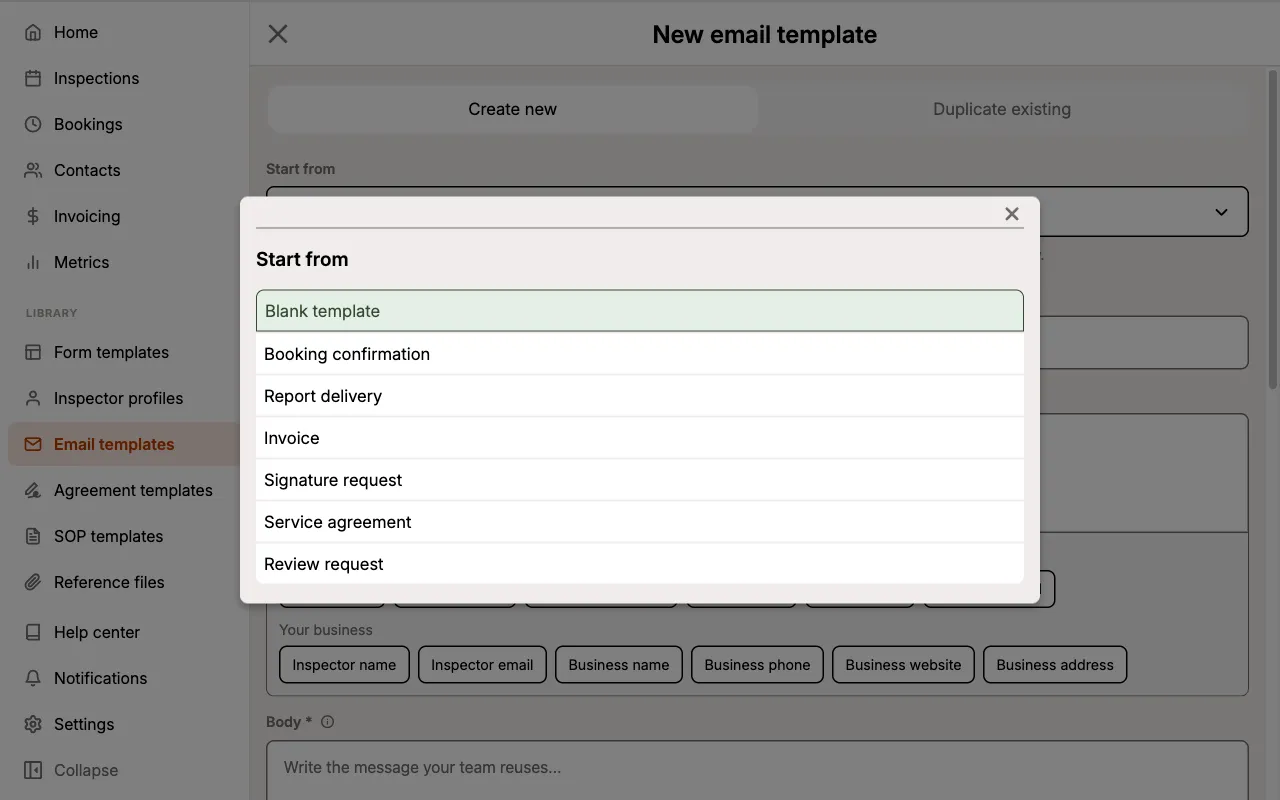
Choosing a starter fills in the name, subject, and body, and pre-selects a suggested email type. Everything stays editable.
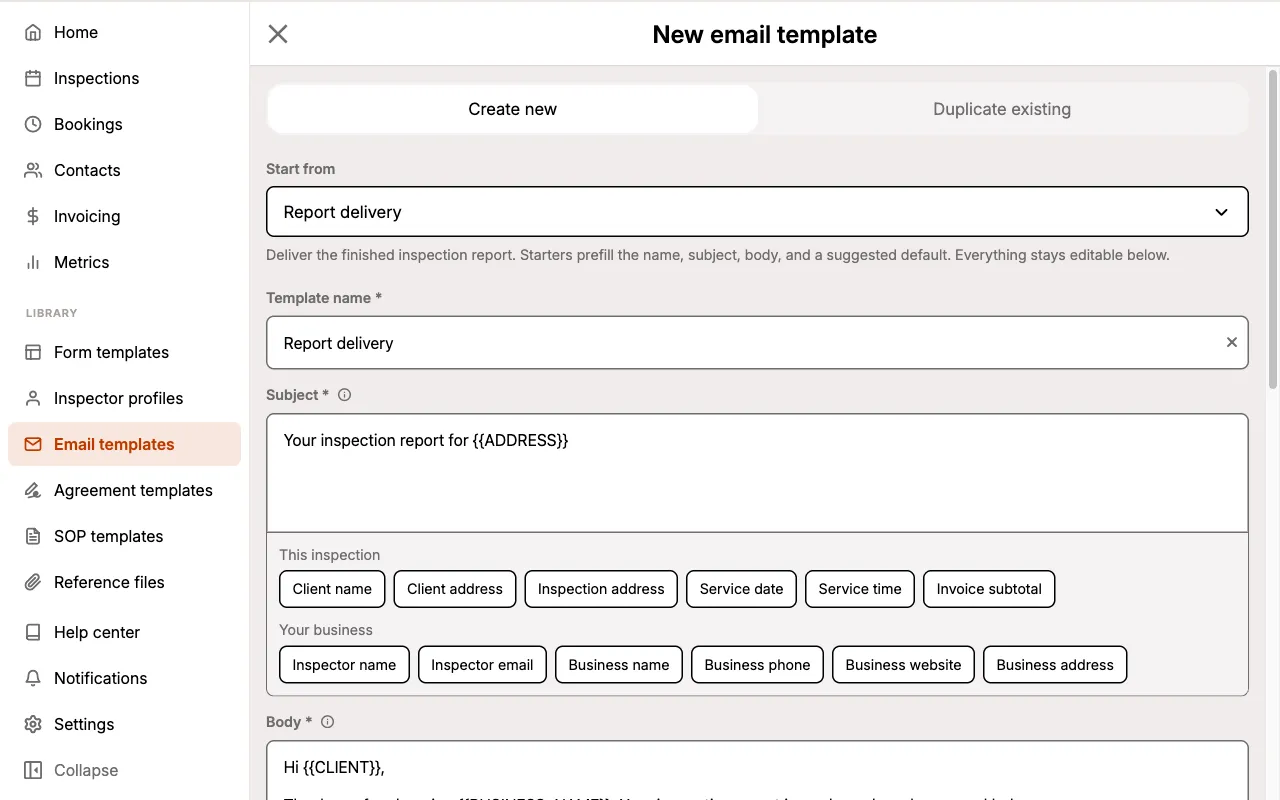
The Template name is only ever shown to you and your team, so name it for how you will recognise it in the list, not for how it reads to a client.
Duplicate an existing template
If you want a variation on a template you already have, select Duplicate existing at the top of the create screen, choose the template to copy, and give the copy a name. Eneris suggests [Duplicate] followed by the original name, which you can change.
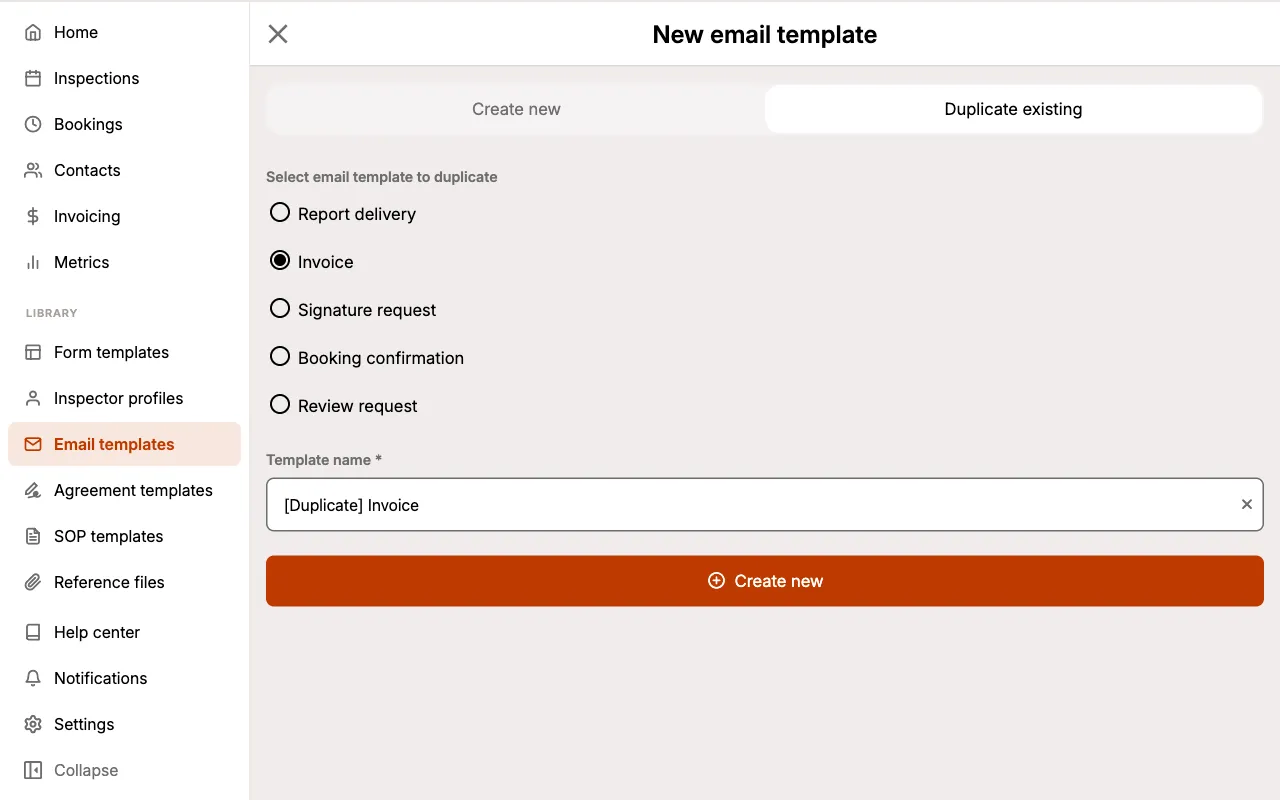
A duplicate copies the subject, body, and signature, but it does not take over any of the original's default email types. The original keeps them.
Edit an Email Template
To modify an existing Email Template:
- Select Email templates from the sidebar.
- Select the template you wish to edit.
- Update the Template name, Subject, Body, Signature block, or the email types it is used for.
- Select
Save changes.
Editing a template changes it for everyone on your team, and it changes the next email sent with it. Emails you have already sent are unaffected.
Delete an Email Template
To delete an Email Template:
- Select Email templates from the sidebar.
- Select the template you wish to delete.
- Scroll to the bottom and select
Delete email template. - Confirm the deletion when prompted.
You can also swipe left on a template in the list to reveal a delete button.
Deleting an Email Template cannot be undone. Any email type this template was the automatic choice for goes back to Eneris' standard wording.
Starter Templates
When you create a template, the Start from menu offers six ready-written starters. Each one prefills the name, subject, and body, and suggests the email type it suits.
| Starter | What it is for | Suggested email type |
|---|---|---|
| Booking confirmation | Confirm a booking taken over the phone, with the date, time, and address | Send email |
| Report delivery | Deliver the finished inspection report | Share report |
| Invoice | Send the invoice with the amount due | Share invoice |
| Signature request | Ask the client to sign the service agreement | Request signature |
| Service agreement | Send the agreement for the client to review | Share service agreement |
| Review request | Ask the client for a review once the report is delivered | None |
The Review request starter is a follow-up you send by hand after the report goes out, so it does not claim an email type. It includes a line where you can paste your own review link.
Dynamic Tags
Dynamic Tags are placeholders you drop into a subject or body. When the email is sent, Eneris replaces each one with the real value for that job. You insert them using the buttons beneath the Subject and Body fields, which are grouped into Contacts, This inspection, and Your business.
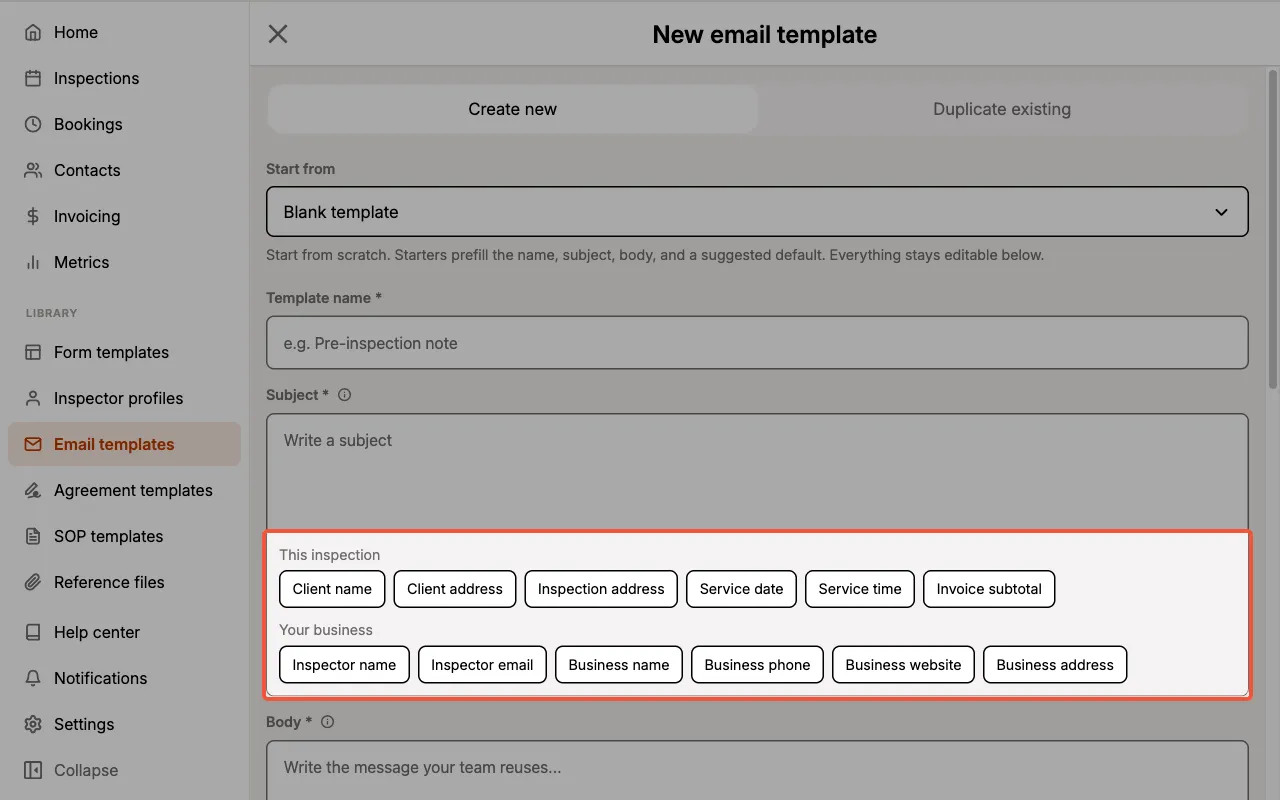
Contacts
| Button | Tag | Description |
|---|---|---|
| Primary contact name | {{CLIENT}} | The name of the inspection's primary contact |
| Secondary contact name | {{SECONDARY_CLIENT}} | The name of a second contact sharing the primary contact's role, such as a co-buyer |
| Buyer agent name | {{BUYER_AGENT}} | The name of the inspection's buyer agent |
| Seller agent name | {{SELLER_AGENT}} | The name of the inspection's seller agent |
| Primary contact address | {{CLIENT_ADDRESS}} | The primary contact's own address |
This inspection
| Button | Tag | Description |
|---|---|---|
| Inspection address | {{ADDRESS}} | The address of the property being inspected |
| Service date | {{DATE}} | The scheduled inspection date |
| Service time | {{TIME}} | The scheduled inspection time |
| Invoice subtotal | {{SUBTOTAL}} | The invoice subtotal for the inspection |
| Invoice total | {{TOTAL}} | The invoice total for the inspection |
Your business
| Button | Tag | Description |
|---|---|---|
| Inspector name | {{INSPECTOR}} | The inspector's name from their Inspector Profile |
| Inspector email | {{INSPECTOR_EMAIL}} | The inspector's email address |
| Business name | {{BUSINESS_NAME}} | Your business name |
| Business phone | {{BUSINESS_PHONE}} | Your business phone number |
| Business website | {{BUSINESS_WEBSITE}} | Your business website |
| Business address | {{BUSINESS_ADDRESS}} | Your business address |
The two agent tags are offered in email templates only. Service Agreement Templates share most of this vocabulary but do not include {{BUYER_AGENT}} or {{SELLER_AGENT}}. See Dynamic Tags in Service Agreement Templates.
Tags are only ever visible here, in the template editor. When you go to send an email, Eneris has already swapped every tag for its real value, so the message you see is exactly the message your client receives.
If a tag has nothing to fill in, for example {{SUBTOTAL}} on an inspection with no invoice, it is replaced with a blank line of underscores rather than being left as {{SUBTOTAL}}. Read the message over before sending if you have used a tag that might not apply.
Signature Block
The Signature block is how the email closes. It has its own set of tags covering your business details, plus two under Images that insert your Business logo and Inspector portrait.
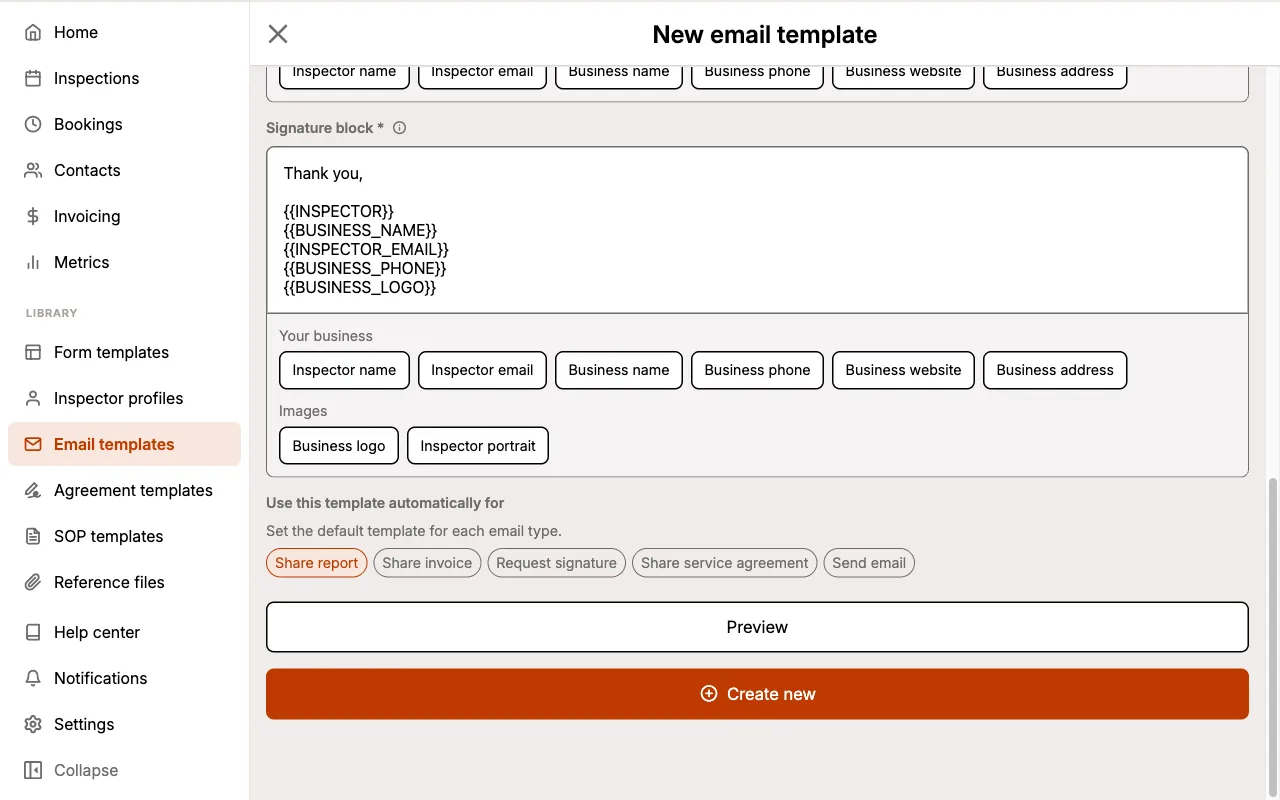
New templates start with the standard Eneris sign-off, which prints the inspector's name, your business name, the inspector's email, your business phone, and your logo. Any line whose tag has no value is dropped rather than left blank, so the closing always reads cleanly.
The two image tags belong to the signature only. They are not offered for the subject or body, where they could not be displayed as pictures.
Previewing a Template
Select Preview while creating a template, or Preview email template while editing one, to see how the message reads with sample data in place of the tags.
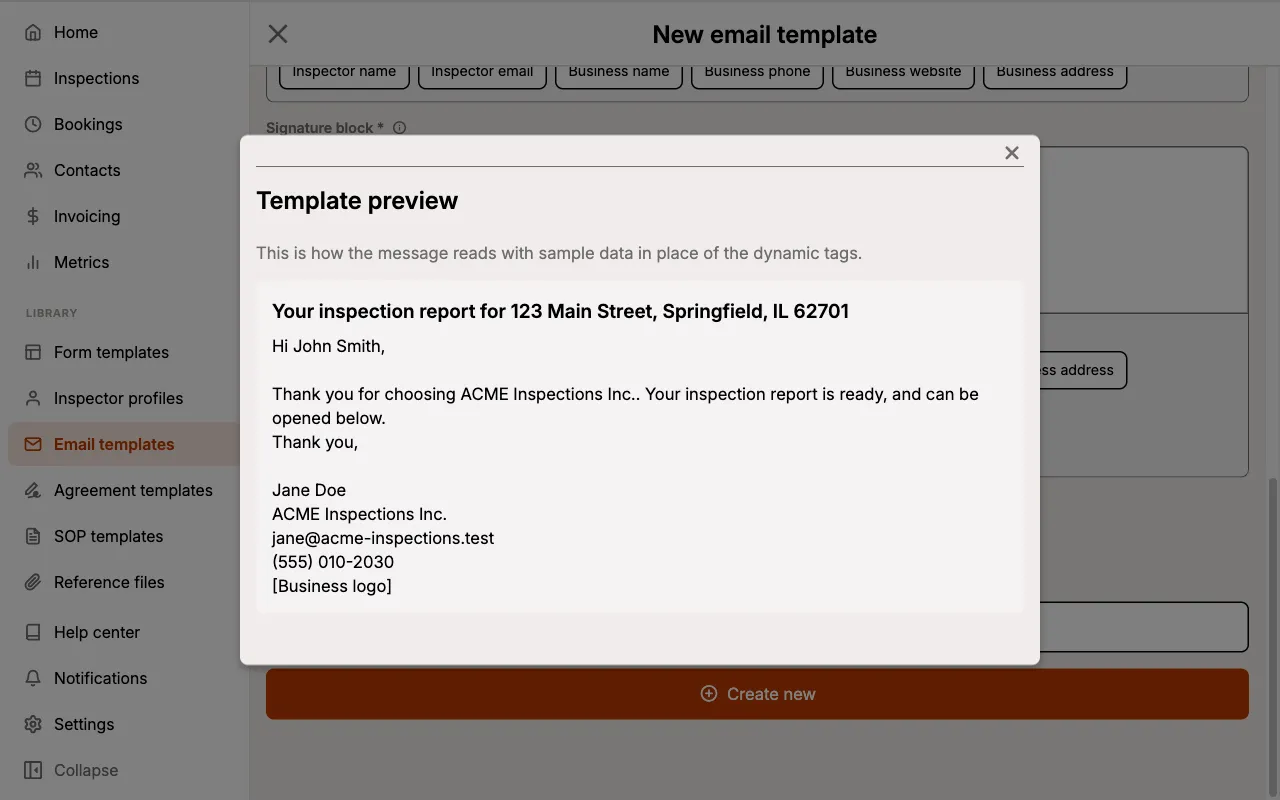
The preview always uses the same made-up client, inspector, and business, so it is a way to check your wording and tag placement, not a preview of a specific job.
Setting a Default Template
Under Use this template automatically for, select the kinds of email this template should be used for. Whenever you open one of those, the template is applied for you.
| Email type | Where it applies |
|---|---|
| Share report | Emailing a published Report to your client |
| Share invoice | Emailing an Invoice |
| Request signature | Asking signers to sign a Service Agreement |
| Share service agreement | Sending the agreement PDF to signers |
| Send email | The general-purpose email you can send from an Inspection |
Each email type can have only one automatic template at a time. If you pick a type another template already holds, it moves across to this one. A single template can cover several types at once.
Clearing every selection leaves the template available to pick by hand, and returns those emails to Eneris' standard wording.
Using a Template When Sending
Every email composer in Eneris now has an Email template menu. When you open the composer, the automatic template for that kind of email is applied straight away, with all its tags already filled in.
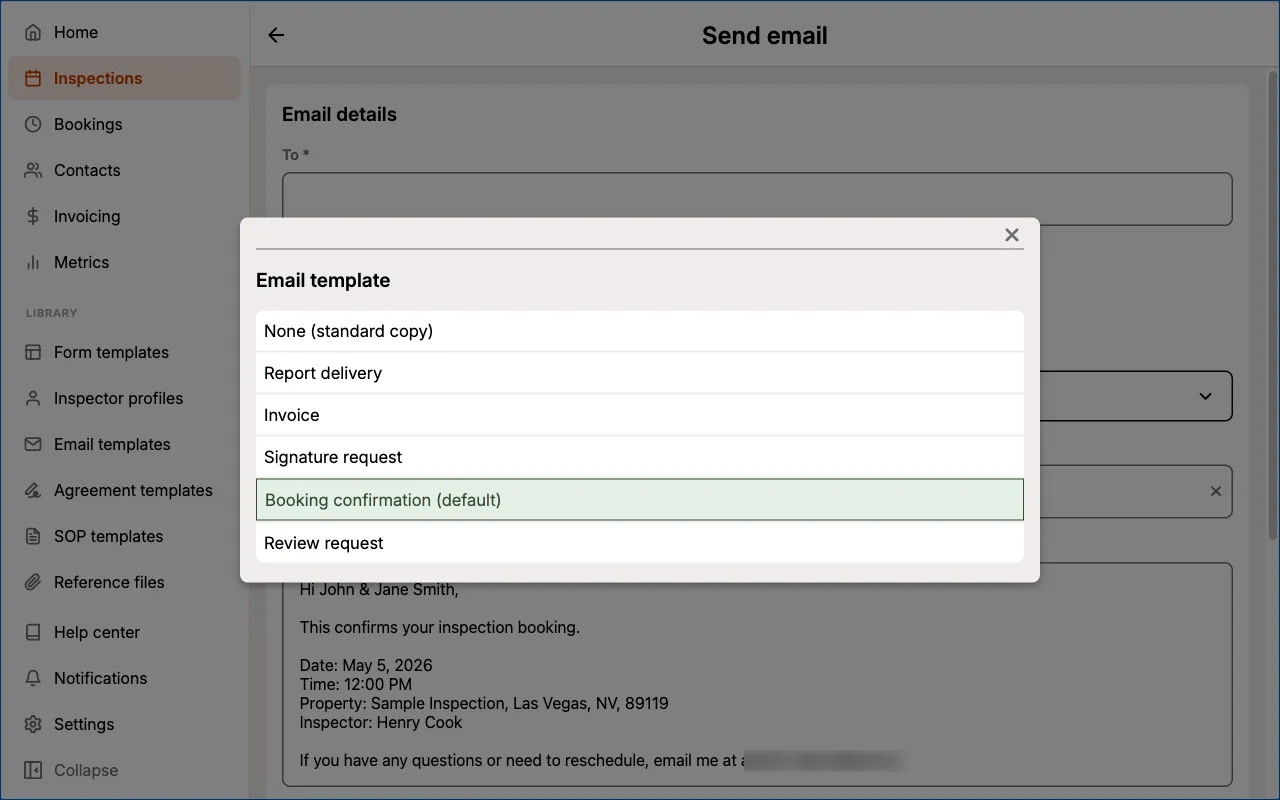
- Pick a different template at any point to replace the subject and message.
- Pick
None (standard copy)to go back to Eneris' standard wording. - Edit the subject or message freely afterwards. Your changes apply to that one email and never alter the saved template.
Because the template is applied the moment the composer opens, the common case takes no extra taps at all: open, glance over the message, and send.
Sending a One-Off Email
Alongside the report, invoice, and agreement emails, you can send a general-purpose email about an Inspection. This is useful for booking confirmations, arrival reminders, or a follow-up note.
To send one:
- Open the Inspection.
- Select the client's email address in the contact header, or select a contact's email from the Contacts card.
- Choose the recipients under To, and add Cc or Bcc recipients if needed.
- Pick an Email template, or write the message yourself.
- Review the Subject, Message, and Signature block.
- Select
Send.
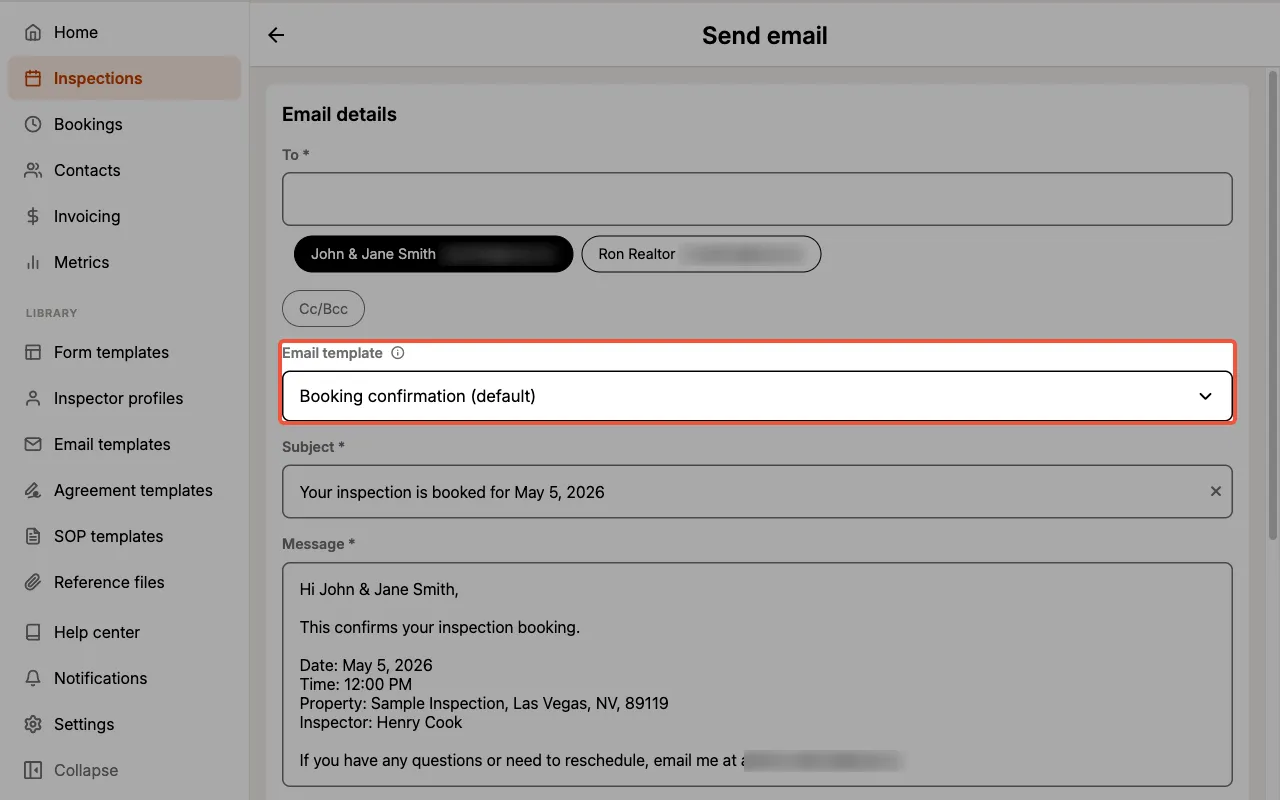
The inspection's contacts are offered as suggestions under the To field, so you can add them without typing their addresses.
Unlike the other composers, this one has no standard wording of its own. Choosing None (standard copy) here leaves the subject and message blank for you to write from scratch.
This is for transactional email only: messages to the people involved in the inspection. Do not use it for marketing or promotional email.
Permissions
Every member of your team can see and use Email Templates when sending, but creating, editing, and deleting them is limited by role.
Admins and Schedulers can create, edit, and delete Email Templates. Inspectors can view templates and apply them when sending an email, but cannot change or delete them. See Multi-Inspector for the full permissions breakdown.