Preferences
The Preferences page is where you control how Eneris looks and behaves, and how your reports are put together. Select Preferences in the sidebar, or the Preferences card under Quick access on the home screen, to open it.
It holds two groups of settings, and the difference between them matters:
- Shared preferences apply to your whole team. Change one and every report anyone publishes changes with it.
- Device preferences apply only to the device you are using. They follow you nowhere, and nobody else on your team is affected.
Report Preferences
Report Preferences control how your reports look and what goes in them. These get applied to every report anytime you publish.
Three documents are configured here, each independently:
- Web report — the interactive report your clients open in a browser
- PDF report — the full inspection report PDF
- PDF summary — the shorter summary PDF
You control the colors these documents are branded with, how contacts are listed on them, which sections they include, and the order those sections appear in.
Changing Report Preferences affects reports published from that point on. Reports you have already published keep the look they were published with, so updating your branding never alters a report a client has already received.
A one-off job that needs something different does not require changing these settings. Select Customize this report when previewing or publishing to adjust branding, contacts, and sections for that report alone, leaving your team's preferences untouched. See Customizing a single report.
Select Report preferences under Shared preferences to open the screen.
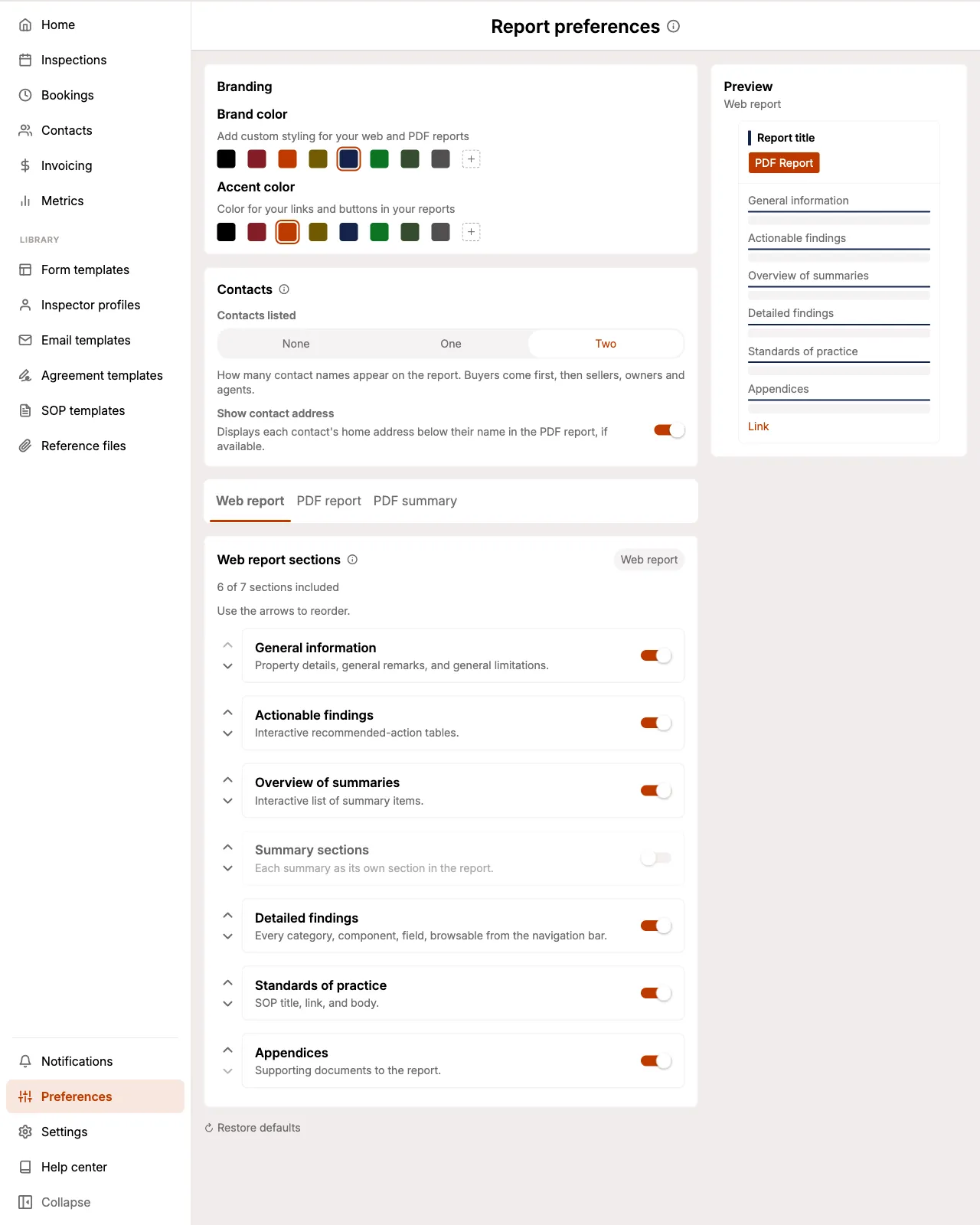
Only team members with the Admin or Scheduler role can open Report preferences. Everyone else sees a note in its place explaining that report preferences are set by your admins and schedulers. See Permissions.
Branding
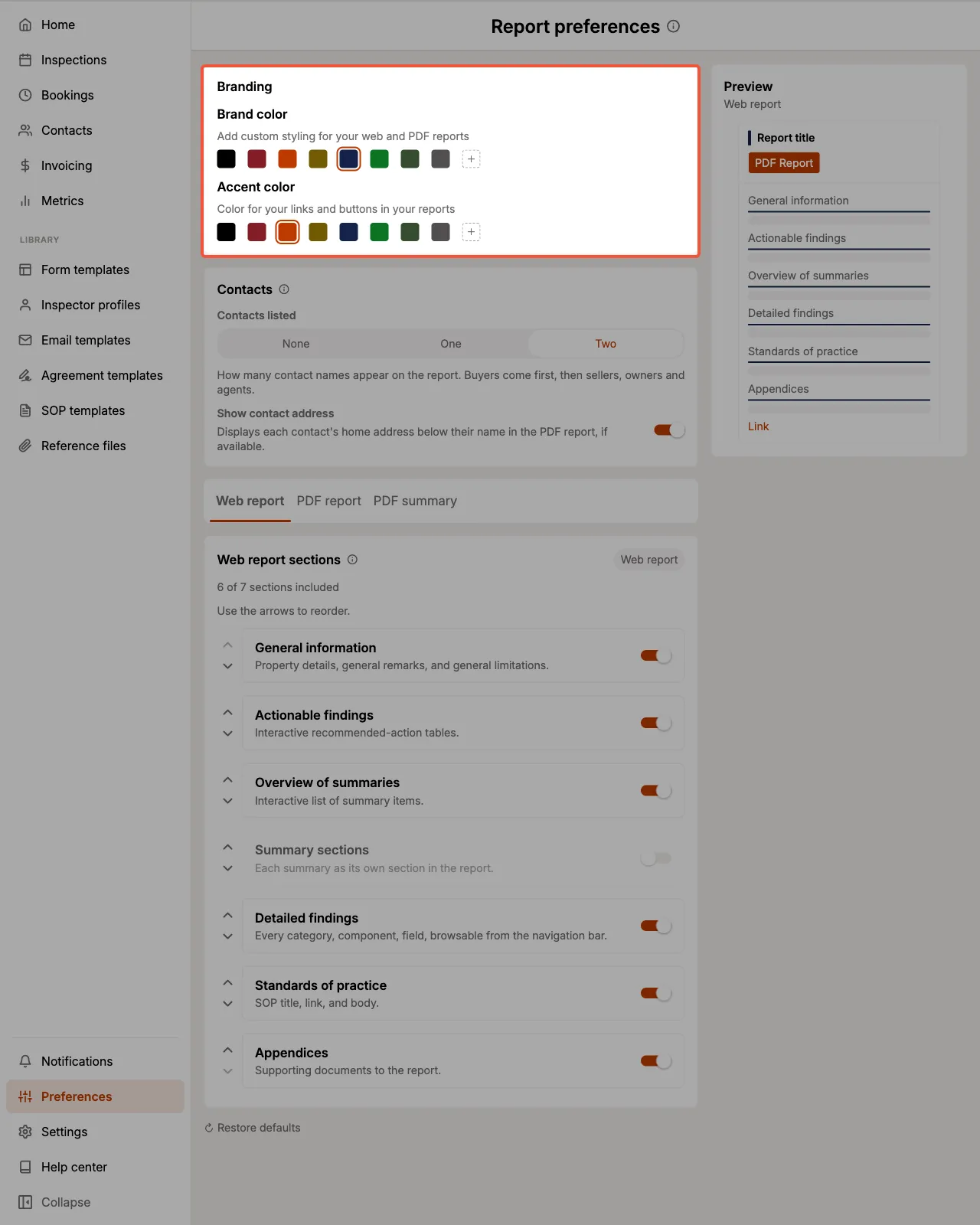
Two colors carry your branding through every document.
- Brand color is the primary color of your reports. It sets the title and title-page labels in the PDFs, and the masthead line and section rules in the web report. The default is a deep navy.
- Accent color is used for the things a reader acts on: links, buttons, and the summary overview band. The default is a terracotta orange.
Choose one of the ready-made swatches, or select the hex field and enter your own six-digit hex code.
If you pick a color that is too light to read against white paper, Eneris warns you that headings, labels, buttons, or links may look faint. The color is still accepted, since only you can judge your own branding, but it's worth previewing before you save.
A Preview panel shows the document you are currently editing and updates as you change your settings, so you can judge a color against the layout rather than guessing. On a wide screen it sits beside the settings; on a narrower one, select Preview to open it.
The preview is an approximation. The real document uses your own logo, photos, and text.
Contacts
Contacts listed sets how many contact names appear on the report. You can show two, one, or none.
Contacts are taken in role priority order, so buyers come first, then sellers, owners, and agents. This means showing one contact keeps the buyer rather than the buyer's agent.
Show contact address prints each listed contact's home address beneath their name in the PDF report, when one is on file.
Set Contacts listed to none if you send the same report to several parties and would rather not have one client's name printed on the copy another receives.
Sections
Each of the three documents has its own list of sections, and each section can be switched on or off. The header tells you how many of the available sections are currently included.
| Section | What it contains |
|---|---|
| Title page | Cover page with your logo, the property, and the inspector |
| Cover letter | Your letterhead, the letter written on the Inspector Profile, and your signature |
| Table of contents | Lists every enabled section with its page number |
| Invoice | Line items and totals |
| Actionable findings | The recommended-action tables |
| Overview of summaries | The at-a-glance table of every summary item |
| Summary sections | Each summary as its own section in the report |
| General information | Your general remarks, the property details, and general limitations |
| Detailed findings | Every category, component, and field from the completed form |
| Service agreement | The signed agreement |
| Standards of practice | SOP title, link, and body |
| Appendices | Reference files merged onto the end of the document |
Several sections skip themselves when they have nothing to show. An inspection with no invoice prints no invoice section, a profile with no cover letter written prints no cover letter, and an inspection with no agreement attached prints no agreement, whether or not the section is switched on.
Not every section applies to every document. The Web report has no title page, cover letter, table of contents, invoice, or service agreement, since those are either fixed parts of the page or belong to the PDFs.
Reordering sections
Use the arrows on each row to move a section up or down. The order you set is the order it renders in.
A few sections are pinned in place and cannot be moved. These are marked with a padlock and a Fixed badge in place of the arrows:
- Title page is always first, because page numbering and the running header depend on it. It also cannot be switched off.
- Cover letter sits directly after the title page when it's on.
- Table of contents sits behind the title page and cover letter when it's on.
- Appendices is always last, because appendix files are merged onto the end of the finished document.
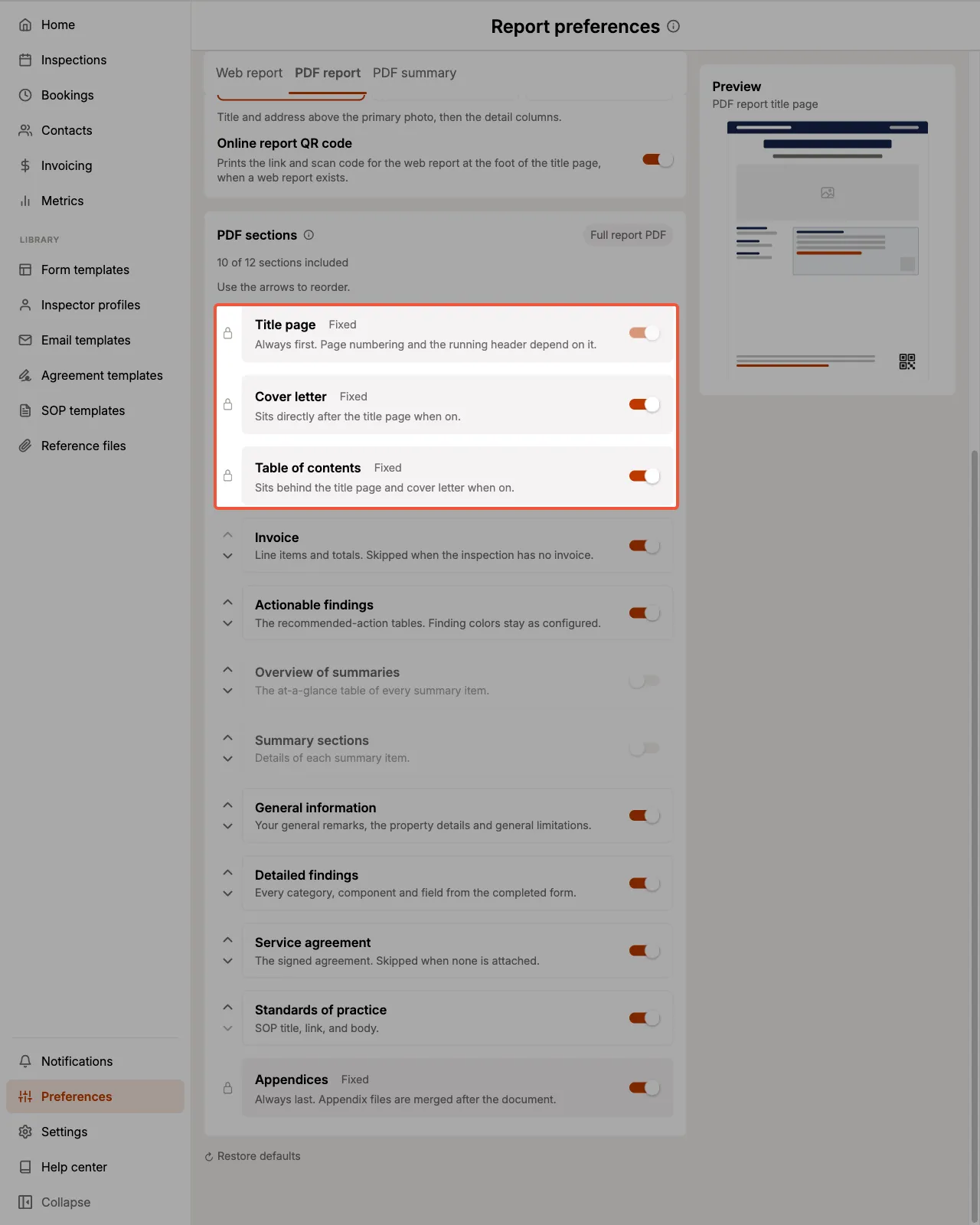
Switching a pinned section off simply removes it from the run. Turning the cover letter off leaves the table of contents directly behind the title page.
The Web report has no pinned sections. Its masthead, property details, inspector card, and navigation are fixed page furniture rather than list entries, so every section in its list can be moved freely.
PDF title page
The two PDF documents each choose a title page layout, set independently, so your full report and your summary can look different if you want them to.
| Layout | Appearance |
|---|---|
| Banner | Title and address above the primary photo, then the detail columns |
| Stacked | Primary photo leads, title and address sit left under it, then the detail columns |
| Classic | Centred title, primary photo, then the detail columns |
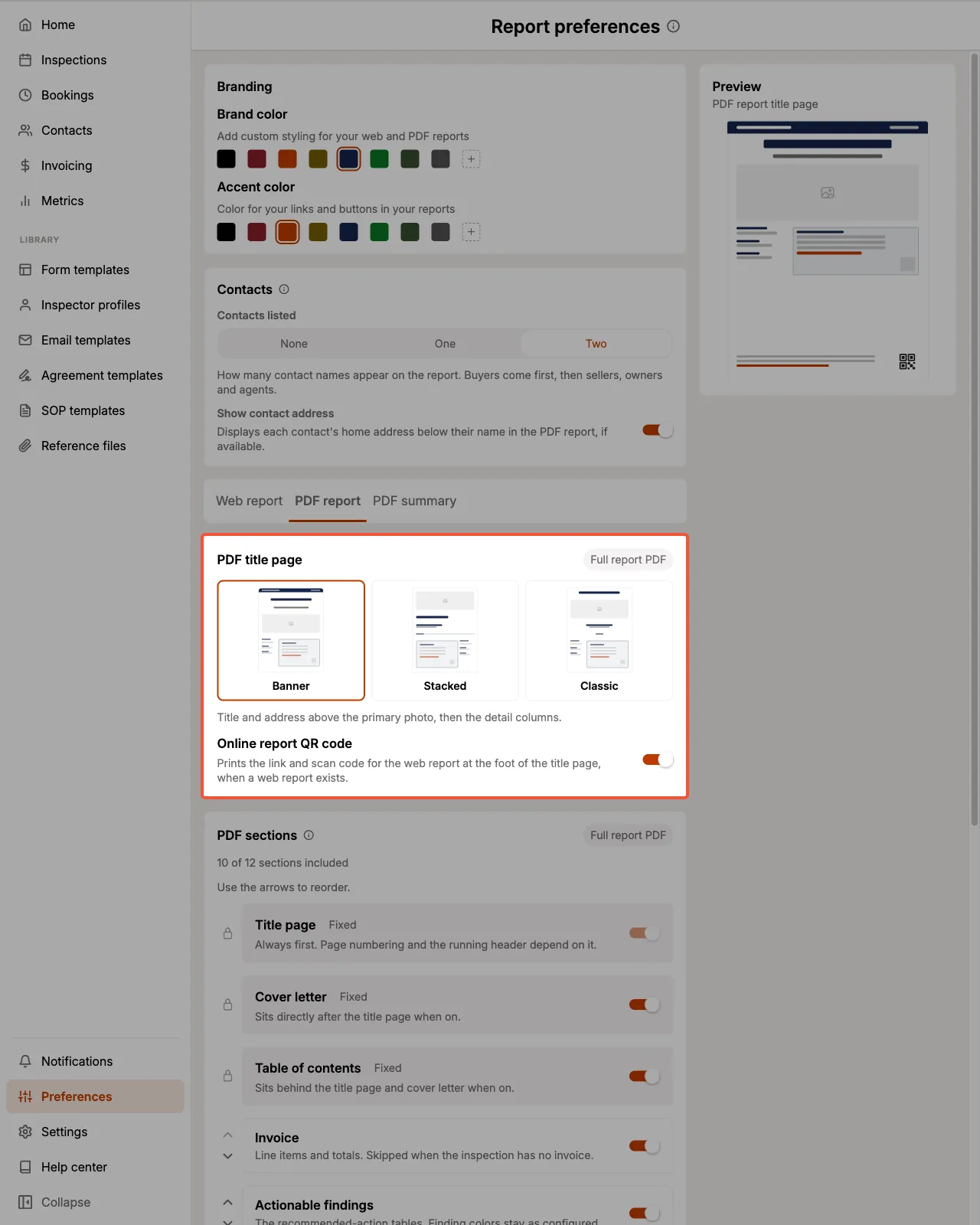
Each layout shows a live thumbnail in your chosen brand and accent colors, so you can compare the three before committing.
Online report QR code prints the link and a scan code for the Web report at the foot of the title page. It appears only when a web report actually exists for that inspection.
Saving your changes
A save bar appears at the foot of the screen as soon as you change anything. Select Save to apply your changes to every future report, or Discard to drop them and go back to your saved settings.
Select Restore defaults to return every setting on the screen to Eneris' standard configuration. This is a change like any other, so nothing is written until you select Save.
If your preferences fail to load, Eneris tells you rather than showing you the defaults. This is deliberate: defaults presented as your saved settings would overwrite your real ones the moment you saved. Select Retry to load them again.
Permissions
Report Preferences can only be changed by team members with the Admin or Scheduler role.
For everyone else, the Report preferences row does not appear under Shared preferences at all. In its place is a short note explaining that report preferences are set by your admins and schedulers. Device preferences below it stay fully available to everyone.
See Multi-Inspector for the full permissions breakdown.
Device preferences
Device preferences are stored on the device in front of you. Setting a dark theme on your tablet leaves your phone and your office computer exactly as they were, and changes nothing for your teammates.
Theme
Sets the display theme of the Eneris application: System, Light, or Dark.
For the best experience, leave this on System. Eneris then follows your device's own display setting, switching to dark in the evening if your device does.
The mobile app adds three more device preferences, covering background syncing and where your photos end up.
The three preferences below appear in the mobile app only.
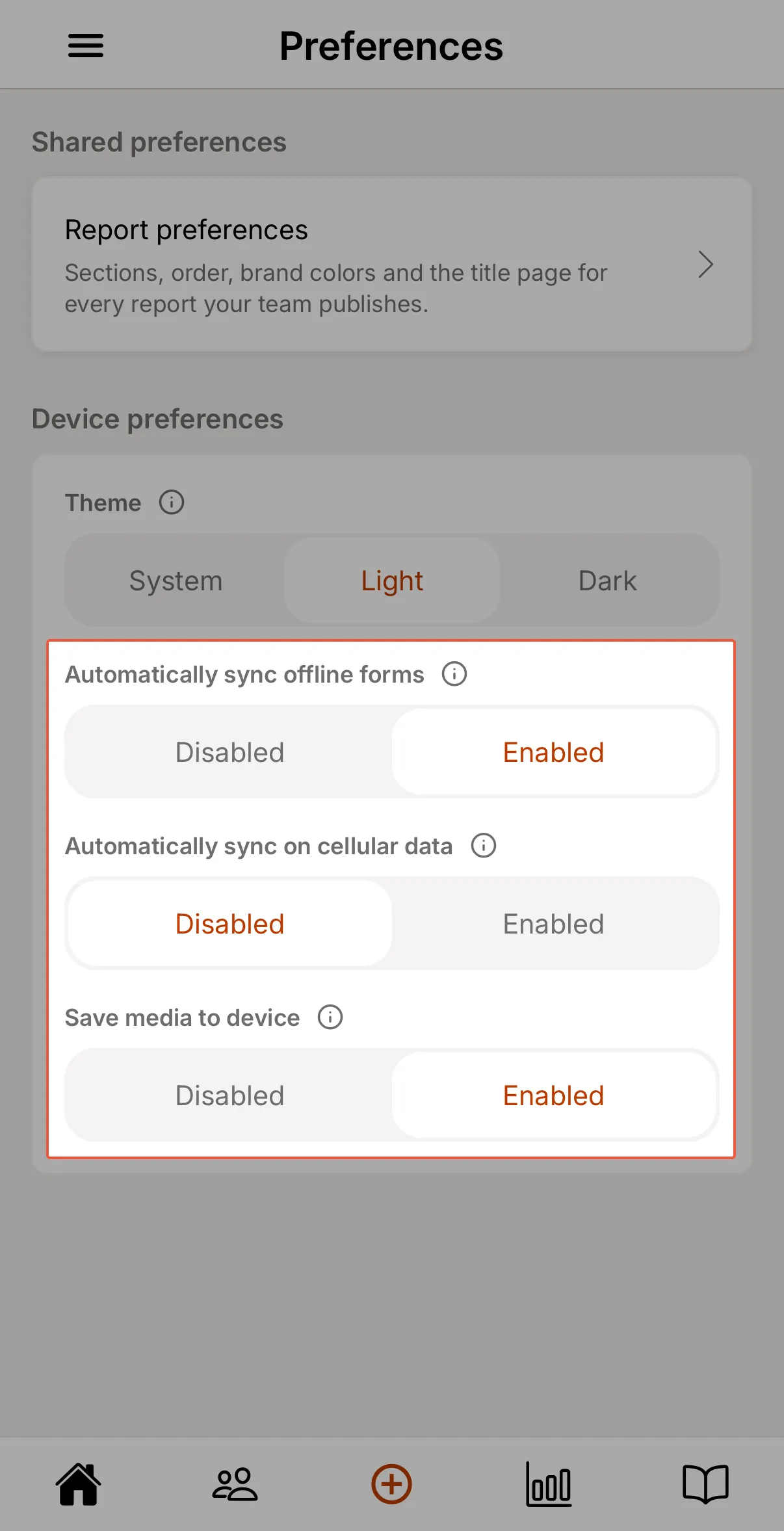
Automatically sync offline forms
When Enabled, Eneris syncs your forms and media in the background while the app is open. This is the default.
Set it to Disabled if you would rather decide when syncing happens. Background syncing then stops entirely, including the automatic download of recent forms to your device. The Sync button on each form and on the Offline Forms page works either way, so you can still sync whenever you choose.
Automatically sync on cellular data
This setting appears only while Automatically sync offline forms is enabled.
When Disabled, which is the default, background syncing waits until the device is on Wi-Fi. Set it to Enabled to let background syncing run over cellular data too. Syncing you start yourself with the Sync button is not affected by this setting.
Save media to device
When Enabled, every photo and video you take with the Eneris camera is also saved to your device's photo library. This is the default.
Set it to Disabled to keep inspection photos and videos inside Eneris only. They are still added to your Inspection Form as normal.