ISN
The ISN integration connects Eneris to your Inspection Support Network account so the two stay in step without anyone retyping a job.
It works in both directions:
- Orders come in. Inspections scheduled in ISN import into Eneris automatically as Inspections, with the address, appointment time, client, and agents already filled in. An Inspection Form is created and ready for the inspector.
- Reports go back. When your inspector publishes a report, Eneris registers the report link on the matching ISN order, so your clients and agents reach it through ISN exactly as they always have.
This is for teams that already run their office in ISN. If you do not use ISN, you do not need this page.
Setting up ISN requires the Admin or Scheduler role. Team members with the Inspector role can see the connection and press Sync now, but cannot change it. See Multi-inspector for the full breakdown.
Before you begin
You will need a few things from ISN:
- Your ISN service domain. This is the web address you sign in to ISN at:
inspectionsupport.com,4isn.com, orgoisn.net. - Your company key. The company part of your ISN address. If you sign in at
4isn.com/yourcompany, your company key isyourcompany. - An access key and secret access key for at least one inspector. In ISN these are found under Settings, then My Access Keys, while signed in as that inspector. ISN's own help article, Finding access keys in ISN, walks through where they live.
Syncing requires a paid plan or an active free trial. You can connect ISN and set up your mapping on a free plan, but no orders will import until your subscription is active. A notice appears at the top of the ISN page when this applies to you.
Connecting your ISN account
To connect ISN:
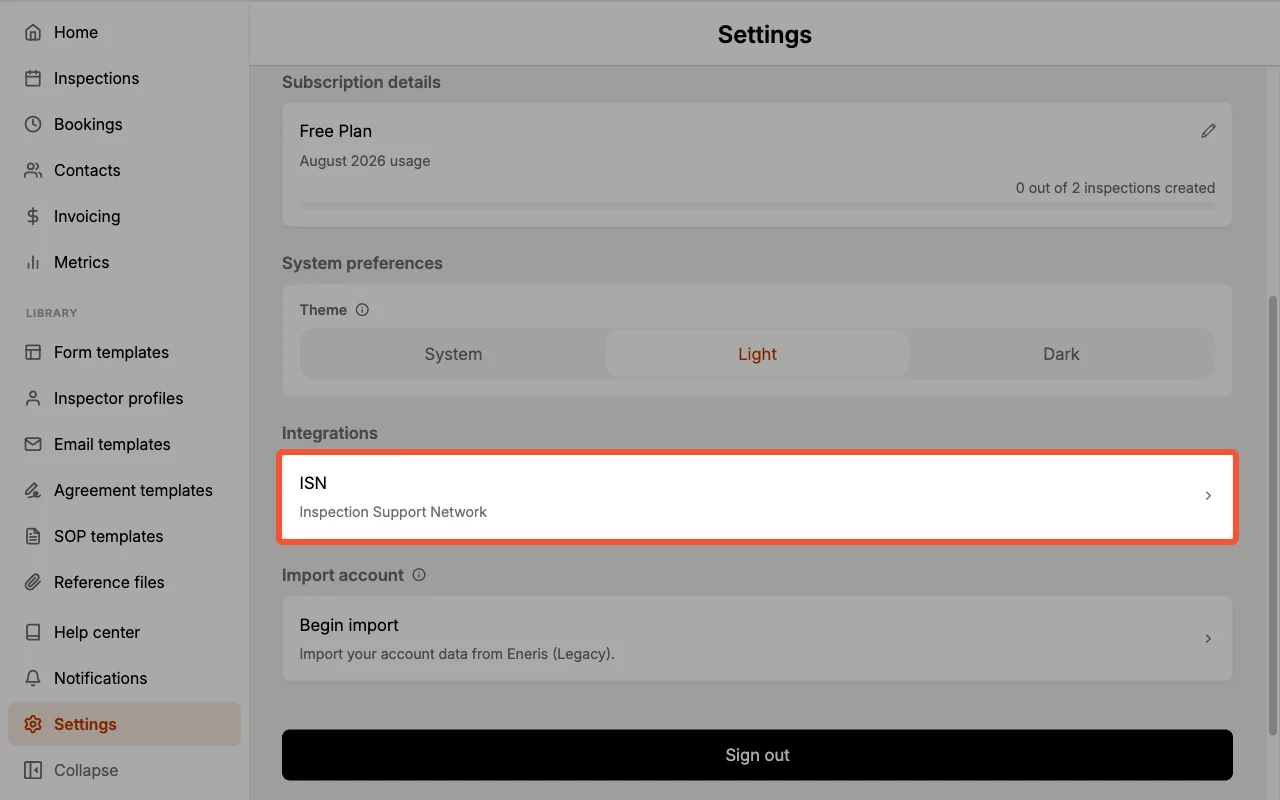
- From the sidebar, open Settings.
- Under Integrations, select ISN.
- Fill in the connection form.
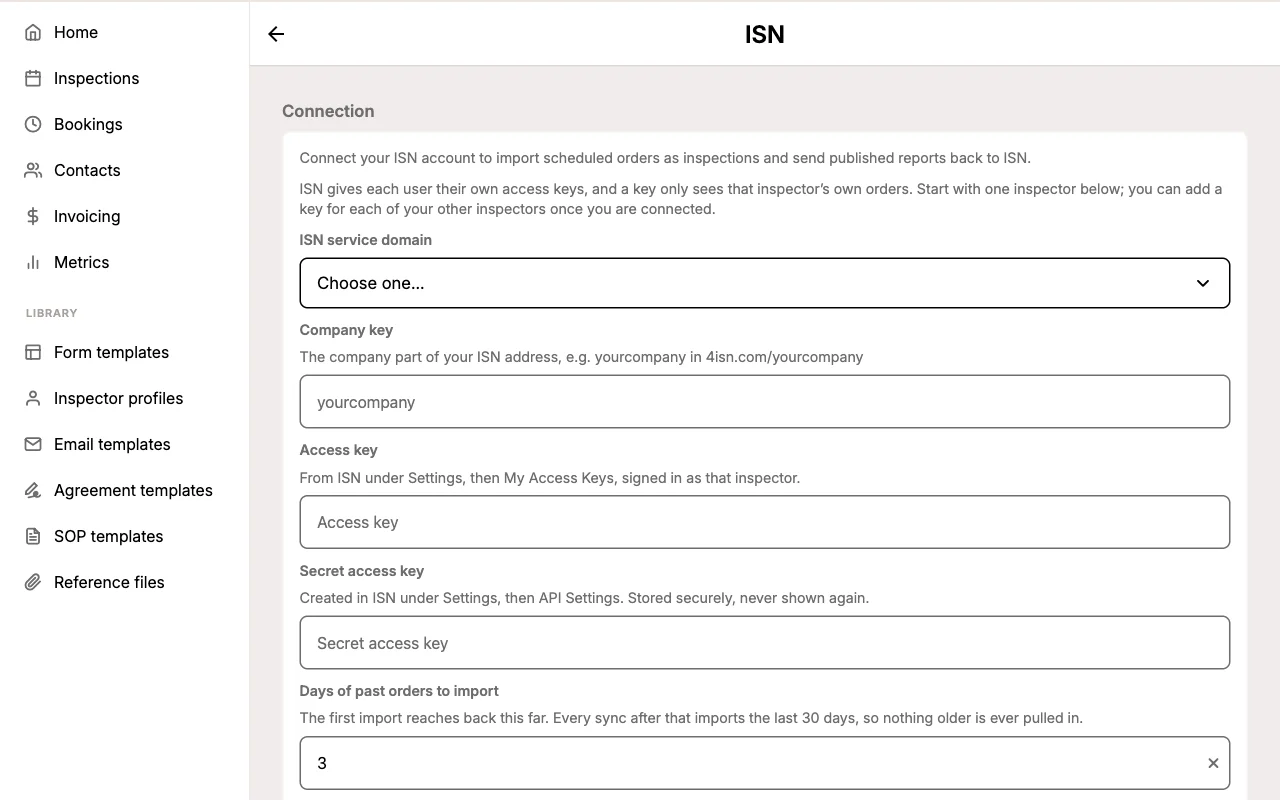
Each field does the following:
- ISN service domain: the ISN address your company signs in at.
- Company key: the company part of that address.
- Access key and Secret access key: the credentials for one of your inspectors. You will add the rest of your team's keys in the next step.
- Days of past orders to import: how far back the very first import reaches, from 1 to 30 days. The default of 3 days is usually right. Every sync after the first one looks at the last 30 days, so nothing older is ever pulled in.
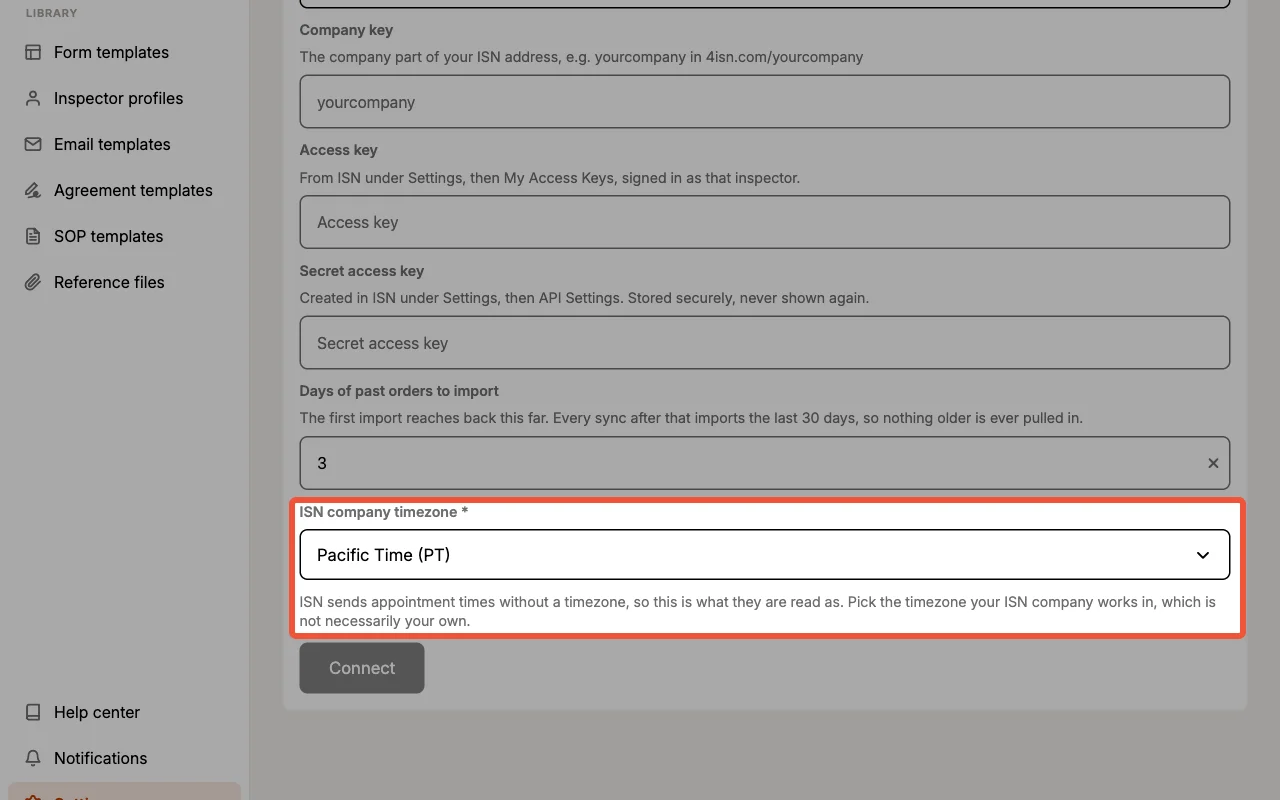
- ISN company timezone: the timezone your ISN company works in.
- Select Connect.
Eneris checks the credentials with ISN before saving them. If ISN rejects them, the form keeps everything you typed and tells you what was wrong, so you only have to correct the field that was actually at fault.
Pick the timezone your ISN company works in, not your own. ISN sends appointment times without a timezone attached, so this setting is what those times are read as. If your head office administers a branch in another timezone, choose the branch's timezone. Getting this wrong imports every appointment at the wrong hour.
Your secret access key is stored securely and is never shown again, in Eneris or anywhere else.
Adding an access key for each inspector
Once you are connected, the Access keys section lists every key your team has added.
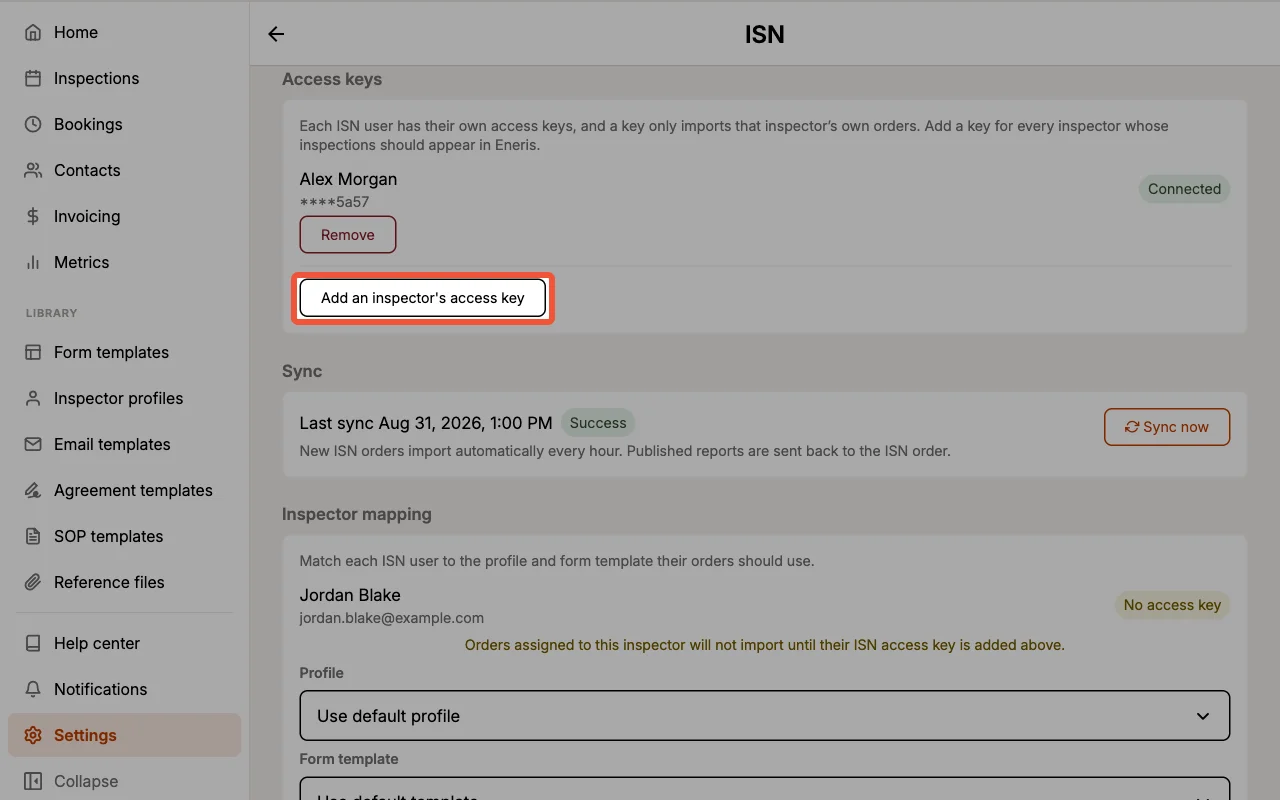
An ISN access key only imports the orders of the inspector it belongs to. This is how ISN works, not a limitation in Eneris. If one of your inspectors has no key here, their jobs simply will not appear in Eneris, with nothing to tell you they are missing. Add a key for every inspector whose inspections should show up.
To add another inspector's key:
- Select Add an inspector's access key.
- Enter that inspector's Access key and Secret access key from their own ISN account.
- Select Add access key.
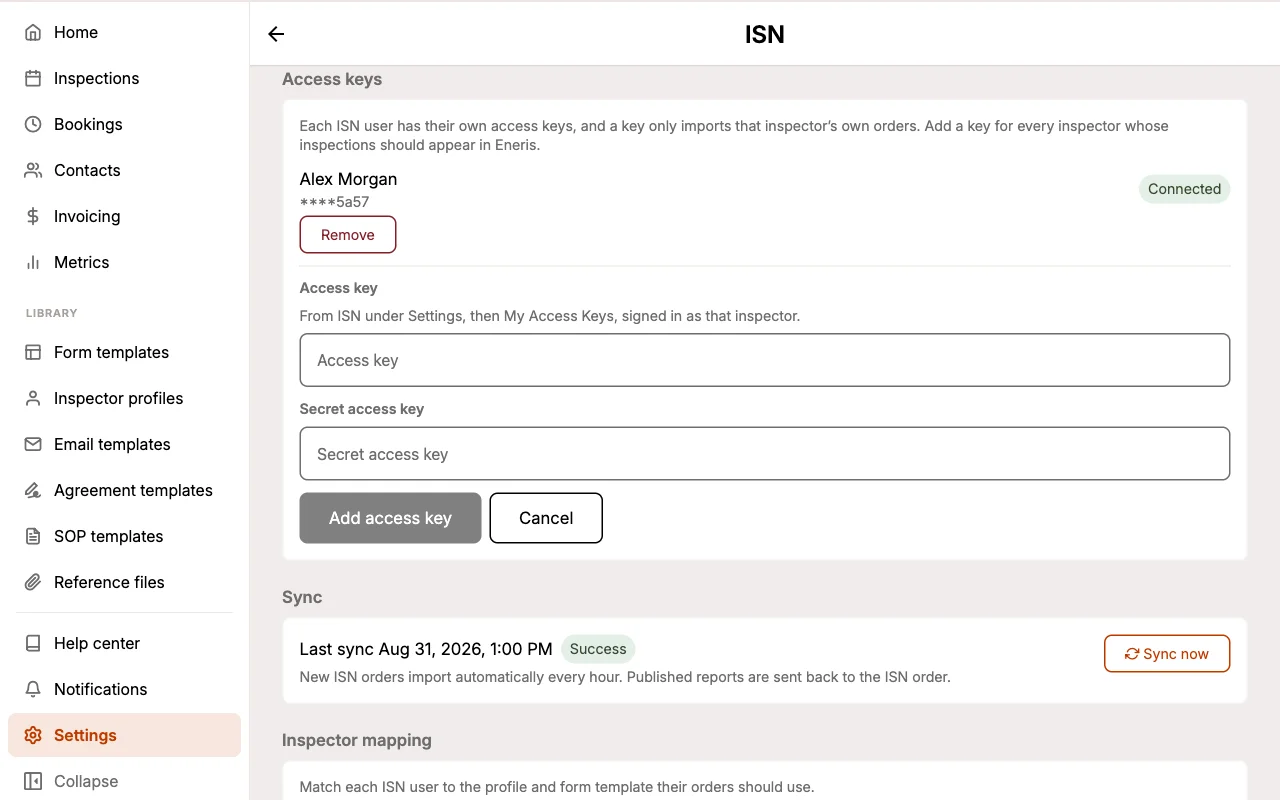
Each key shows its own status:
- Connected: ISN accepted the key on the last sync.
- Rejected: ISN refused the key, usually because it was revoked or rotated. That inspector's orders stop importing until you remove the key and add a current one.
Removing a key stops that inspector's future orders from importing. Inspections that already imported stay in Eneris.
Matching ISN inspectors to Eneris
The Inspector mapping section is where you tell Eneris which Inspector Profile and Form Template each of your ISN users should use. Every ISN user your company has appears as a row.
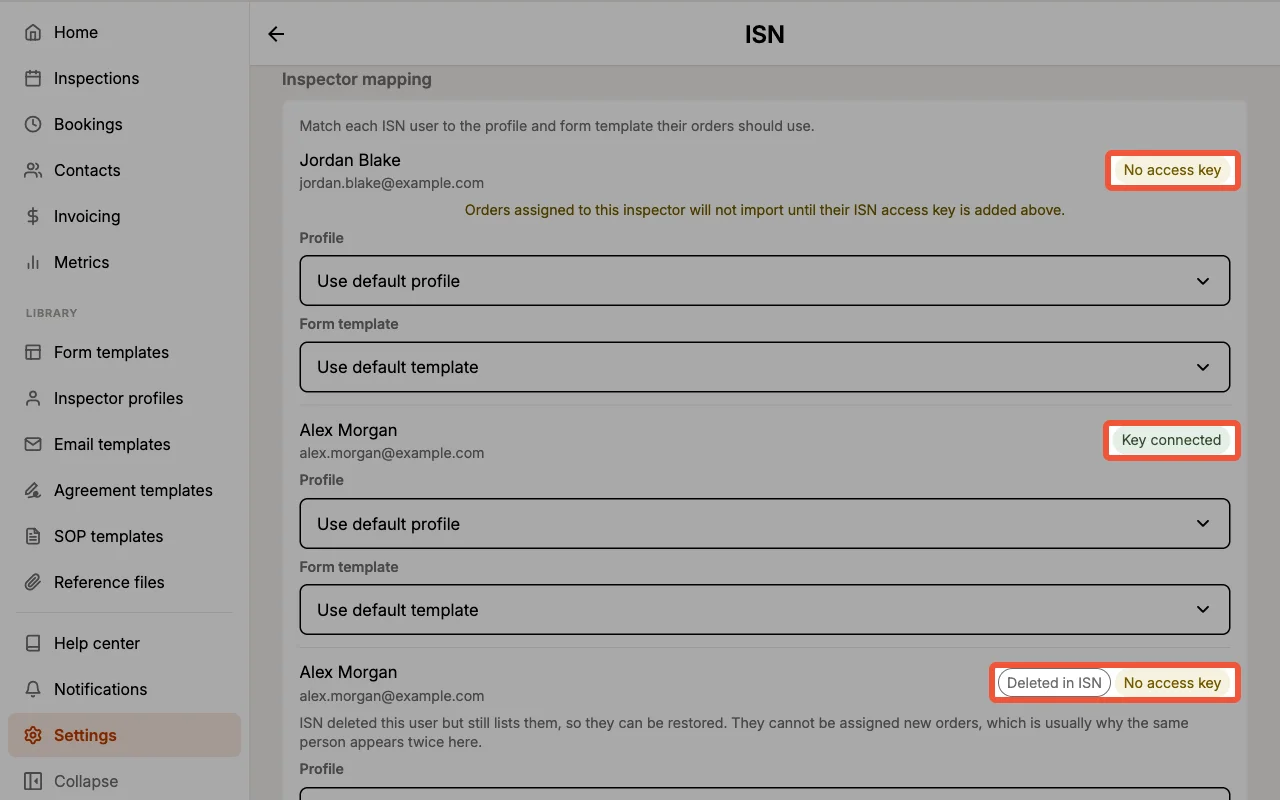
Matching is done by hand. ISN user names and email addresses have no dependable relationship to Eneris team members, so Eneris does not guess: you choose, and it stays chosen.
Each row shows a badge telling you whether that ISN user's orders will actually reach you:
- Key connected: you hold an access key for this inspector, so their orders import.
- No access key: you can map this inspector, but nothing of theirs will import until their key is added above.
- Deleted in ISN: ISN removed this user but still lists them, so they can be restored. They cannot take new orders. This is usually why the same person appears twice in the list.
Below the rows, the Defaults group sets what happens for everyone else:
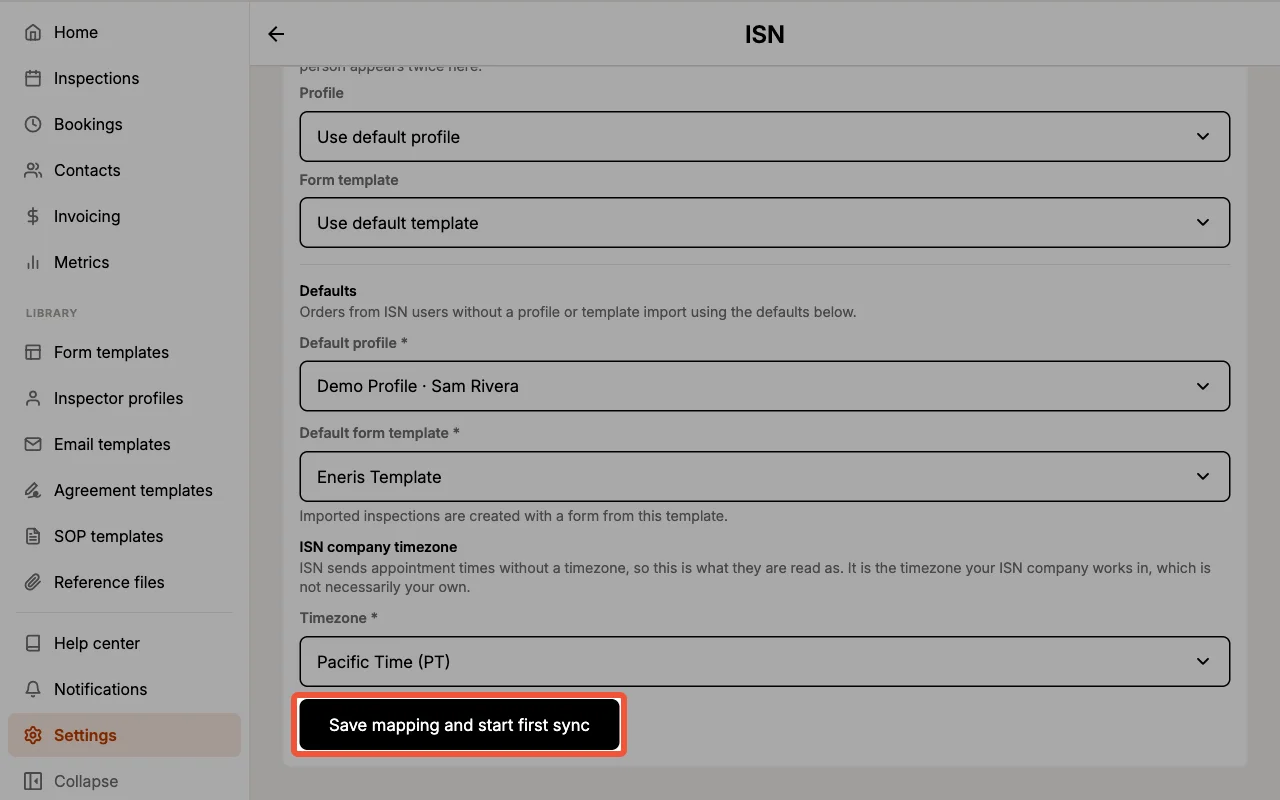
- Default profile: the Inspector Profile an order lands on when its ISN user has no profile of their own set above.
- Default form template: the Form Template used to create the Inspection Form for those orders.
Both defaults are required. Leaving an individual row's picker on Use default profile or Use default template means that row follows whichever default is current, so changing a default later updates everyone who was following it.
Every imported order is created with an Inspection Form, so you need at least one Form Template before the mapping can be saved. If your team has none yet, create one first.
When you are finished, select Save mapping and start first sync. Saving the mapping for the first time kicks off your first import straight away. After that, the button simply reads Save mapping.
How syncing works
New ISN orders import automatically every hour. You do not need to do anything to keep them flowing.
The Sync section shows when the last sync ran and how it went.
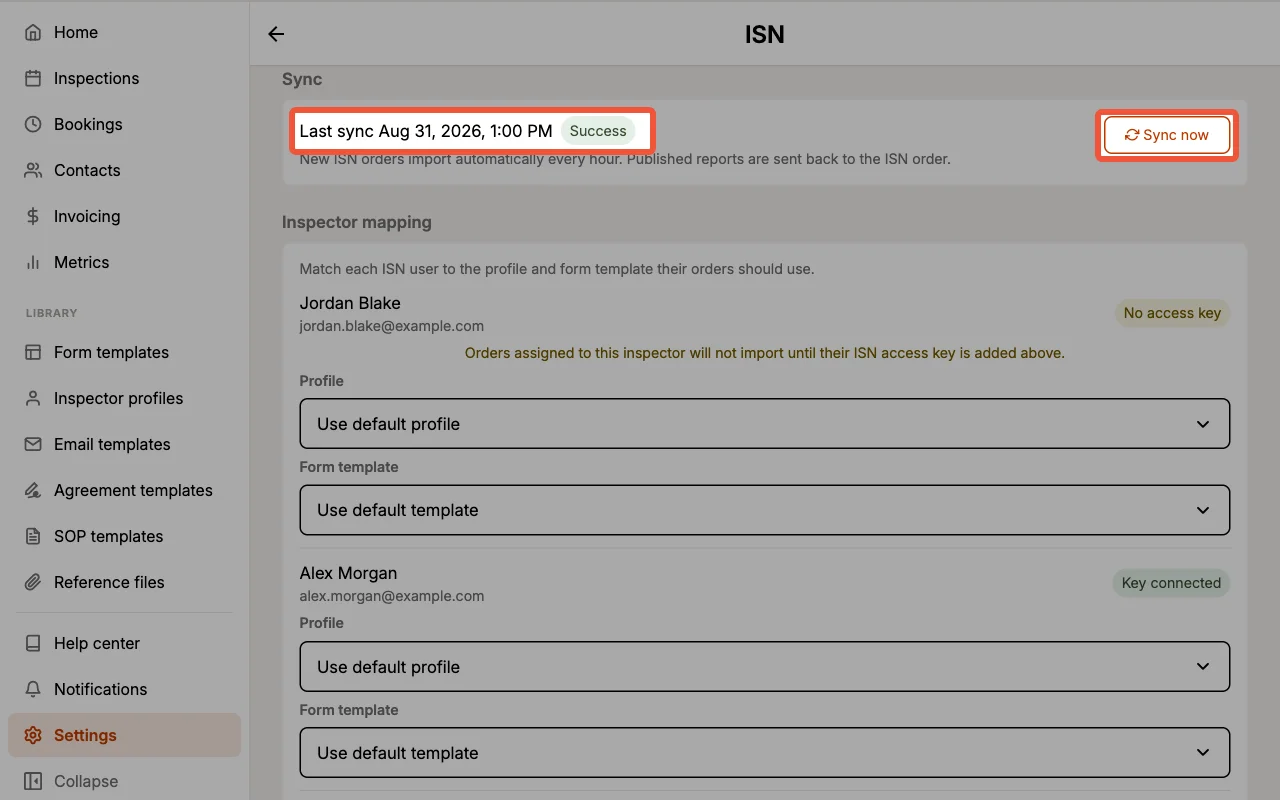
- Success: the last sync finished cleanly.
- Error: something went wrong. The details appear directly beneath the status line.
- Paused: syncing has stopped and no orders are importing. See Syncing is paused below.
Select Sync now at any time if you do not want to wait for the next hourly run, for example when a job has just been booked. The button stays busy until the run finishes and then reports the result.
The import window
- Your first sync reaches back as far as the number of days you chose when connecting.
- Every sync after that looks at the last 30 days. Orders older than that are never imported.
- Once an order has imported, this window no longer applies to it. Reschedules and edits keep flowing through however old the appointment becomes.
Repeated syncs do not create duplicates
Each ISN order maps to exactly one Eneris Inspection. When an order changes in ISN, the next sync updates the Inspection you already have rather than creating a second one. A rescheduled appointment moves the existing Inspection to its new time.
Your own work is safe too. ISN only overwrites the fields it actually has a value for, so notes and details your office added in Eneris are left alone. Similarly, the Inspection Form is only created once. If your inspector adds another form by hand, later syncs will not remove it or stack duplicates on top of it.
What gets imported
| From ISN | Into Eneris |
|---|---|
| Address | Inspection address |
| Appointment date and time | Inspection time, read in your ISN company timezone |
| Client | A Contact with the Buyer role |
| Buyer's agent | A Contact with the Buyer agent role |
| Seller's agent | A Contact with the Seller agent role |
| Assigned inspector | The Inspector Profile from your inspector mapping |
Contacts are reused across orders. A repeat client or a regularly referring agent becomes one Contact, not a new one on every job. The exception is a person who appears in two different roles: an agent who represents the buyer on one job and the seller on the next becomes two Contacts, one for each role, so every Inspection shows the role that person actually played.
Working with imported inspections
Imported Inspections behave exactly like ones you create yourself. The only difference is the Imported from ISN badge on the Inspection's details page.
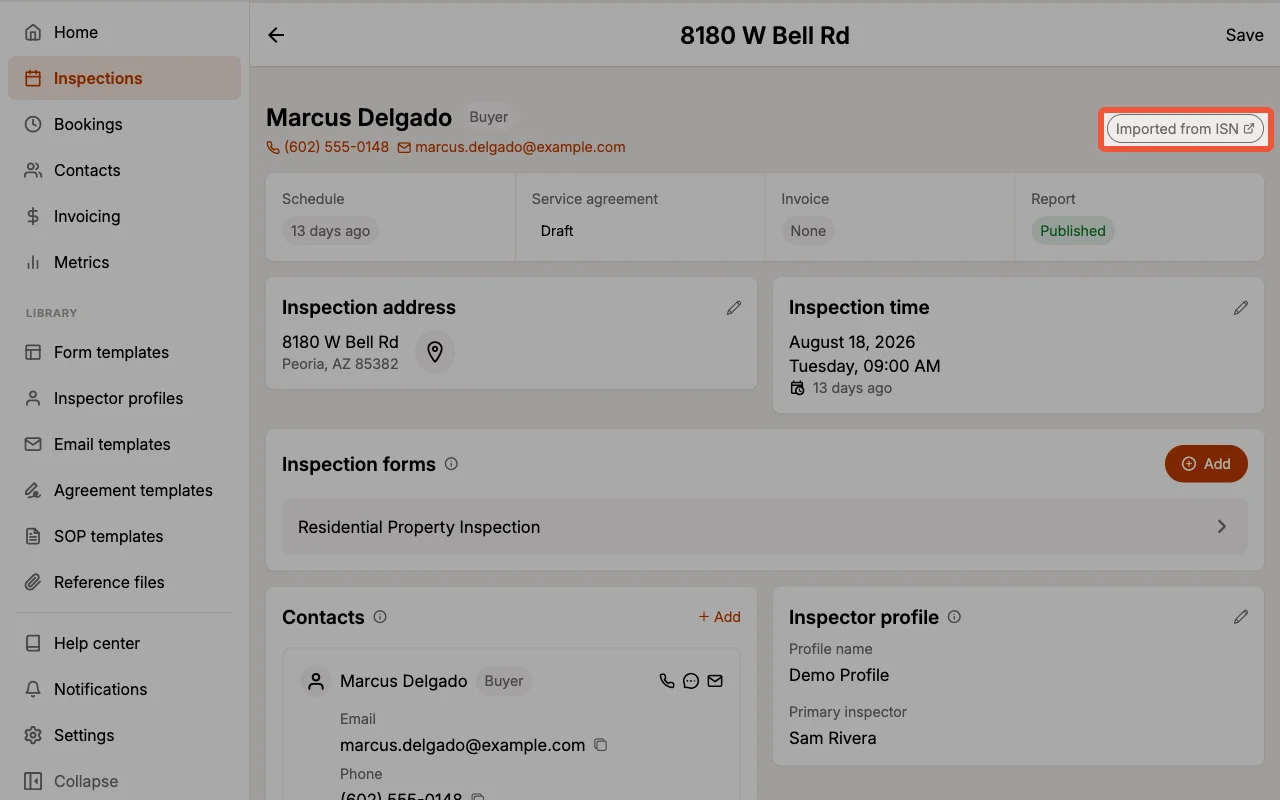
Select the badge to open the original order in ISN.
Sending reports back to ISN
When an inspector publishes a report for an ISN-imported Inspection, Eneris registers the report's link on the matching ISN order automatically, under the report's title. Nothing needs to be attached or uploaded by hand.
The report appears in the order's Inspection Reports list in ISN, where your office already looks for it.
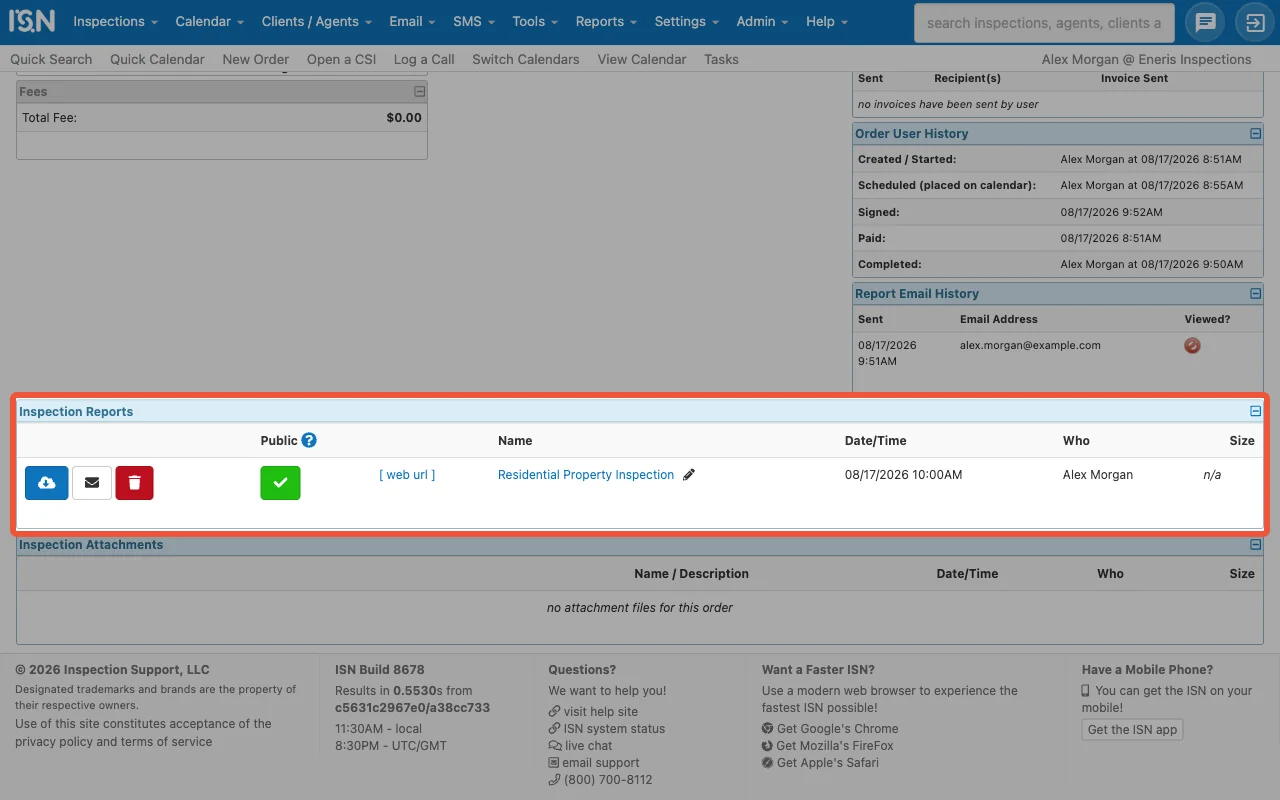
Sending a link rather than a file is deliberate: it keeps ISN in charge of how the report is delivered, so any payment or agreement-signature gating you have configured in ISN still applies before a client can open it, and the report always shows the latest published version.
If you publish the same form again later, ISN lists another entry for it. Every entry points at the same link, and that link always opens the most recent published version, so whichever one your office selects is the current report.
Eneris does not mark the ISN order as complete. Closing the order stays your office's decision, so you keep your existing workflow in ISN.
When you complete the order in ISN, choose I have NO Report File when ISN asks for a report. The published Eneris report is already listed on the order, so this completes the inspection without adding a second report to it.
Troubleshooting
One inspector's jobs never appear
Almost always, that inspector has no ISN access key in Eneris. Check the Inspector mapping section for a No access key badge on their row, then add their key under Access keys. Remember that an ISN key only ever imports its own owner's orders.
An access key shows Rejected
ISN refused the key on the last sync, which usually means it was revoked or rotated in ISN, or the inspector's ISN account was closed. Remove the key and add a current one from that inspector's ISN account.
Syncing is paused
The status shows Paused when an Inspector Profile or Form Template used by your mapping has been deleted. Nothing imports while this is the case, because Eneris cannot tell which profile or template the affected orders should use.
To fix it, go to the Inspector mapping section. The pickers that need attention are highlighted with a message explaining what was deleted. Choose replacements and select Save mapping. Syncing resumes on the next run.
Some orders could not be imported
The sync status names what happened:
- Orders that cannot import until they are fixed in ISN are missing something Eneris needs, most often a missing or invalid appointment time. Correct the order in ISN and it will import on the next sync.
- Orders that failed and will be retried hit a temporary problem. No action is needed; the next sync picks them up.
A report link could not be delivered to ISN
The message appears in the Sync section, separately from the sync status, because no orders were involved. The report is published and safe in Eneris; only the link on the ISN order is missing. Confirm at least one access key is still Connected, then publish again or contact support if it persists.
Disconnecting ISN
To disconnect:
- Open Settings, then ISN under Integrations.
- In the Connection section, select Disconnect.
- Confirm.
Your ISN credentials are deleted and syncing stops immediately. Inspections, Contacts, and reports that already imported stay in Eneris and are yours to keep.
Related
- Inspections: what imported orders become.
- Contacts: where imported clients and agents land.
- Reports: publishing, which is what sends the link back to ISN.
- Multi-inspector: who on your team can set ISN up.