Google Calendar
The Google Calendar integration keeps your inspections and your Google Calendar in step, so you can see your whole day in one place.
It works in both directions:
- Your inspections go to Google. Inspections assigned to you or shared with you appear as events in your Google Calendar, with the address, client, agents, fee, and a link back to Eneris. When an inspection changes in Eneris, its event updates on its own.
- Your Google events come into Eneris. Your own Google events are listed on the Calendar page in Eneris, and on your booking pages your busy time stops clients from booking over it.
Each team member connects their own Google account, so everyone sees their own schedule. Google Calendar is available to every role: Admin, Scheduler, and Inspector.
What syncs to Google
Eneris adds an inspection to your Google Calendar when it has a time and it is either:
- Assigned to you, meaning you are the inspection's inspector, or
- Shared with you through Manage Access.
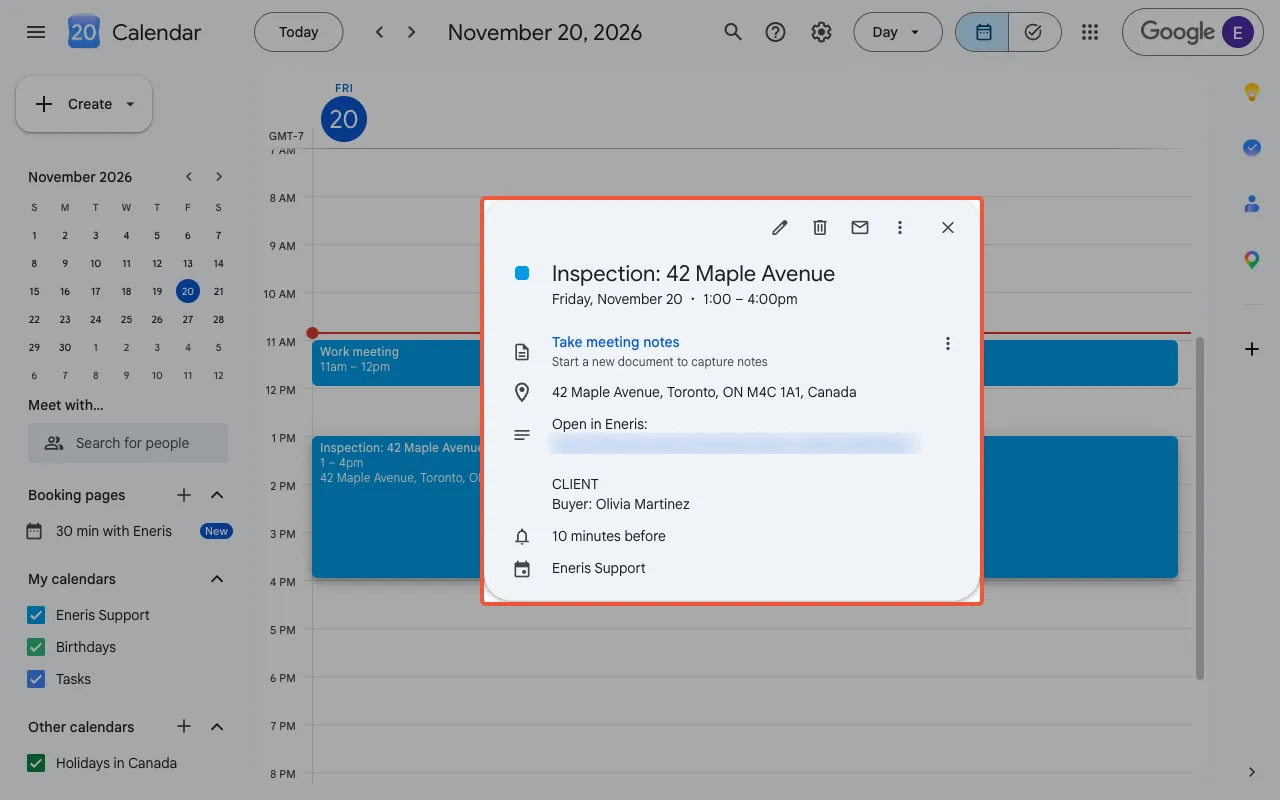
Events are added to the primary calendar of the Google account you connect. Each event looks like this:
- Title:
Inspection:followed by the street address. - Location: the full property address.
- Length: 3 hours, starting at the inspection time.
- Reminders: your Google Calendar's default reminders.
- Description: an Open in Eneris link to the inspection, followed by the details you would otherwise look up:
- Client and Agents
- Fee: the invoice line items, subtotal, taxes, total, and payment status
- Agreement: the status of the service agreement
- For each form, its Notes (the internal memo) and Property details
Sections with nothing in them are left out.
Keeping events up to date
When you change an inspection's time, address, assigned inspector, sharing, contacts, invoice or payment, service agreements, or forms, Eneris updates the event in Google.
An event is removed from your Google Calendar when:
- The inspection is deleted.
- The inspection's time is cleared.
- You are no longer the assigned inspector, or the inspection is no longer shared with you.
Eneris is the source of truth for inspection events. Changes you make to an inspection's event in Google are not copied back to Eneris, and they are replaced the next time the inspection changes. If you delete an inspection's event in Google, it comes back the next time the inspection changes. To change an inspection, change it in Eneris.
Connecting Google Calendar
To connect your Google Calendar:
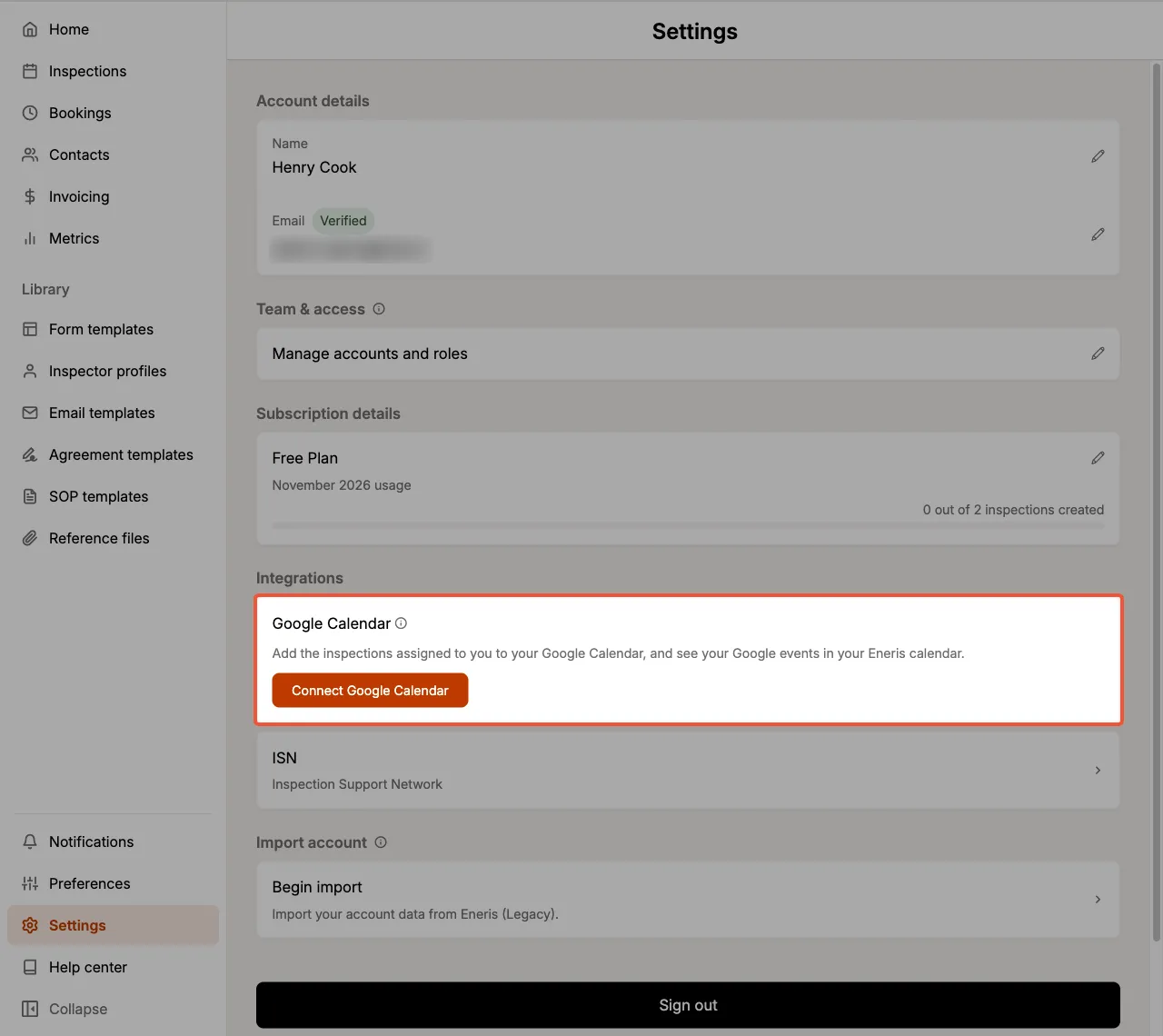
- From the sidebar, open Settings.
- Under Integrations, find the Google Calendar card and select
Connect Google Calendar.
- Choose how many Days of past inspections to add, from 0 to 365. The default is 30 days. Your upcoming inspections are always added.
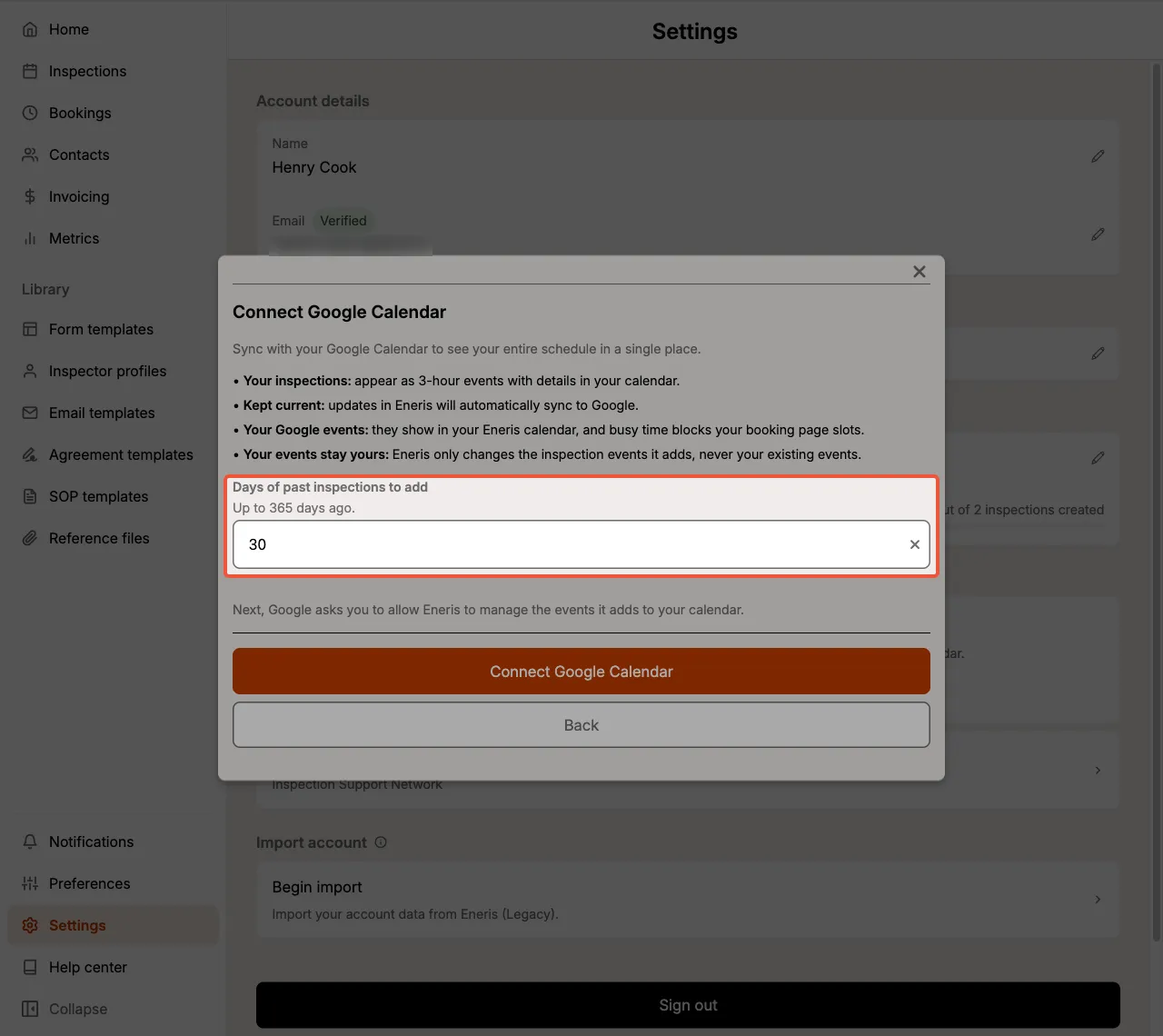
- Continue to Google, choose the Google account you want to use, and allow Eneris access to your calendar.
On the web, the browser tab goes to Google and then returns you to Settings. In the mobile app, a browser sign-in opens and then returns you to the app.
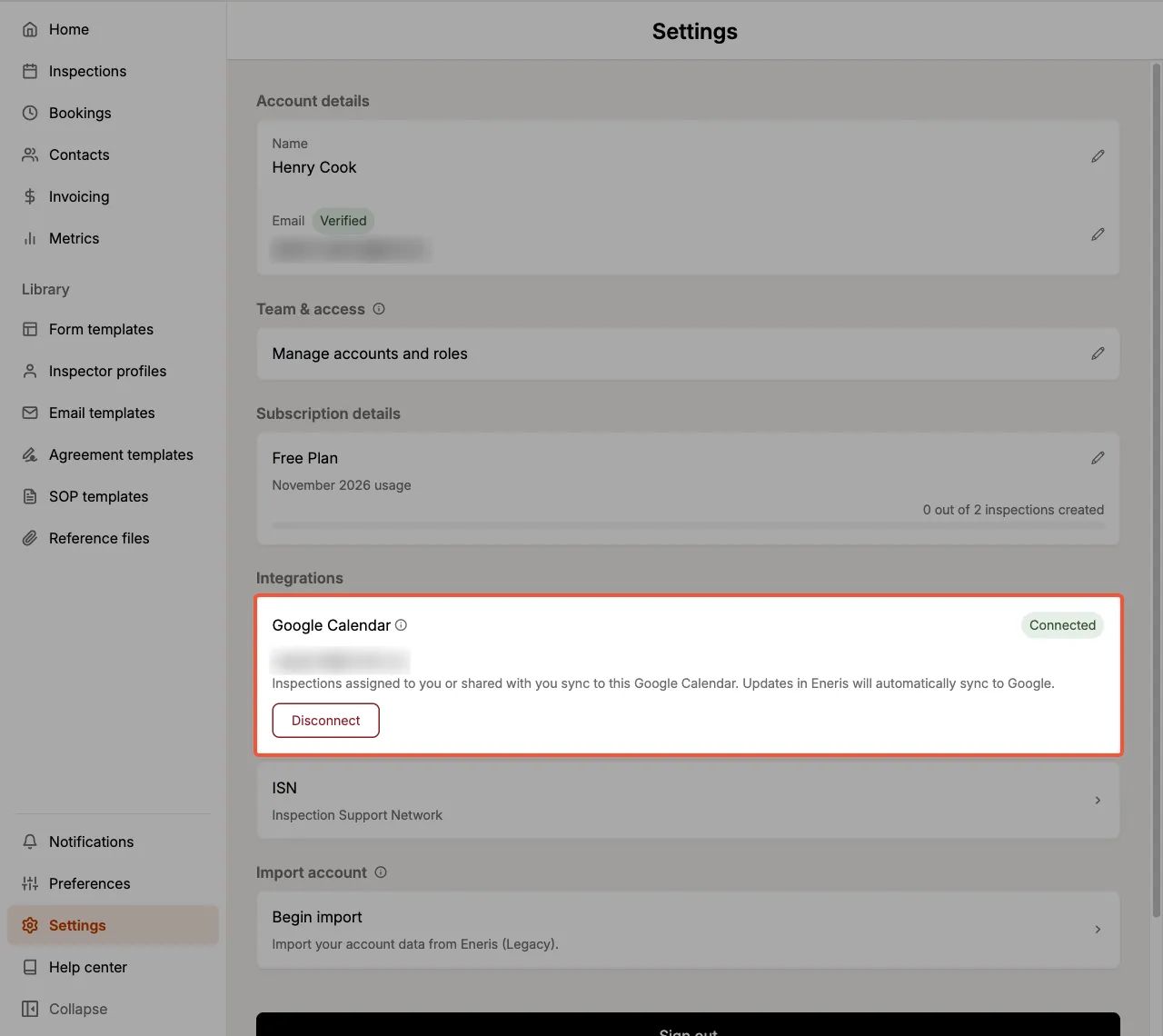
Once you are connected, the card shows a Connected badge and the Google account you chose. Your inspections appear in Google over the next few minutes.
Your Google events in Eneris
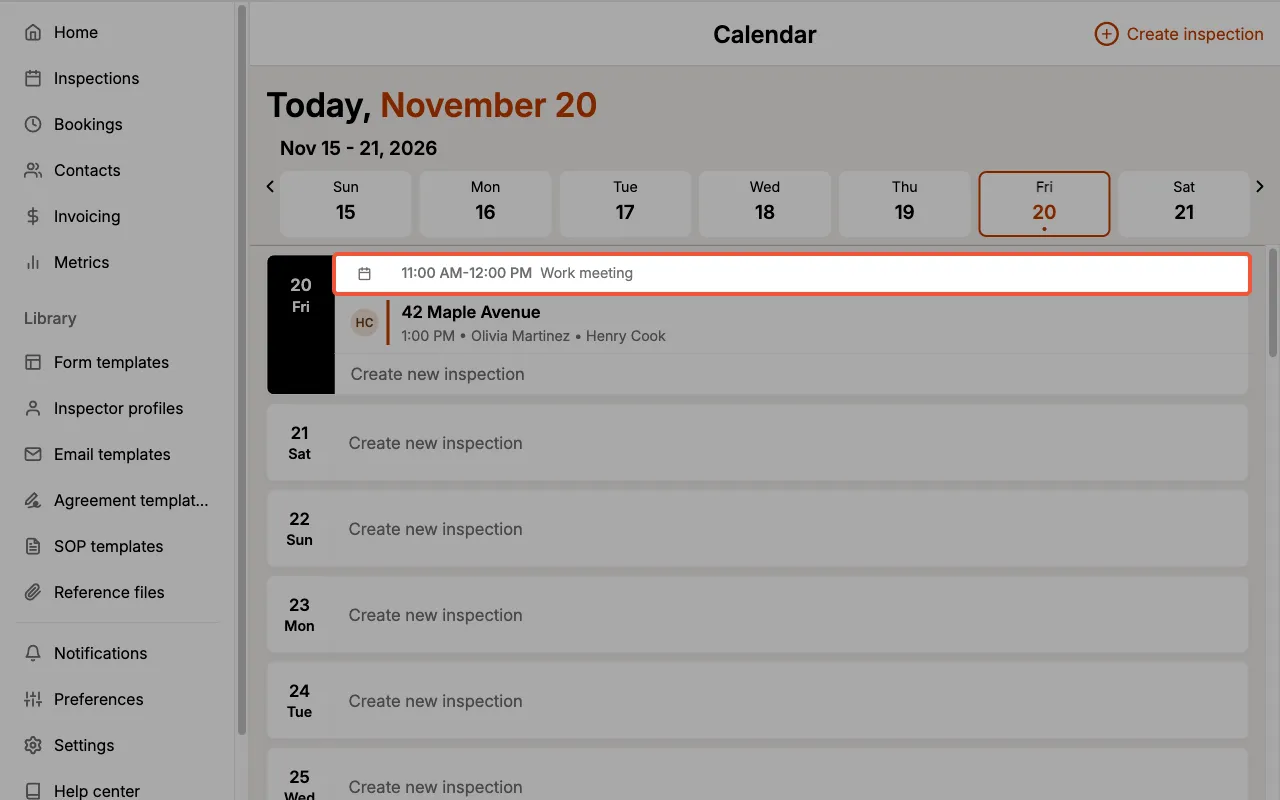
After you connect, your own Google events from your primary calendar appear on the Calendar page in Eneris, alongside your inspections.
- Each Google event shows as a compact row with a calendar icon, its time (for example,
8:00-9:00 AM, orAll day), and its title. - All-day events are listed first.
- Google events are read-only in Eneris. To change one, open it in Google Calendar.
- Cancelled events and events you have declined are not shown.
- Only you can see your Google events. Other members of your team do not see them in Eneris.
If your Google events cannot be loaded, the Calendar page shows Couldn't load Google Calendar events. with a Retry button.
Booking page availability
If you are the inspector assigned to a booking page, your busy Google events block the matching time slots on that page, so clients cannot request a time you are already booked.
- Google events only block slots when Block off times that conflict with other inspections is turned on for the booking page.
- The booking page's Buffer time between bookings applies to your Google events too.
- Events marked Free in Google Calendar do not block slots.
To set up booking pages, see Online Scheduling.
Reconnecting
Sometimes Google stops accepting updates from Eneris. This can happen, for example, if access for Eneris is removed in your Google account settings. When that happens:
- The Google Calendar card in Settings shows a Reconnect needed badge and explains that your calendar is out of date.
- The Calendar page shows Google Calendar needs reconnecting. with a
Reconnectlink that takes you to Settings.
To resume syncing, select Reconnect Google Calendar on the card and allow access in Google again.
Disconnecting
To stop syncing:
- From the sidebar, open Settings.
- On the Google Calendar card, select
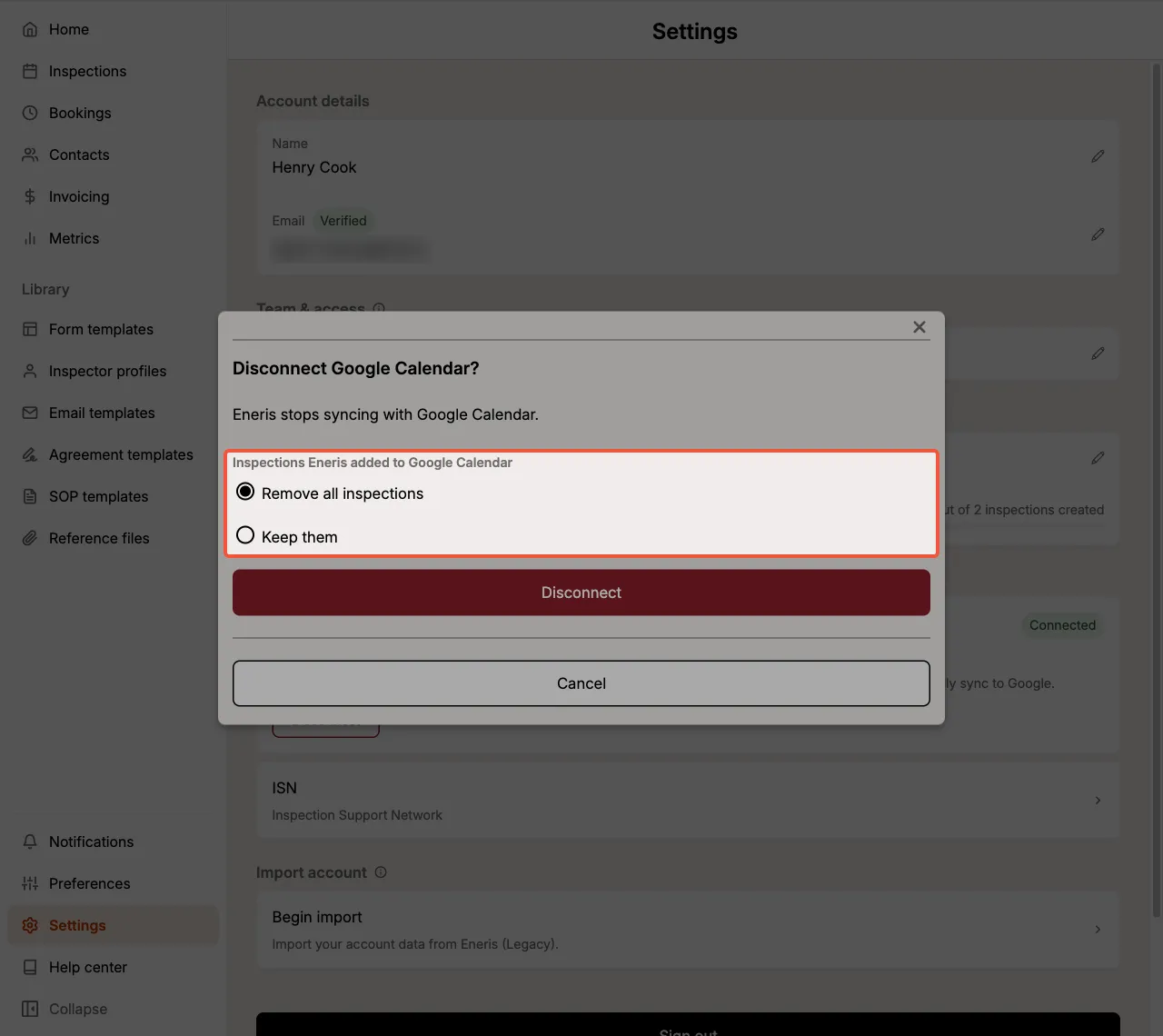
Disconnect. - Under Inspections Eneris added to Google Calendar, choose what happens to the events already in Google:
Remove all inspections(the default): Eneris removes the inspection events it added. They disappear from Google over the next few minutes.Keep them: the events stay in your Google Calendar, but they are no longer updated.
- Select
Disconnectto confirm.
If the card shows Reconnect needed, Google is no longer accepting changes from Eneris, so there is no choice when you disconnect: the inspection events already in your Google Calendar stay there. Delete them in Google if you no longer want them.
Good to know
- Your own events are safe. Eneris only changes the inspection events it adds. It never edits or deletes your other Google events.
- Primary calendar only. Inspections are added to, and events are read from, the primary calendar of the connected Google account.
- Everyone connects their own. Connecting your Google Calendar does not connect anyone else's. Each team member connects theirs from their own Settings.
For other settings, see Settings.