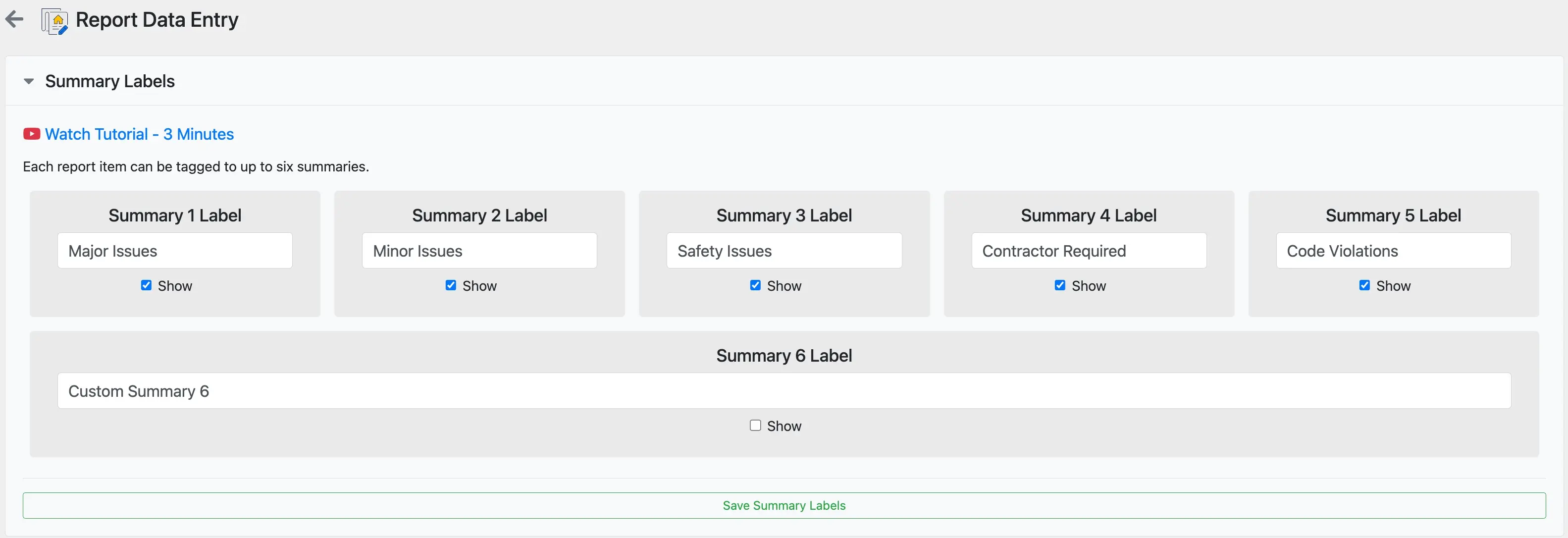
Summary labels
Summary labels enable the ability to highlight key items from your inspection to the top of the report. The text in the labels are fully customizable.
Here is a 3 minute summary video of the feature.
Using summary labels
Summary labels are used during the writing of an inspection report and the resulting highlighted sections are visible in PDF reports and web reports.
Writing inspection reports
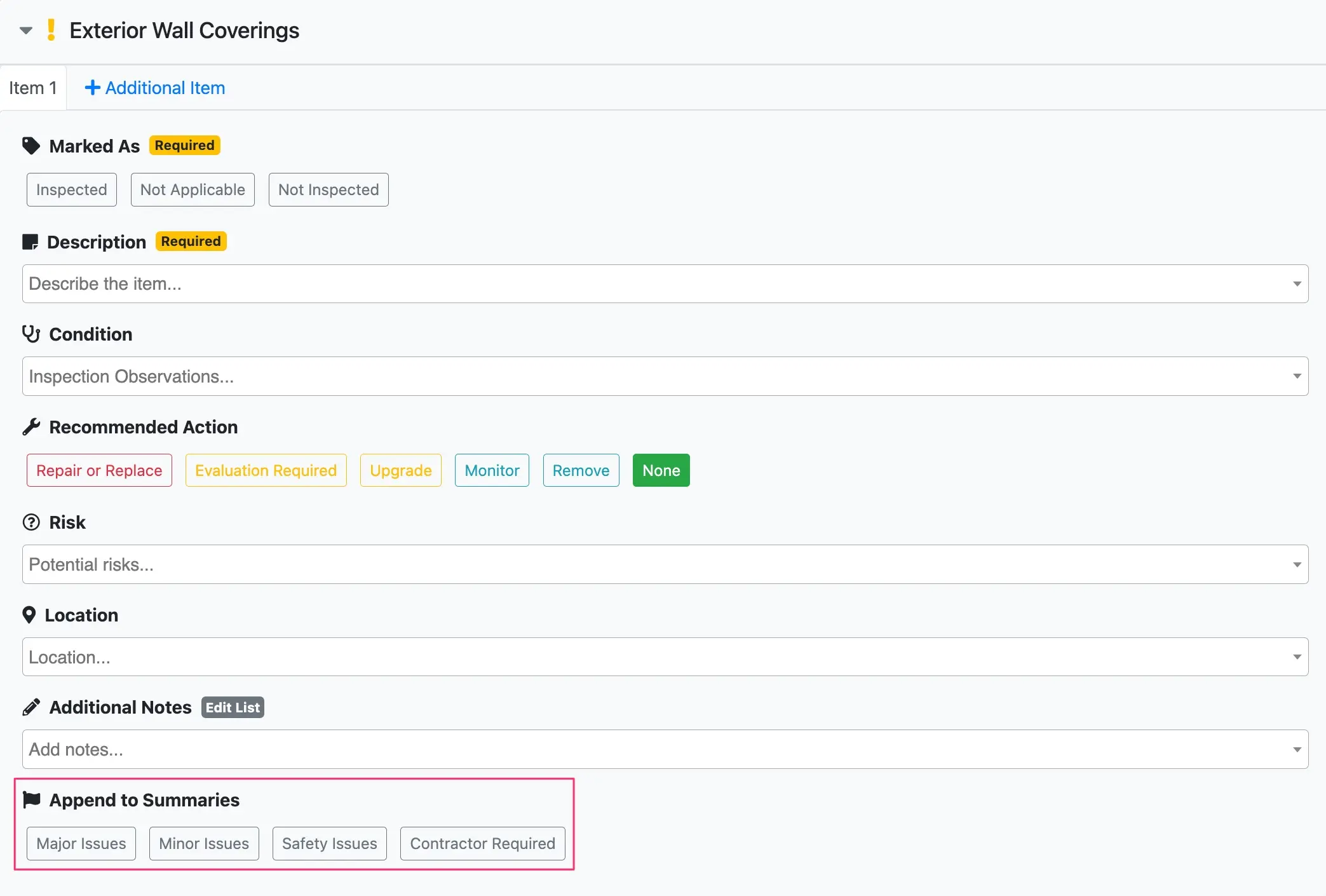
Summary labels can be found in the Append to Summaries section while writing the inspection report.
PDF reports
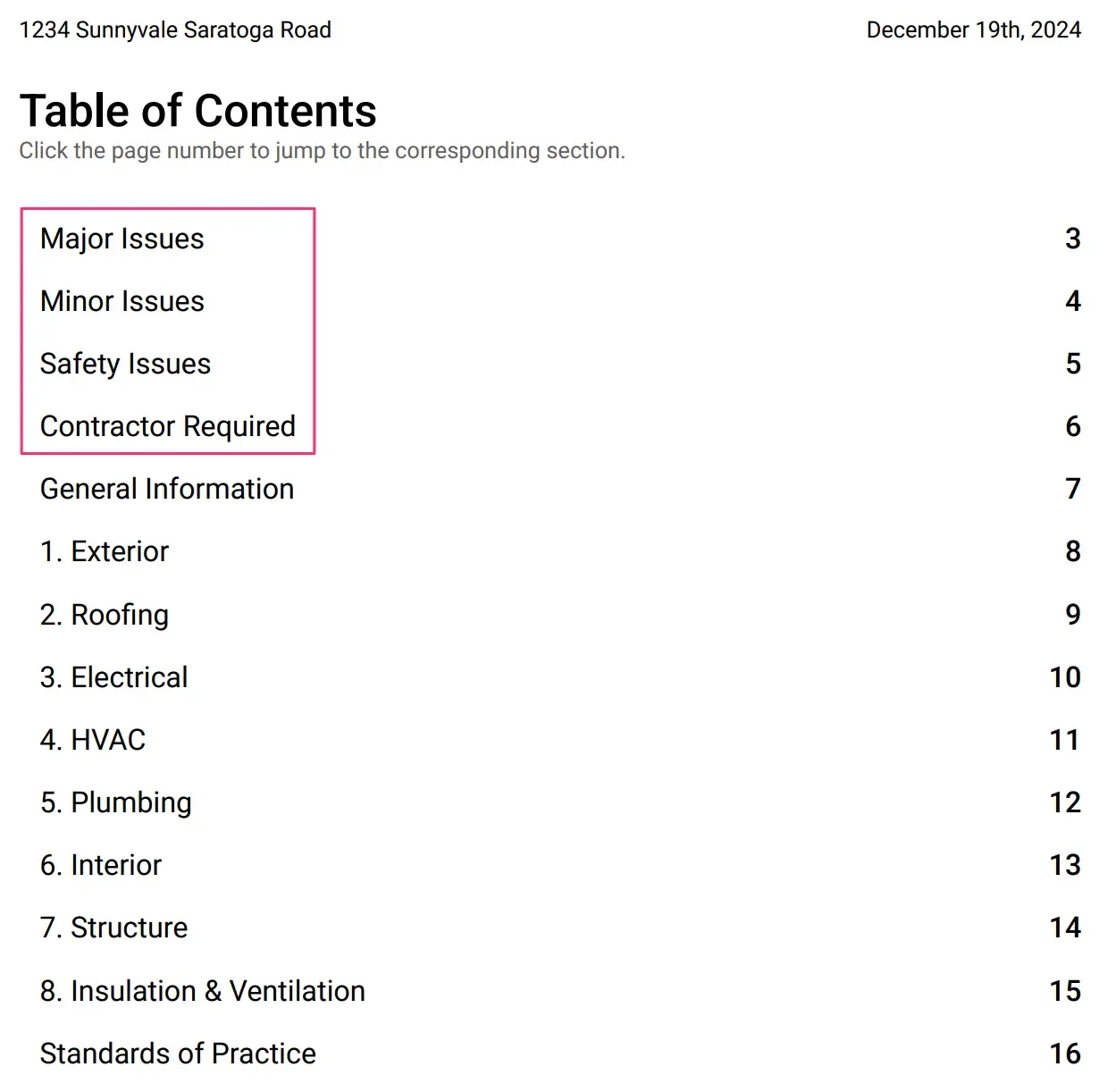
Summary labels can be found above the General Information section in the Table of Contents in the PDF report. A brief description of the highlighted items will appear here. Full details of the highlighted items can be found in their respective systems in the PDF report.
Web reports
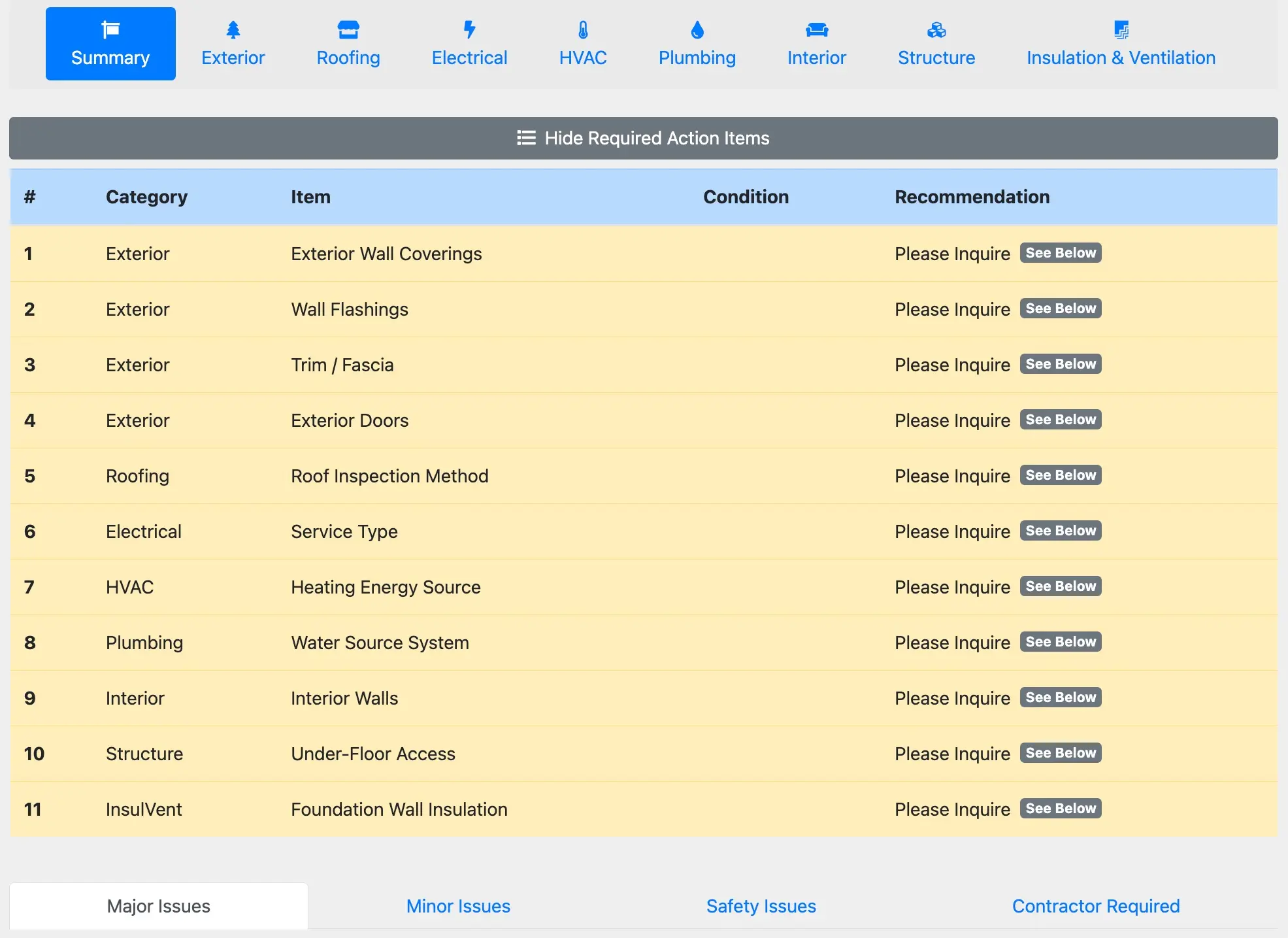
Summary labels can be found in the Summary section in the Web report. A brief description of the highlighted items will appear here. Full details of the highlighted items can be found in their respective systems in the web report.
Summary label setup
Follow the steps below to customize your summary labels:
- Navigate to
Settings. - Select
Report Data Entry. - Expand the
Summary Labelsmenu. - There are a total of six summary labels to customize and enable/disable, as desired.
- Select
Save Summary Labelsafter completing your changes. - Inspection reports created from this point onward will now use the updated summary labels.